Image Settings
Default Topology Image
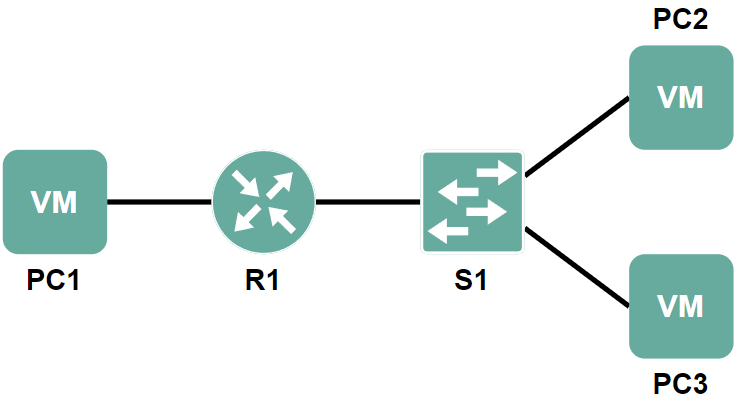
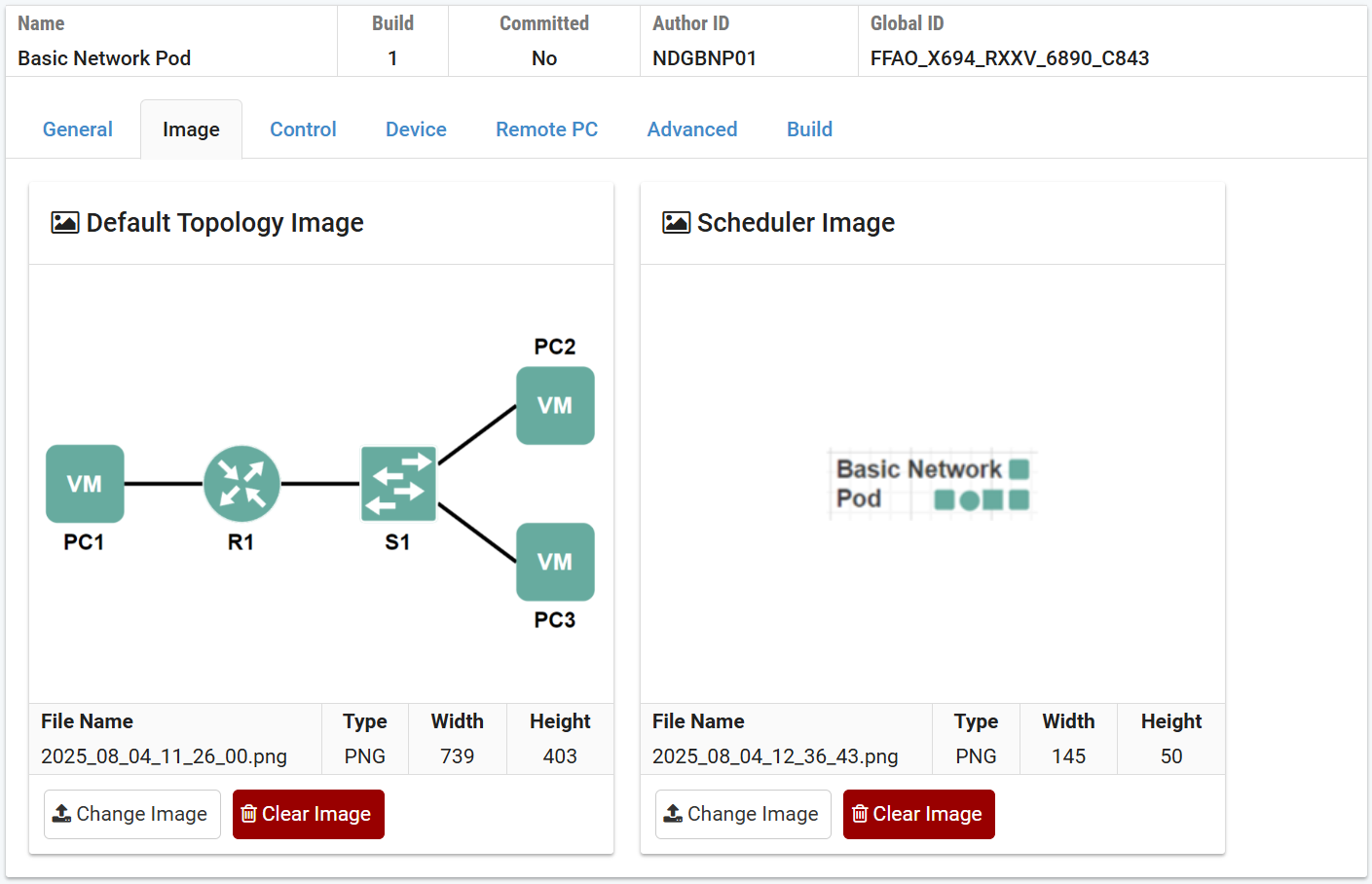
Each pod design may have one default topology image associated with the pod. A topology image is a GIF, JPEG, or PNG file that users see during a lab reservation. Each lab exercise can specify a topology image or use the default image. For best results, the width of a topology image should not exceed 600 pixels.
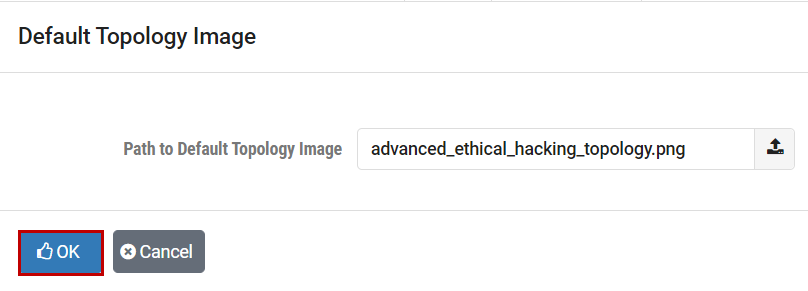
The default topology image is used when a lab exercise does not explicitly specify a topology image. To import a default topology image for this pod design, specify the path of a GIF, JPEG, or PNG file on your PC or workstation or click the browse/choose button.
This image is displayed in the lab access topology tab during a lab reservation. If you omit the default topology image, the lab access topology tab will not display an image unless the user has selected a lab exercise that provides one.
Example
Scheduler Image
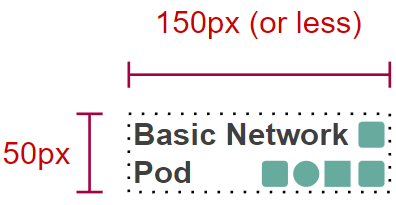
A scheduler image is a small rectangular thumbnail that uniquely identifies the pod design and appears in various scheduling functions. If you do not define a scheduler image, NETLAB+ will display the Pod Name and Pod Description values from the general settings. A scheduler image must conform to the following specifications:
Property |
Constraints |
|---|---|
File Format |
GIF, PNG, or JPEG |
Width |
150 pixels or less |
Height |
50 pixels exactly |
Background Color |
Transparent (if supported) |
Example Scheduler Image
Setting an Image
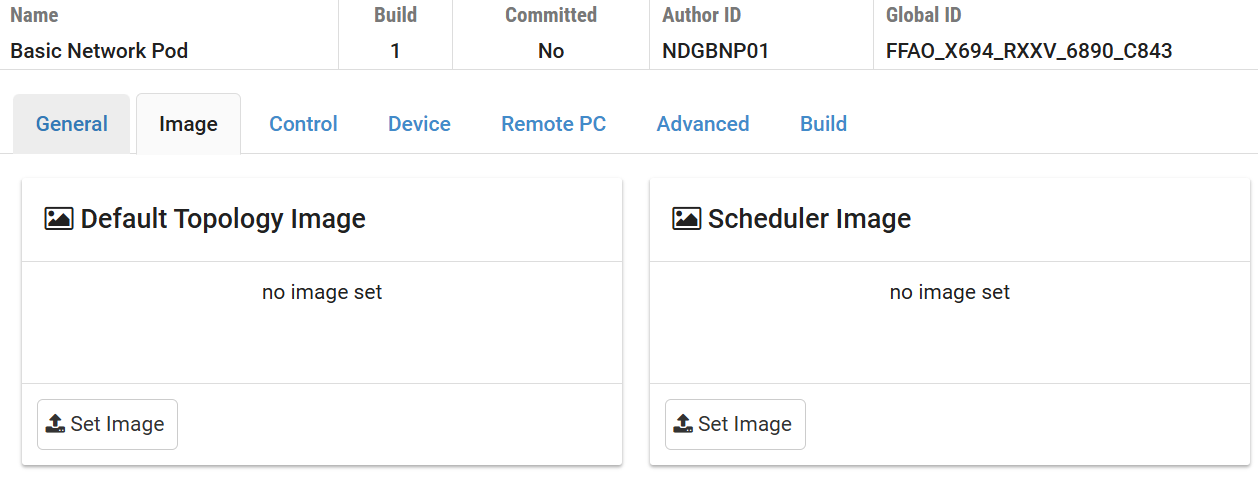
Select the Image tab.
Click one of the Set Image buttons to set
the respective image.
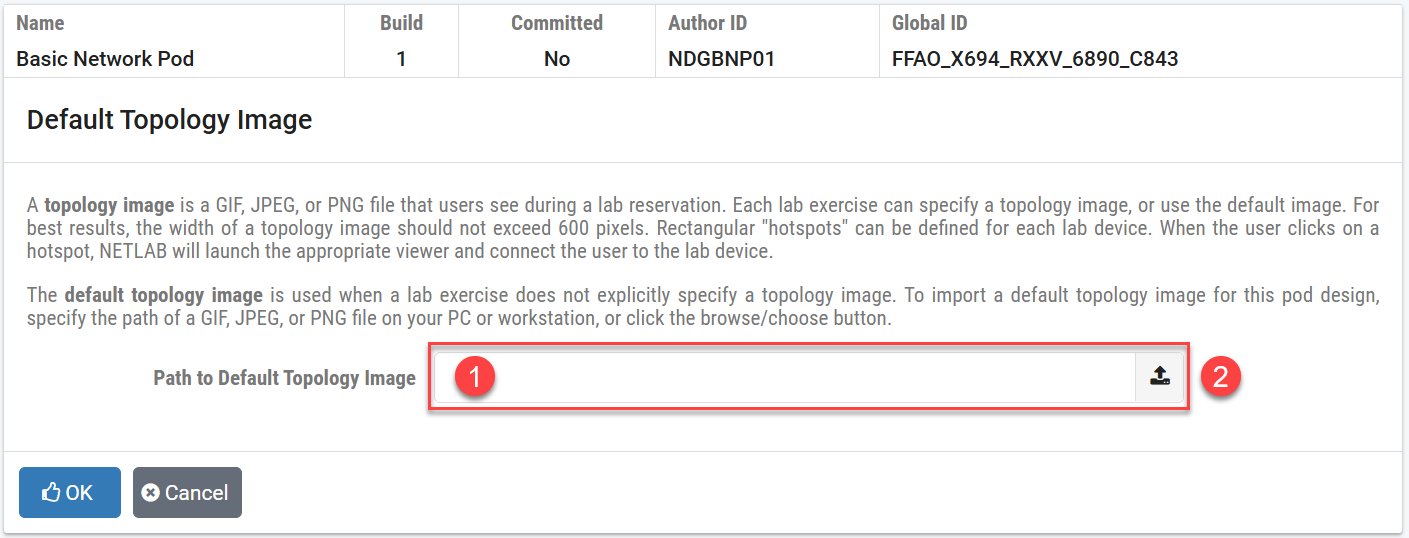
Select an image using either of the following options:
1Enter the complete path and file name, which must end with one of the supported extensions (GIF, JPEG, or PNG).2Click theUpload Imagebutton to upload an image from your PC to the pod design file. This opens a file browser on your computer.
Click the OK button.
The loaded image will now be displayed.
Setting Hotspots
The default topology image can have hotspots defined for devices and PCs shown on the image. A hotspot is an invisible rectangular area placed on top of a router, switch, firewall, or PC in the image. When a user clicks on a hotspot, NETLAB+ will launch the appropriate viewer and connect to the device.
See the hotspots section for details on how to set hotspots for the default topology image.
Clearing an Image
Click the Clear Image on either image
to clear it.
Select OK to proceed with clearing the image.
