Let’s Encrypt
This option allows you to obtain a signed certificate from Let’s Encrypt, a free certificate authority. Your NETLAB+ system will interact with Let’s Encrypt to request the signed certificate and respond to a challenge issued by Let’s Encrypt to verify control of the domain.
Important
The following requirements must be met to use Let’s Encrypt:
Your system must have an Internet-accessible public DNS entry.
Both Ports 80 and 443 must be accessible and open through the firewall.
Navigate to > Settings > Network Settings
Click Configure SSL
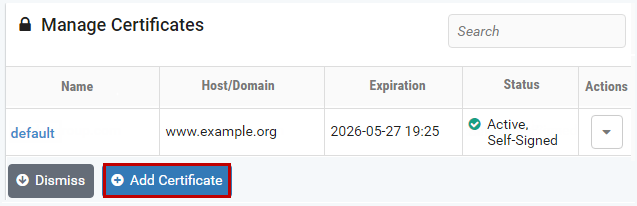
Click Add Certificate

Select the option Get a certificate from Let's Encrypt
Click Next
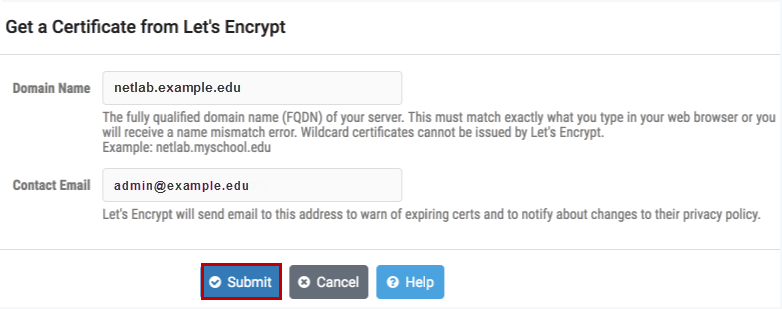
Enter the appropriate information into the fields (see field descriptions below).
- Domain Name:
The fully qualified domain name (FQDN) of your server. This name must match exactly what you type in your web browser, or you will receive a name mismatch error. Wildcard certificates cannot be issued by Let’s Encrypt.
- Contact Email:
Let’s Encrypt will send email to this address to warn of expiring certificates and to notify about changes to their privacy policy.
Be sure to enter the address of an email account that is checked on a regular basis to ensure that your organization is kept aware of any issues with the certificate.
Click Submit
A message will confirm that the certificate has been generated.
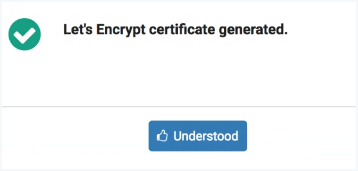
Click Understood
Notice the expiration date. The certificate will expire in 90 days.
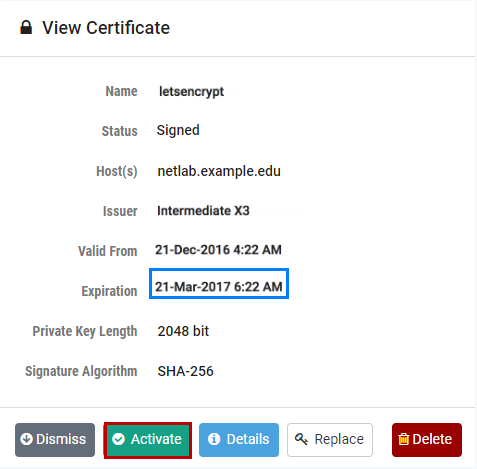
Click Activate
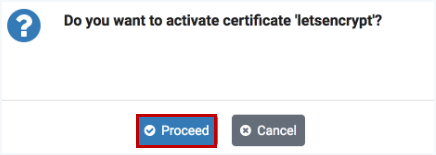
Click Proceed to confirm that you want to
activate the certificate.
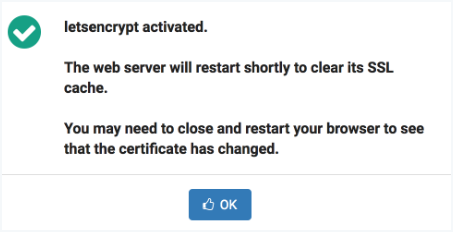
The letsencrypt certificate is activated. As noted, you may need to restart your browser to see that the certificate has changed.
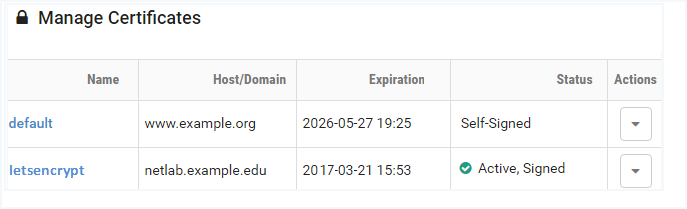
Verify that the letsencrypt certificate is now active and you browswer address indicates HTTPS.
Tip
If the Let’s Encrypt certificate is not active, it may be necessary to log off the system, close your browser window, and then re-enter the system.
Verify that your browser address now indicates HTTPS. It may be necessary to log off the system, close your browser window, and then re-enter the system.

Under normal operating conditions, no administrator action is required to renew the certificate. If system outages for an extensive period have prevented the automatic renewal from executing, the certificate will expire at the end of the 90-day period.
The administrator may initiate a request to renew the certificate by clicking
the Renew button on the View Certificate page. However, before
proceeding, we recommend contacting our support
team for assistance in
troubleshooting/resolving any problems with the automated process.

As noted, click Proceed if you have been instructed to perform this step by our support team.
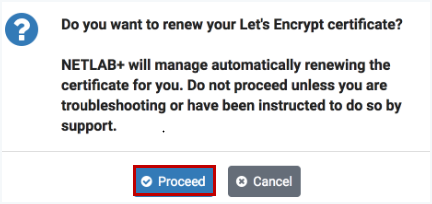
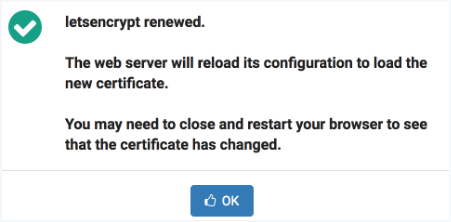
Click OK to confirm that you want to
renew the certificate.
You may need to close and restart your browser to see the updates to the certificate.