Manage License
Notice the message at the top of the administrator Home page, indicating that system registration and software license activation is required.

The email from Network Develop Group (NDG) includes the following items needed to activate the license:
- System Serial Number:
The serial number of your NETLAB+ system.
- License Key:
The license key for your NETLAB+ system (good for 5 activations).
The System Serial Number and License Key must be entered into your NETLAB+ system in order to enable activation of its full functionality, including the scheduling of lab reservations. See the Activate License subsection below.
Note
Please keep your license information in a secure place. You will need to enter it periodically, when major events/changes have taken place on your NETLAB+ system. See the Reactivate License subsection below.
Activate License (Initial Activation)
Complete the following steps to activate your system license key. You will need the System Serial Number, and License Key provided to you from NDG.
Warning
The NETLAB+ virtual machine must have network connectivity for license activation. Please make sure network setup is completed before activating the license, refer to the Network Settings section for guidance.
From > Settings > select Manage License (or select Manage License on the alert message at the top of the page; see the previous section).
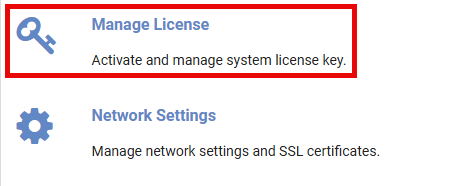
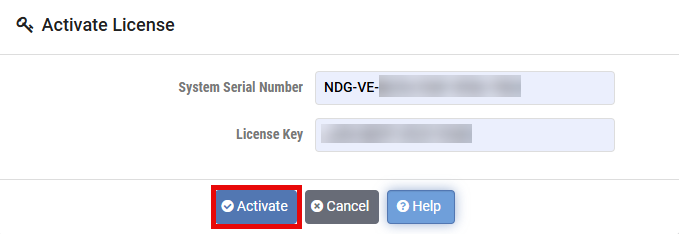
The Activate License page will be displayed. Enter the System Serial Number and the License Key provided by NDG. Select Activate.
Tip
Your easiest option for entering the System Serial Number and License Key is to simply copy and paste from the customer information letter. If you enter the information into these fields, keep in mind the following:
System Serial Number:
Can be lowercase/uppercase
Must include dashes
License Key
Must be uppercase
Must include dashes
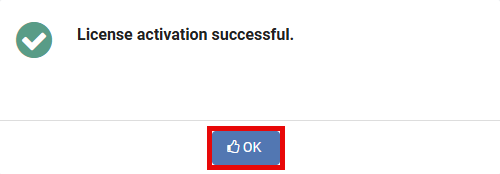
A message will display, indicating the license activation was successful. Select OK.
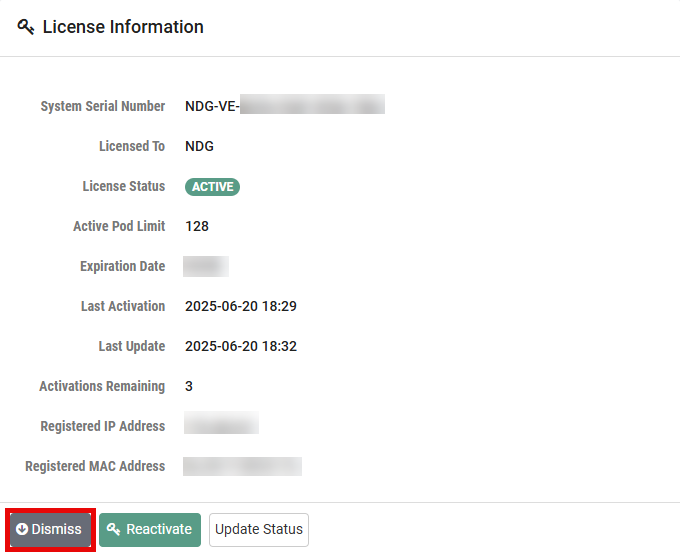
The License Information page will be displayed. Notice that the license status has been changed to Active. Your system is now fully functional.
To ensure the information is updated, click Update Status.
Click Dismiss.
Reactivate License
In some cases, modifications made to the NETLAB+ system will require software license reactivation. Events that will trigger the requirement to reactivate include:
Change of MAC address
Change of IP address
Change of virtual machine UUID
Restoration of the NETLAB+ virtual appliance from a backup
When reactivation is required, the administrator Home page will display the following alert.

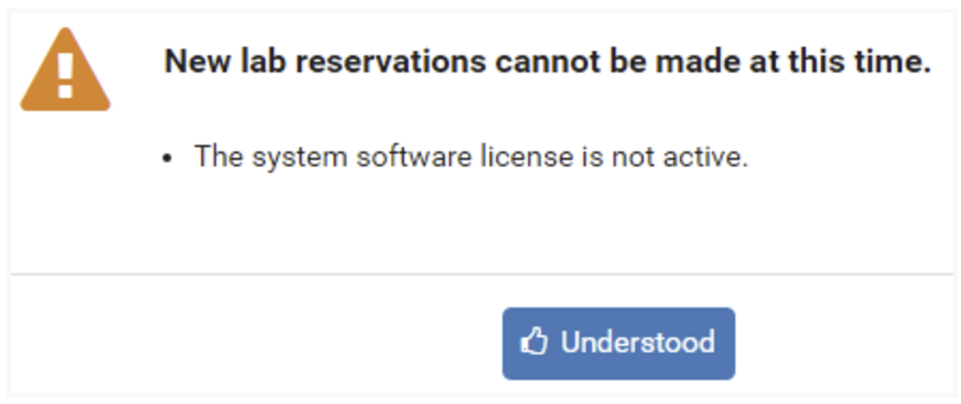
Also, be aware that the following message will be displayed to users if a user attempts to schedule a lab reservation while the software license is not active.
Warning
Your license key allows five (5) activations only. A “fresh” license key may be requested from NDG support (see www.netdevgroup.com).
Complete the following steps to reactivate your system license key. You will need the System Serial Number, and License Key provided to you by NDG.
To reactivate the license, from > Settings > select Manage License.
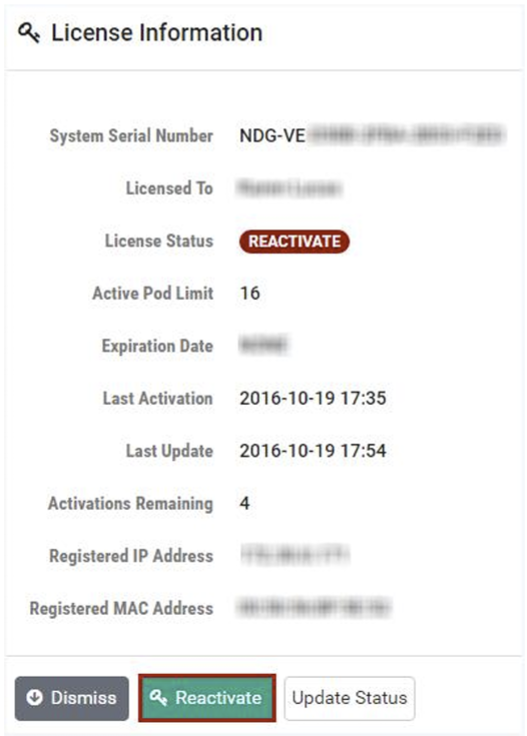
The License Information page will be displayed. Notice that the License Status is Reactivate. Select the Reactivate button.
The Activate License page will be displayed. Enter the System Serial Number and the License Key provided by NDG. Select Activate.
Tip
Your easiest option for entering the System Serial Number and License Key is to simply copy and paste from the customer information letter. If you enter the information into these fields, keep in mind the following:
System Serial Number:
Can be lowercase/uppercase
Must include dashes
License Key
Must be uppercase
Must include dashes
A message will display, indicating the license activation was successful. Select OK.
The License Information page will be displayed. Notice that the license status has been changed to Active, full system functionality is restored.
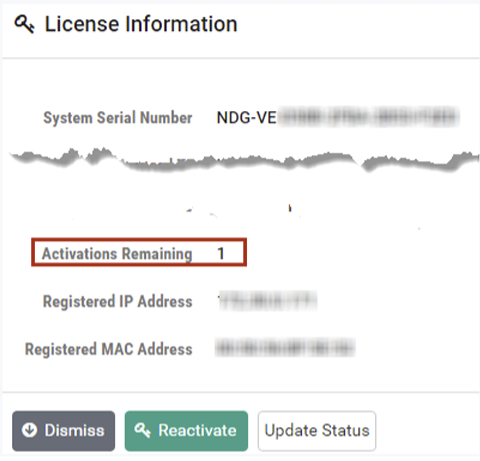
Review the license information on the License Information page, including the Activations Remaining. If you have only one (1) activation remaining, an alert message will display at the top of the License Information page. Click Dismiss after reading.

Warning
Your license key allows five (5) activations only. A “fresh” license key may be requested from NDG support (see www.netdevgroup.com).
Note
You do not have to wait until you have used up all 5 activations to request a new license key. We recommend that you request a new license key when you have one activation remaining, doing so will ensure your that you always have a valid license key on hand.