Appearance
Custom branding of your NETLAB+ system allows you to use your own logos and graphics to make your system uniquely identifiable and can serve as an asset for your marketing strategy. The administrator may customize the NETLAB+ user interface by modifying the settings for displaying certain interface elements, such as login and banner logos.
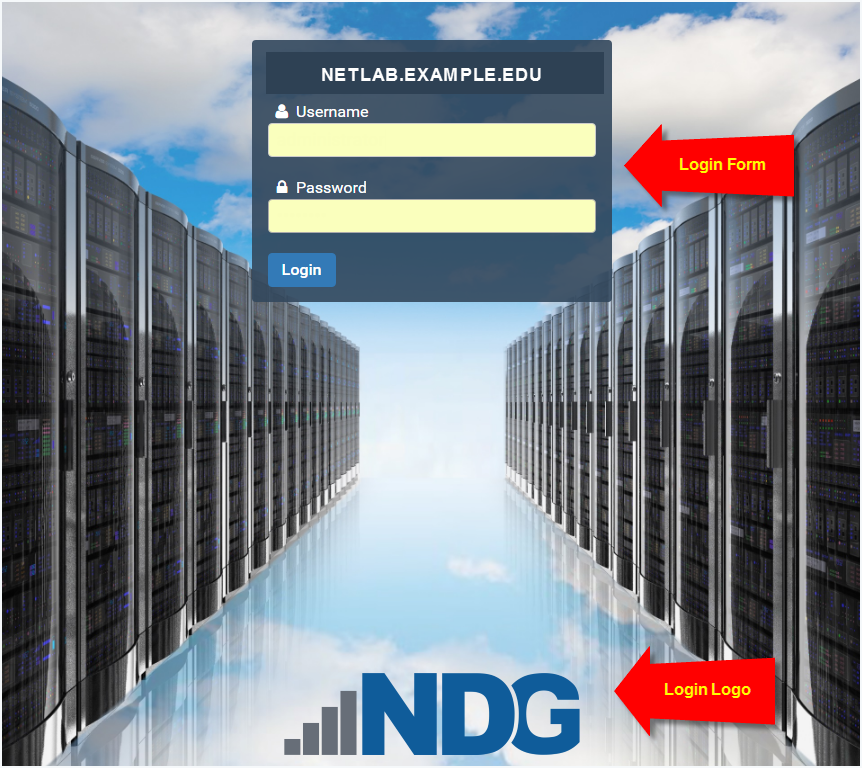
First, we will look at the default images provided for the display elements. The default Login Form and Login Logo are displayed on the default Login Background in the picture below.
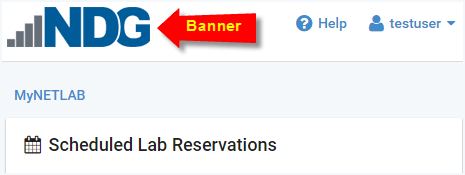
The picture below shows the default Banner Logo on the MyNETLAB+ page of a student account.
To customize the appearance of your NETLAB+ system, select > Settings >
Appearance.
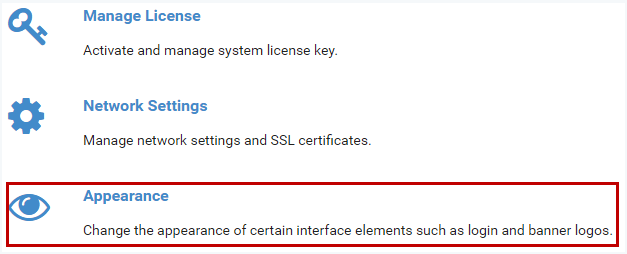
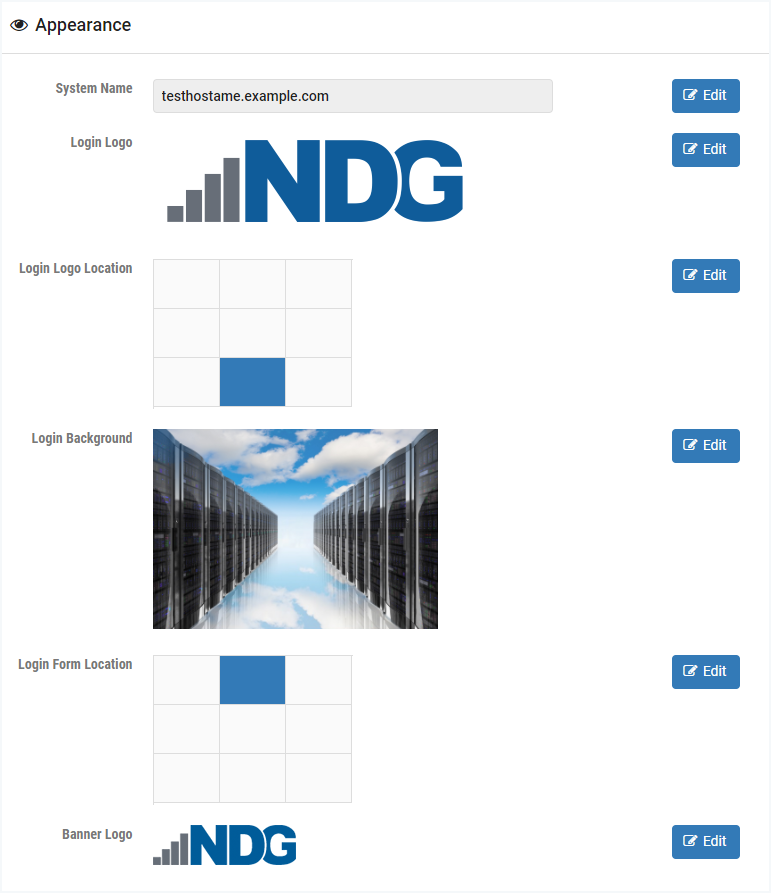
The Appearance page is displayed. The System Name, Login Logo, Login Logo Location, Login Background, Login Form Location, and Banner Logo may be updated by selecting their respective Edit button, located to the right of each element. The interface elements are discussed in the subsections below.
System Name
Assigning a custom system name can make it easier for users to identify which NETLAB+ they are logging into if they have access to more than one NETLAB+ system. The name will be displayed on the login page instead of the hostname.
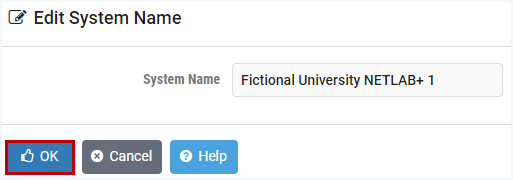
To enter a custom name, select the Edit button to the right of the System Name on the Appearance page.

Enter a name for your system and then select OK (if no system name is provided or if it is cleared, the hostname will be displayed once again).
Login Logo
You may replace the logo on the NETLAB+ login page by uploading an image file with your own logo.
Acceptable file formats include .gif, .jpg, and .png. Images with heights greater than 100 pixels will be scaled down to 100 pixels.
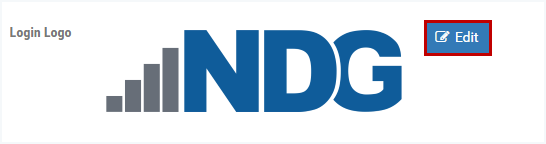
To replace the default logo, select the Edit button to the right of the Login Logo on the Appearance page.
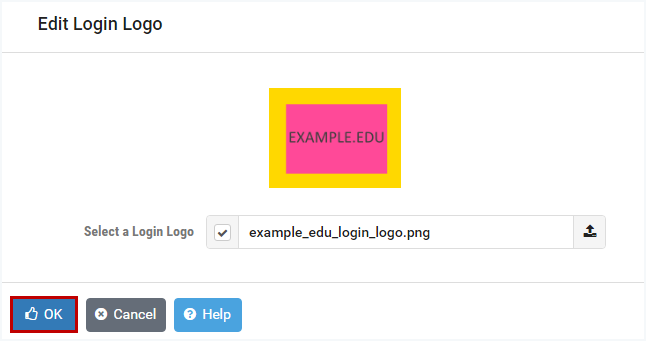
The Edit Login Logo page is displayed. Click the checkmark box next to Select a Login Logo.
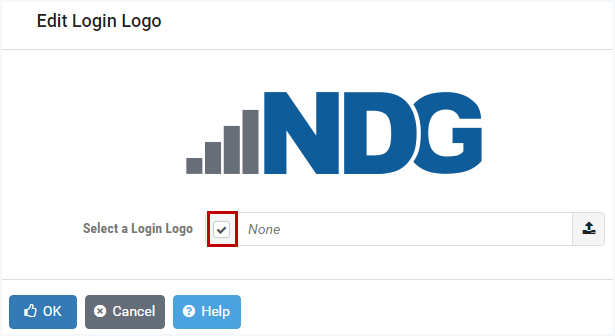
A window will open, allowing you to select the image file you would like to use for the NETLAB+ login page.
Warning
Acceptable file formats include .gif, .jpg and .png. Images with heights greater than 100 pixels will be scaled down to 100 pixels.
The image file you select will be displayed on the Edit Login Logo page. Click OK.
Note
To restore the default Login Logo, simply click OK without selecting a file.
Login Logo Location
You may select the preferred position on the login page for the Login Logo.
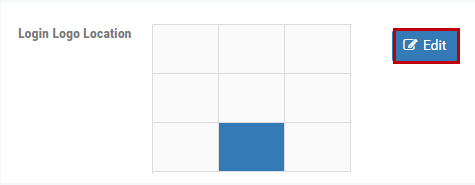
Select the Edit button to the right of the Login Logo Location grid.
Notice the default location indicated on the grid below is in the center, at the bottom of the page.
The Edit Login Log Location page is displayed.
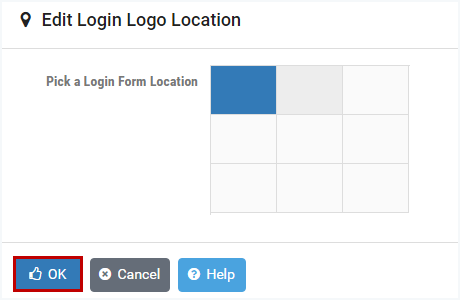
Choose a cell from the grid below that best resembles the preferred location of the logo on the NETLAB+ login page.
In the example below, the cell in the upper-left has been selected. Click OK.
Warning
Please note that the Login Logo and Login Form cannot occupy the same location.
Login Background
You may replace the background on the NETLAB+ login page by uploading an image file with your own background.
Acceptable file formats include .gif, .jpg, and .png.
Background images may be scaled and/or cropped to accommodate the size of users’ browser windows.
To replace the default background, select the Edit button to the right of the Login Background on the Appearance page.
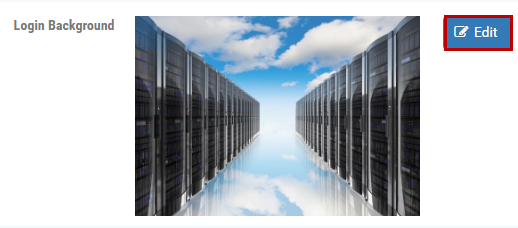
The Edit Login Background page is displayed. Click the checkmark box next to Select a Login Background.
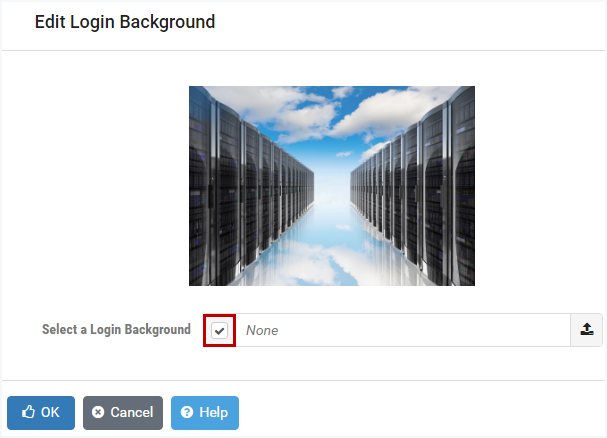
A window will open, allowing you to select the image file you would like to use for the NETLAB+ login background.
Warning
Acceptable file formats include .gif, .jpg and .png.
Background images may be scaled and/or cropped to accommodate the size of users’ browser windows.
The image file you select will be displayed on the Edit Login Background page. Click OK.
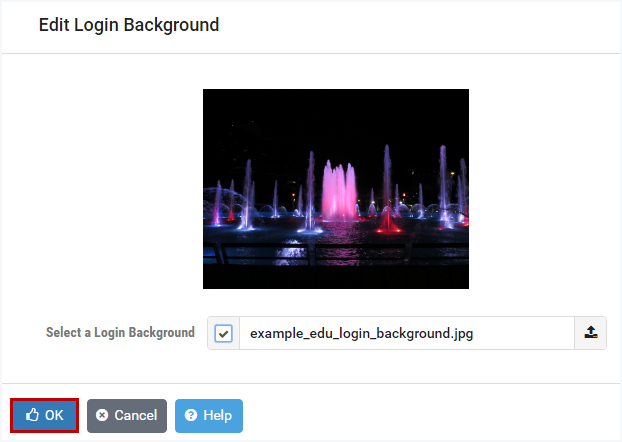
Note
To restore the default Login Background, simply click OK without selecting a file.
Login Form Location
The login form contains the fields in which users enter their username and password. You may select the preferred position on the page for the Login Form.
Select the Edit button to the right of the Login Form Location grid.
Notice the default location indicated on the grid below is in the center, at the top of the page.
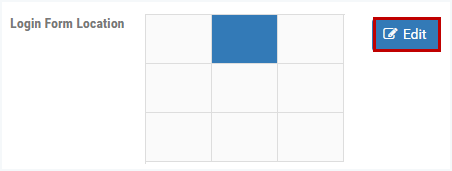
The Edit Login Form Location page is displayed.
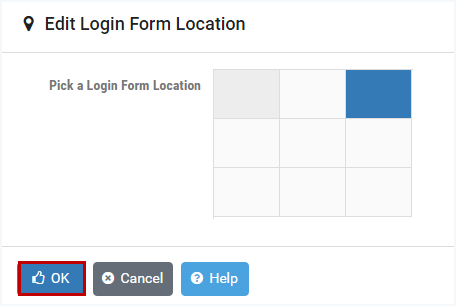
Choose a cell from the grid below that best resembles the preferred location of the form on the NETLAB+ login page.
In the example below, the cell in the upper-right has been selected. Click OK.
Warning
Please note that the Login Logo and Login Form cannot occupy the same location.
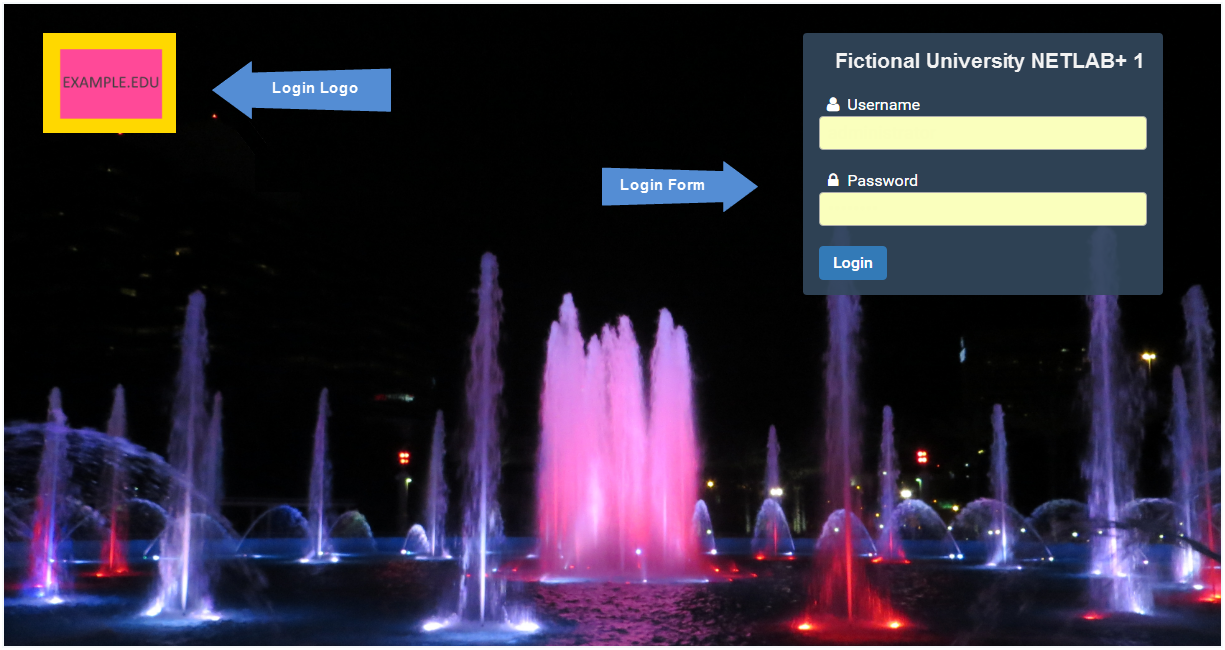
The picture below shows the updated login screen, with the Login Logo and Login Form, including the custom system name, placed in the selected preferred positions on the updated background image.
Banner Logo
You may replace the banner by uploading an image file with your own banner logo.
Acceptable file formats include .gif, .jpg, and .png. Images with heights greater than 40 pixels will be
scaled down to 40 pixels.
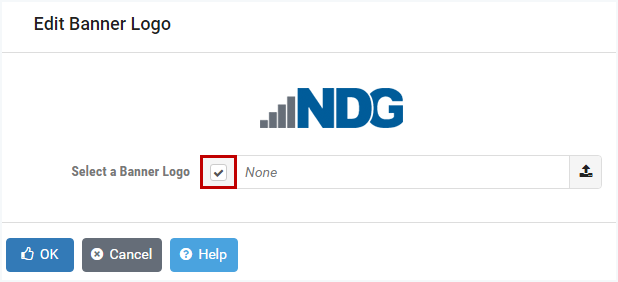
Notice that the NDG logo is the default Banner Logo.
To replace the default logo, select the Edit button to the right of the Banner Logo on the Appearance page.

The Edit Banner Logo page is displayed. Click the checkmark box next to Select a Banner Logo.
A window will open, allowing you to select the image file you would like to use for the Banner Logo.
Warning
Acceptable file formats include .gif, .jpg and .png.
Images with heights greater than 40 pixels will be scaled down to 40 pixels.
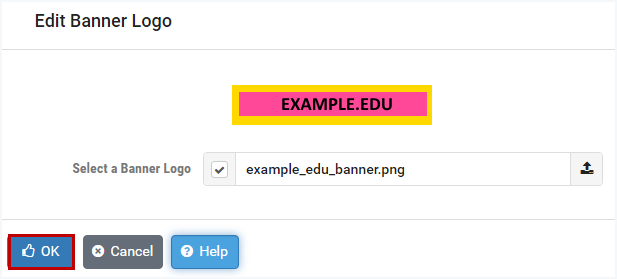
The image file you select will be displayed on the Edit Banner Logo page. Click OK.
Note
To restore the default Banner Logo, simply click OK without selecting a file.
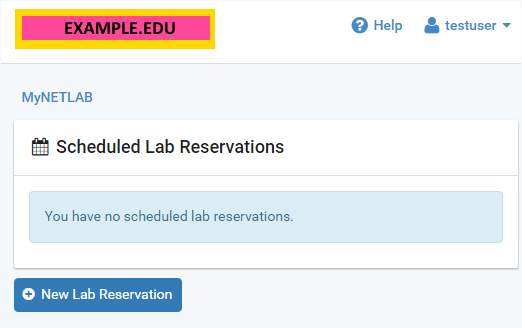
The updated banner will be displayed on all user accounts. The picture below shows the banner displayed on the MyNETLAB+ page of a student account.