Manage Lab Reservations
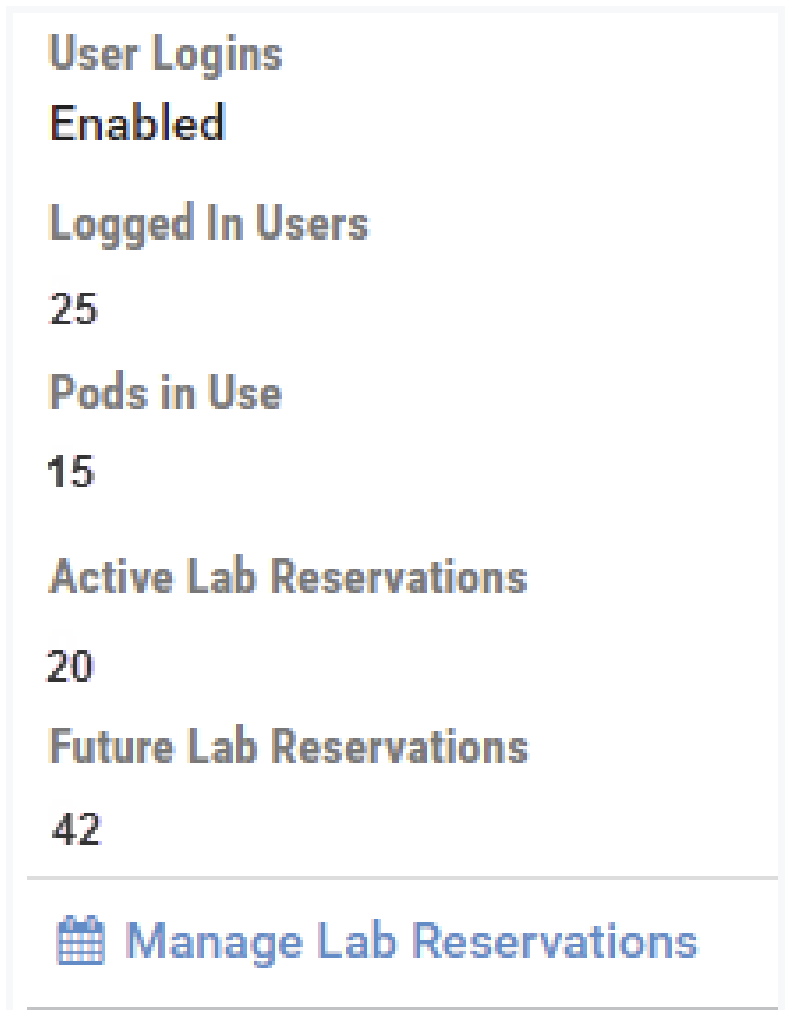
The third panel on the right side of the administrator Home page indicates if User Logins are enabled, the number of Logged in Users currently using your system, the number of Pods in Use, number of Active Reservations, and the number of Future Lab Reservations on your system.
Note
Being aware of the active reservations can be helpful to avoid interrupting users when you are planning to do system maintenance such as software updates.
Display a List of Lab Reservations
Select Manage Lab Reservations to display details for all lab reservations on the system.
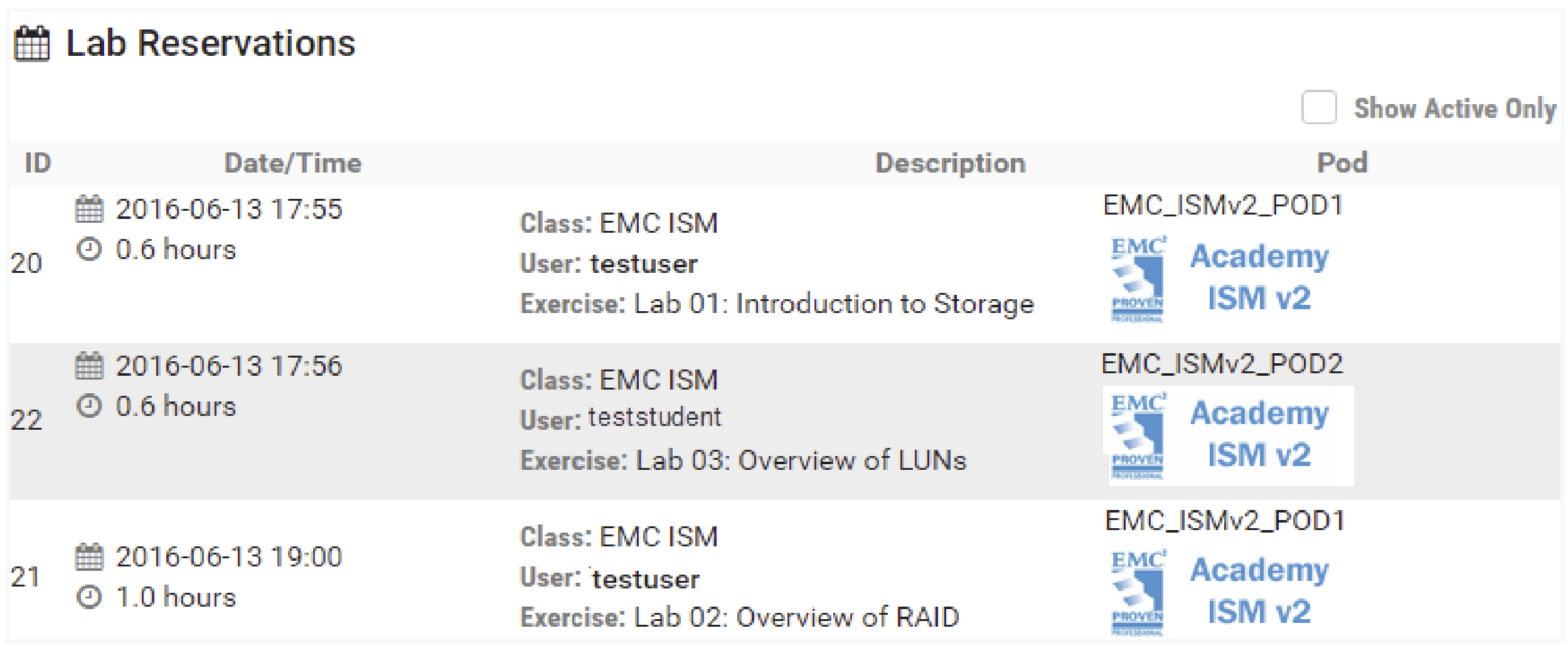
To filter the lab reservation list to display only reservations that are currently active,
select the Show Active Only box.

See Details of a Lab Reservation
Select the down button at the end of a row to display the option to View or Cancel the lab.
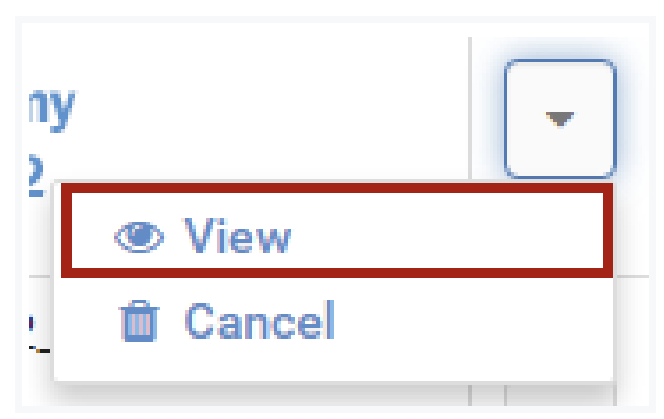
Select View to display lab reservation details.
Note
The details of a lab reservation may also be displayed by clicking anywhere on the row of the lab reservation list.
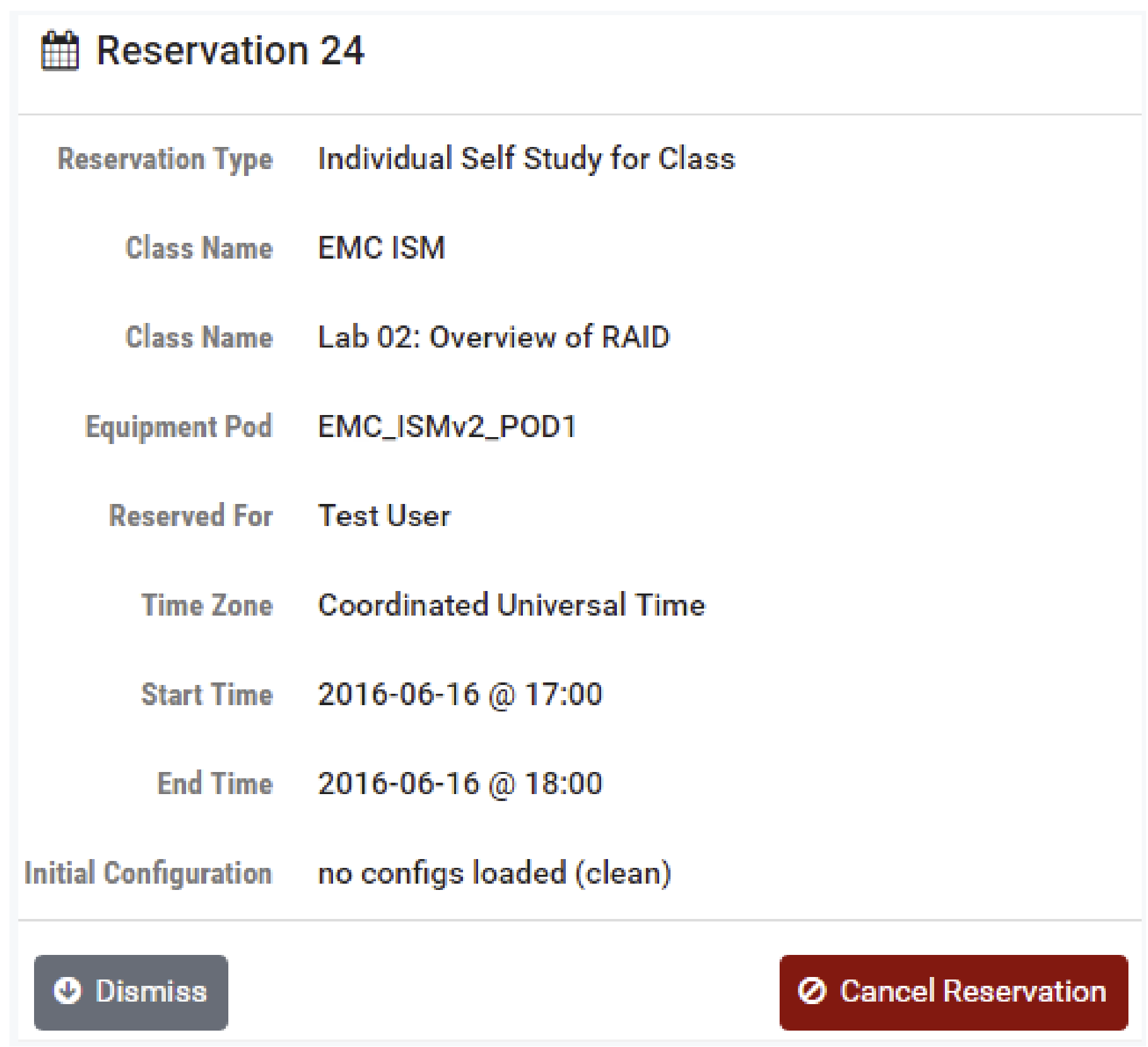
Select Dismiss to return to the list of lab reservations or select Cancel Reservation to cancel the lab reservation (described in the next section).
Cancel a Lab Reservation
If you select the Cancel Reservation button on the reservation detail display (shown in the section above), you will be prompted to confirm that you want to cancel the reservation.
Note
You may have noticed that the option to cancel a reservation was also available from the Action dropdown on the reservation list (see the picture in the previous section). This is one example of how the NETLAB+ user interface is designed to be versatile and provides multiple ways to access the options frequently used.
Select the Cancel Reservation button.

The cancelation will be confirmed. Select OK to return to the Home screen.

Enter a Lab Reservation
The Enter Lab button will be displayed in the lab reservation list for all active lab reservations (labs that are currently in progress). Entering a lab can be helpful to the administrator when troubleshooting issues with equipment pods.
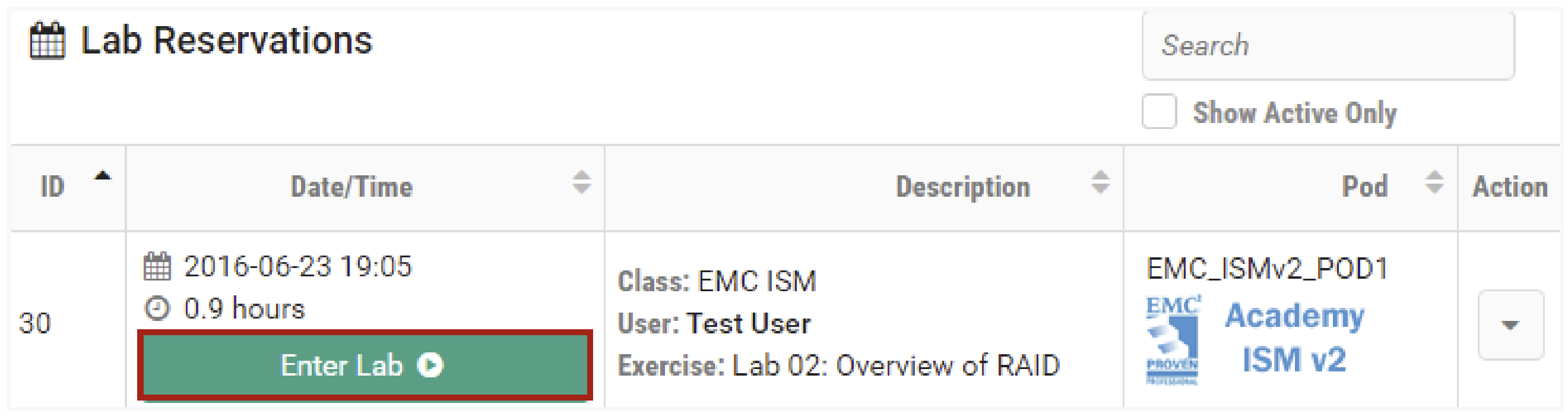
The administrator may enter a lab session and perform the same actions as an instructor. Please see the Enter a Lab Session section of the NETLAB+ Instructor Guide for details.