Log Exports
Your NETLAB+ system can be configured to export log files to the server of your choice. The Log Exports option enables you to direct the storage of log file(s) to the host(s) you select, filtered according to tags used to categorize each log record.
Select > System Settings > Log Exports.
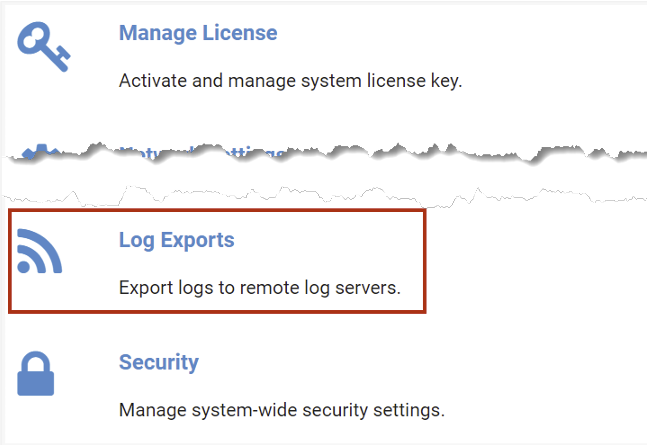
Continue on to the subsection below for instructions on adding a log export.
Add Log Export
Specify the server and the configuration details to enable NETLAB+ to maintain log files on the server(s) of your choice.
From the Log Exports page, select the Add Log Export button.
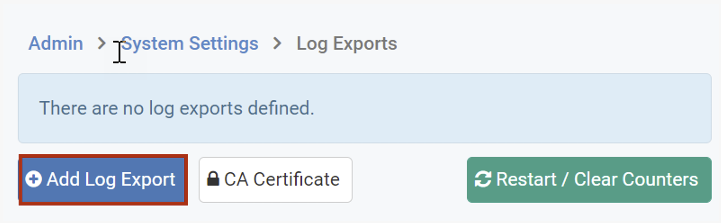
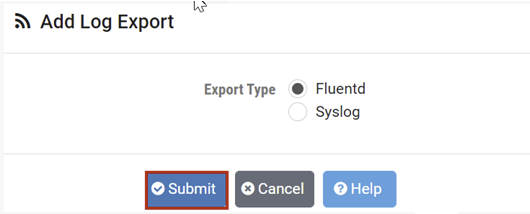
The Add Log Export page will be displayed; see the field descriptions below. For this example, we will use
the Fluentd export type. Click Submit.
Note
Fluentd is the recommended choice as the export type, since it provides structured, more detailed log entries.
The Add Log Export page will now display additional fields to configure. See the field descriptions below
for guidance on making selections, then click Submit.
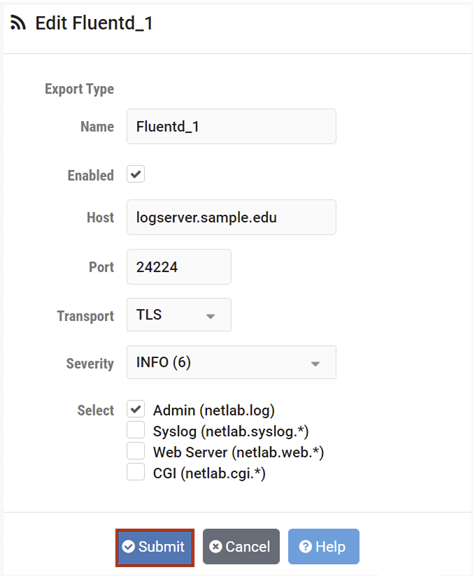
Field Descriptions
Export Type
Choose the type of file to be exported.
Fluentd
Export structured log records to a remote Fluentd or Fluent Bit (open source data collectors) server. Choosing this format provides detailed, structured data and is, therefore, the recommended choice.
Syslog
Export unstructured log records to a remote Syslog server in RFC5424 format. This option gives a more limited amount of data, with records including just the basics — date/time plus the log message.
- Name:
The identifier name of the export must be unique and must start with an ASCII letter. The name can contain ASCII letters, numbers, and underscores.
- Enabled:
Use to temporarily enable or disable this log export target.
- Host:
The IP address or fully qualified hostname or the remote log server.
- Port:
The TCP or UDP port number that the remote log server is listening on.
- Transport:
The desired transport protocol. Choose either TCP, UDP, or the TLS option, which enables TCP with TLS encryption.
- Severity:
The logging verbosity level. Values are cumulative, e.g., a setting of WARNING(4) also includes ERROR(3), FATAL(2), and ALERT(1).
Warning
For security reasons, records with a severity level DEBUG(7), TRACE(8), and TRACE(9) are for debugging only and cannot be exported.
- Select:
Check the appropriate box(es) to indicate the types of records to be exported. Each log entry has a tag. Select one or more tags to filter the records written to the file.
Warning
Service logs (with tag netlab.service.*) are for debugging only and cannot be exported, for security reasons.
View and Edit Log Exports
All log exports that have been configured are listed on the Log Exports page.
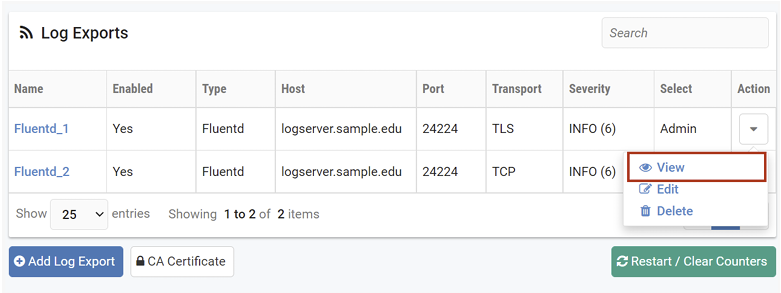
To view the settings of a log export, select the Action dropdown button on the row and select View.
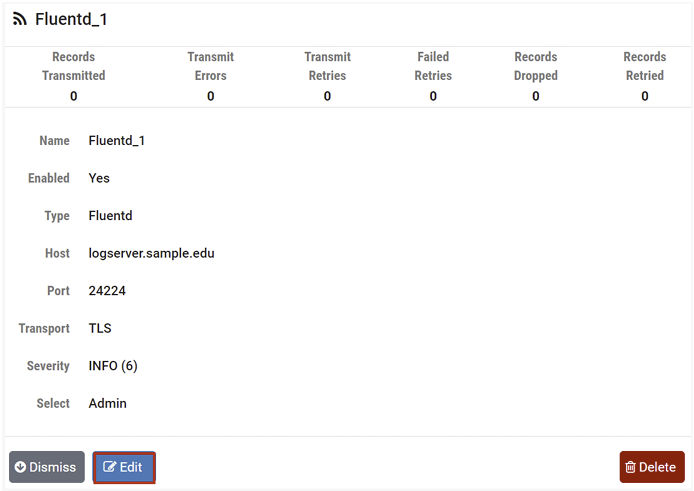
Details of the log export configuration will be displayed. To modify any of the values, select Edit.
Edit the fields as desired (see field descriptions in the previous section), and then click Submit.
Certificate for TLS Encryption
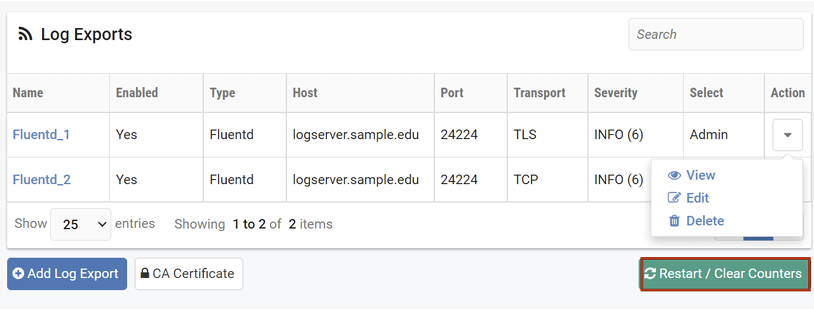
If you have chosen the TLS option as the desired transport protocol (see the first record in the image below) for your exported log(s), you may need a CA Certificate to complete the configuration process on your server. Follow the steps below to view the certificate.
On the Log Exports page, select the CA Certificate button.
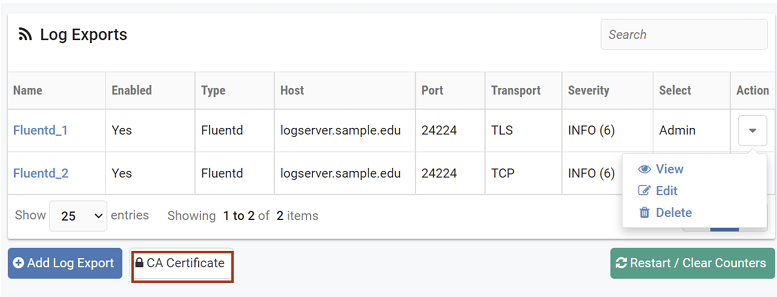
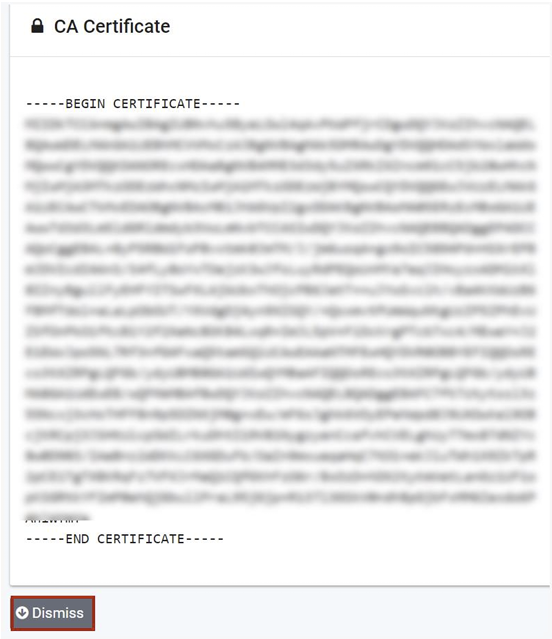
The CA Certificate is displayed. Use this CA certificate to configure your Fluentd or Rsyslog log servers with TLS. Click Dismiss.
Restart / Clear Counters
The counters maintained by the log exports can be reset to zero.
Note
Resetting the counters to zero can be helpful following troubleshooting/problem resolution.
On the Log Export page, select the option to Restart/Clear Counters.
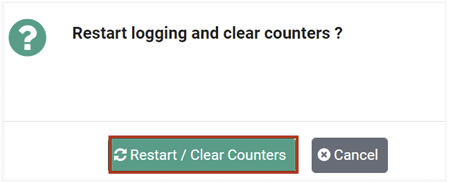
You will be prompted to confirm; select Restart / Clear Counters.
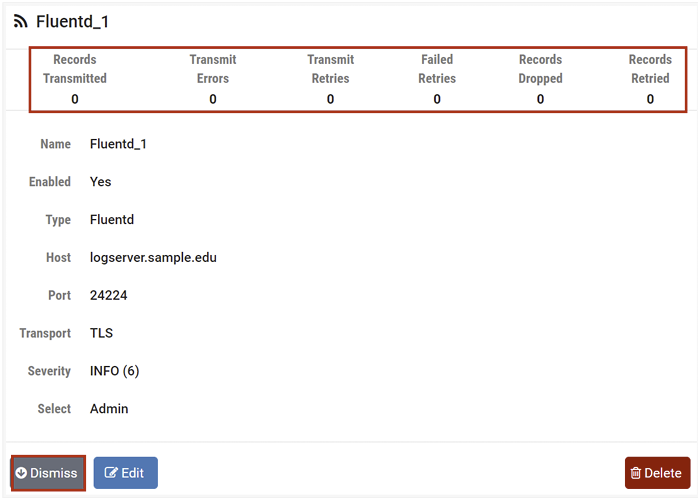
View any of the log exports to see the counters have been reset to zero, and click Dismiss.
Delete Log Export
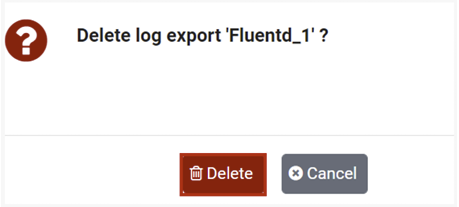
To delete a log export record, select the Action dropdown button on the row and select Delete.
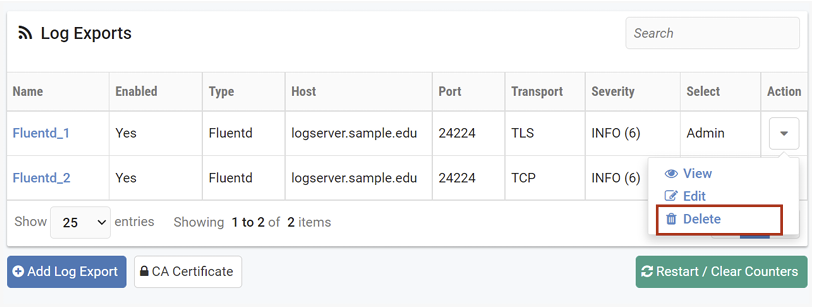
Select Delete to confirm.