Import Certificate
This option allows you to import a signed certificate and private key that you have already created. This is typically used when you have a domain-level certificate.
Navigate to > Network Settings > Configure SSL
Note
If this is your first time adding a certificate, you will see that the self-signed certificate that is included with NETLAB+ is initially the active certificate.
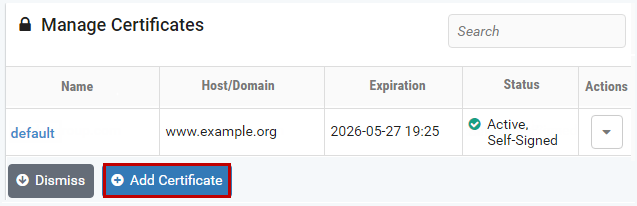
Click Add Certificate

Select I have an existing certificate and private key
Click Next
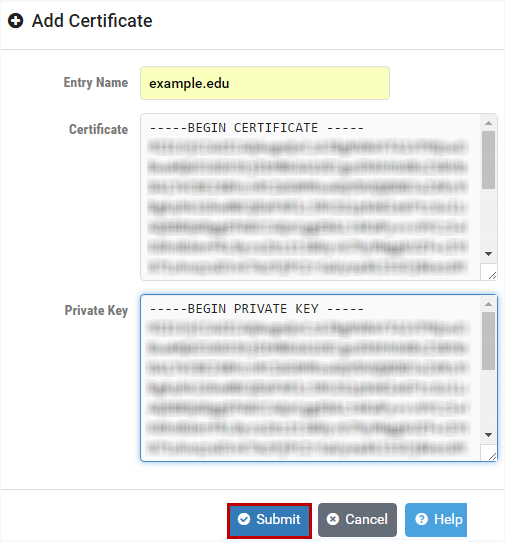
Fill in the Add Certificate form with the following information:
- Entry Name:
The name of the certificate. By default, the hostname is used. This name is used to identify the certificate in the list of certificates. The name must be lowercase and no spaces are permitted.
- Certificate:
The text from the signed certificate in PEM format. The PEM certificate format uses the following header and footer lines, which should be included:
-----BEGIN CERTIFICATE-----
-----END CERTIFICATE-----
- Private Key:
The text from the private key in PEM format. The PEM certificate format uses the following header and footer lines, which should be included:
-----BEGIN PRIVATE KEY-----
-----END PRIVATE KEY-----
Click Submit
Return to the certificate page.
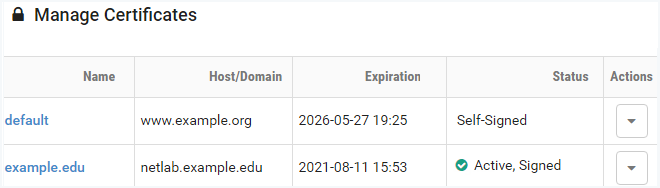
Verify that your certificate now indicates it is signed.
Click Activate
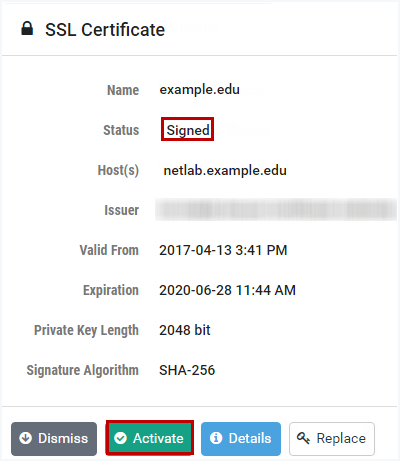
You will be prompted to confirm that you want to activate the certificate.
Click Proceed

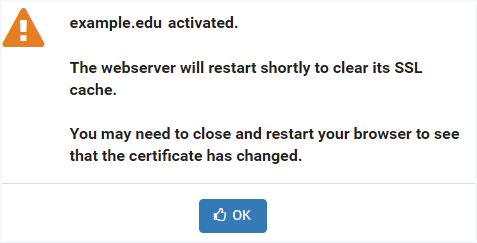
A message will indicate that the certificate has been activated and that the webserver will restart shortly to clear its SSL cache.
Click OK
Verify that the signed certificate is now active (see the Status in the picture below). If the signed certificate is not active, it may be necessary to log off the system, close your browser window, and then re-enter the system.
Verify that your browser address now indicates HTTPS. It may be necessary to log off the system, close your browser window, and then re-enter the system.
