Setup Clustering
This section will walk you through setting up your Proxmox VE cluster. NDG recommends having a management server and at least one host server in the cluster. Proxmox VE recommends at least three servers.
Note
In this example, the server is host22. Your system may vary.
Using your navigation panels, in the Resource Tree, navigate to Datacenter. In the Content Panel, select Cluster.
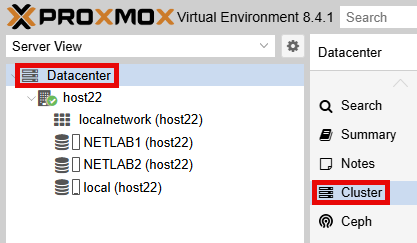
Create Cluster
Warning
This should only be completed one time on one host.
If this is a fresh setup (Scenario 1), this should be done on the Management Server. If you are migrating from VMware, this should be done on the temporary Host Server before you migrate your NETLAB+ VM.
Click on Create Cluster.
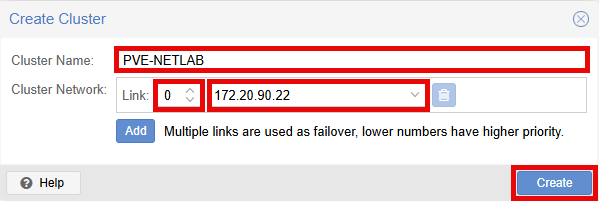
In the Create Cluster popup window, in the Cluster Name field, enter PVE-NETLAB.
Warning
NDG recommends to name the cluster PVE-NETLAB to match the recommendation for naming the datacenter PVE-NETLAB in NETLAB+. While this could be different, this name can not be changed at a later time. Please plan accordingly.
Leave Link field set to 0 and choose the IP address of your CLUSTER_NET you configured when setting up networking.
Confirm the information and click the Create button.
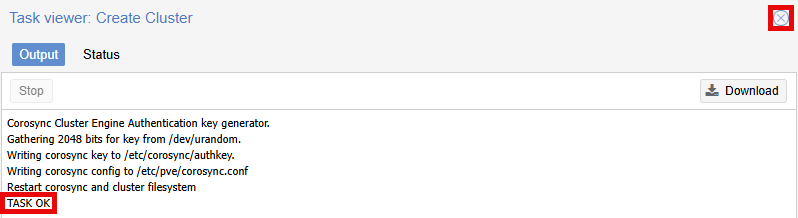
In the Task viewer: Create Cluster popup window, confirm TASK OK is the final result and click the x in the upper right to close the window.
Join Cluster
Note
This should be completed on all additional host servers. Be sure to complete all other steps first and that there are no virtual machines on the host before joining the cluster.
Note
In this example, host22 is the host that created the cluster. host21 is the host joining the cluster.
Log into both servers in separate tabs in your browser.
On your host that created the cluster, using your navigation panels, in the Resource Tree, navigate to Datacenter. In the Content Panel, select Cluster.
Under Cluster Information, click the Join Information button.
In the Cluster Join Information popup window, click the Copy Information.
Switch tab in your browser to the host joining the cluster.
Using your navigation panels, in the Resource Tree, navigate to Datacenter. In the Content Panel, select Cluster.
Under Cluster Information, click the Join Cluster button.
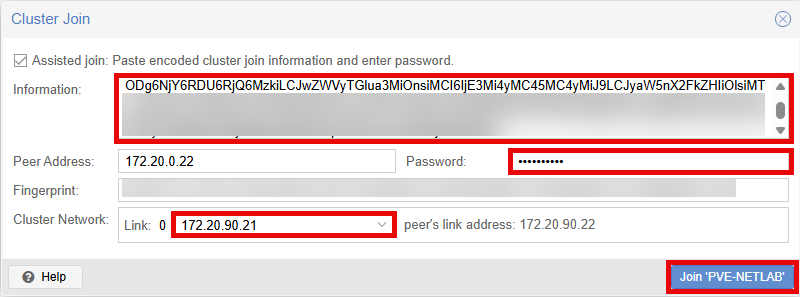
In the Cluster Join popup window, click in the Information field > press CTRL + V to paste the join information.
Additional fields should appear. In the Password field, enter the password for the system that created the cluster.
Danger
You must set the root account password the same on all Proxmox VE systems (i.e. management and host servers). Please see Root Account for more information.
In the Cluster Network field, click the dropdown and select the CLUSTER_NET network.
Confirm all information and click the Join 'PVE-NETLAB' button.
In the Task viewer: Join Cluster popup window, when stopping pve-cluster service is displayed, the current connection to the server in the browser is lost. Click the refresh button on your browser to reconnect.
On subsequent additions, you may not see anything displayed. Simply refresh your browser to reconnect.
Log back into your joining host.
Using your navigation panels, in the Resource Tree, navigate to Datacenter. In the Content Panel, select Cluster.
Confirm both hosts are now listed under Cluster Nodes. You will also notice both hosts should appear under the Resource Tree, navigate to Datacenter.
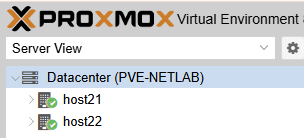
Repeat this section for each additional host.
Enable Datastores
Datastores on hosts that were set up before the clustering need to be reactivated after they join.
Using your navigation panels, in the Resource Tree, navigate to Datacenter. In the Content Panel, select Storage.
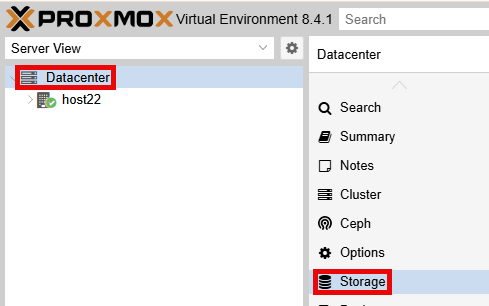
Select NETLAB1 and click the Edit button.

In the Nodes field, select all hosts this datastore is available on.
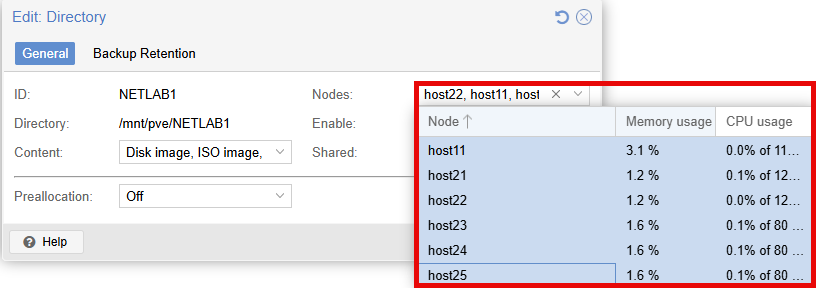
Click the OK button.
If you have an additional directory like NETLAB2, repeat this process. Be sure to only add hosts the datastore is available on.
Adjust Migration Settings (optional)
Note
In VMware, you could do a full clone between servers. Proxmox VE does not allow that, instead it is a two-step process. You must first clone the virtual machine, then migrate that virtual machine to the new host. NETLAB+ will automate this process when you clone through the NETLAB+ UI.
By default, Proxmox VE will do migration over the Management Network (vmbr0). If you need to do that over a different network (faster speeds, etc.) please follow these steps:
Using your navigation panels, in the Resource Tree, navigate to Datacenter. In the Content Panel, select Options.
Select Migration Settings and click the Edit button.
Adjust the Network field to the desired network.
Click the OK button.