NDG PVE Post Install Script
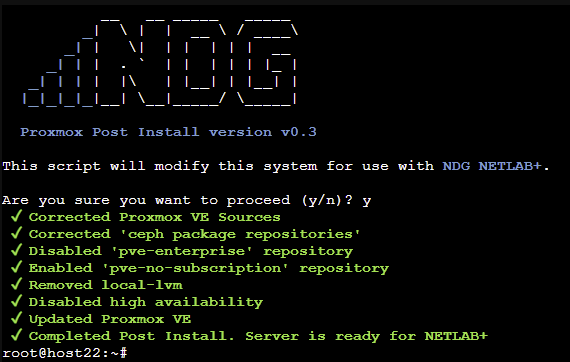
This section will walk you through running the NDG PVE Post Install Script. This is a custom script that completes the following items:
Configures the correct Debian and Proxmox VE repositories, using the deb822
.sourcesformat on Proxmox VE 9.x.Disables the ceph repositories.
Disables the
pve-enterpriserepository.Enables
pve-no-subscriptionrepository.Removes the default
local-lvmdatastore freeing space for the operating system.Disables high availability.
Register NDG tags to datacenter for better visibility and troubleshooting in the UI.
Create custom CPU models.
Setup Prometheus Node Exporter.
Updates Proxmox VE to the latest version.
Installs
ndg-pve-netcheckand verifies the host’s network interface names (see Post-Upgrade Tasks).Reboots the system.
Tip
This script requires your PVE have internet access.
Note
The script targets Proxmox VE 9.x. It still detects and supports Proxmox VE 8.4.x hosts for the duration of the upgrade, and applies the matching repository format automatically. After upgrading a host from Proxmox VE 8 to 9, re-run this script to reapply NDG configuration.
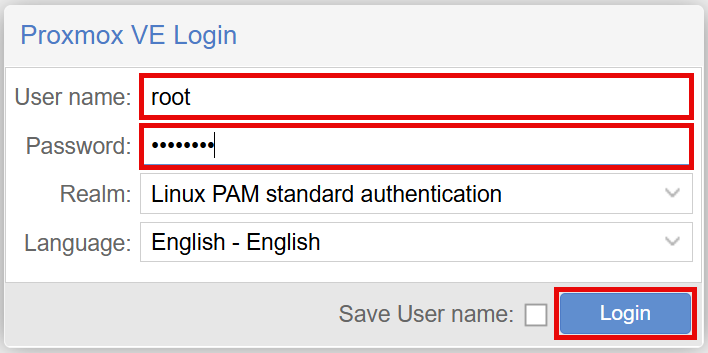
Navigate to your PVE Install in a web browser https://(ip_address):8006. Fill in information for the User name and Password fields. Then click on the Login button to continue.
Danger
You must set the root account password the same on all Proxmox VE systems (i.e. management and host servers). Please see Root Account for more information.
On the No valid subscription popup, click the OK button to continue.
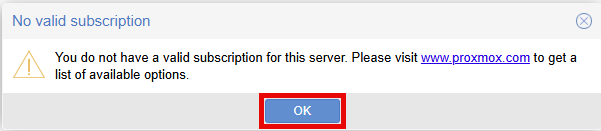
Proxmox recommends a subscription (there are four subscription levels) when used in a production environment. A Proxmox VE subscription, depending on the model, provides features like enterprise update repositories, professional and remote support assistance, and more.
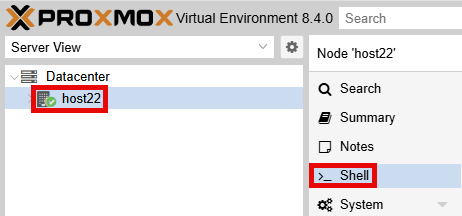
Using your navigation panels, in the Resource Tree, navigate to Datacenter > your_server. In the Content Panel, select Shell.
Note
In this example, the server is host22.
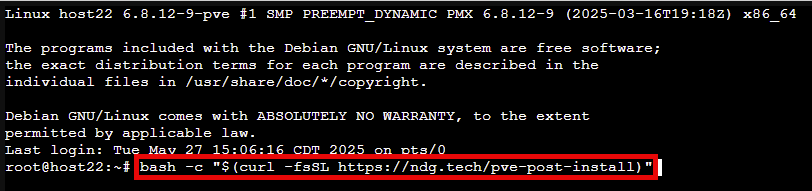
In the shell window, enter the following command and press Enter:
bash -c "$(curl -fsSL https://ndg.tech/pve-post-install)"
Tip
You can copy the above command and paste into the shell.
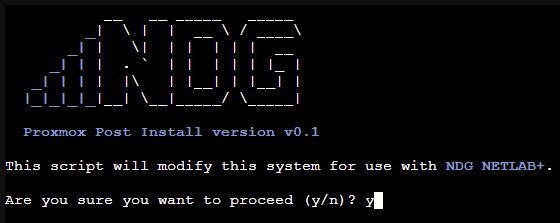
At the script prompt, enter y and press Enter to continue.
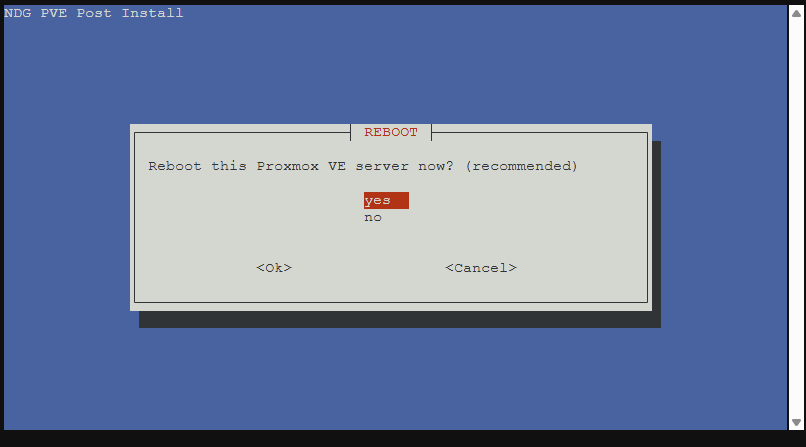
Once the script has completed, press Enter at the Reboot screen.
You should see the following screen if everything went correctly.