vmdist.ndg_genit.windows
Using your navigation panels, in the Resource Tree, navigate to Datacenter. In the Content Panel, select Storage.
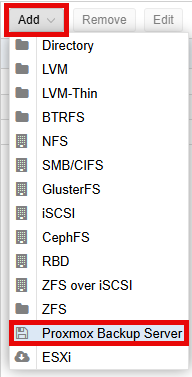
Click the Add > Proxmox Backup Server.
In the Add: Proxmox Backup Server popup window, enter vmdist.ndg_genit.windows in the ID field.
Enter vmdist.netdevgroup.com in the Server field.
Enter your username from NDG Support in the Username field.
Enter your password from NDG Support in the Password field.
Enter vmdist in the Datastore field.
Enter ndg_genit/windows in the Namespace field.
Confirm the settings are correct and click the Add button.
In the center confirm vmdist.ndg_genit.windows has been added.
To confirm connectivity, using your navigation panels, in the Resource Tree, navigate to Datacenter > vmdist.ndg_genit.windows. In the Content Panel, select Backups.
Disable Host Server Connections to remove these connections from host servers.
Note
If you receive an error, double-check your username and password settings. If the error persists, contact NDG Support to confirm you have authorization to vmdist.ndg_genit.windows.