Instructor Guide
Under Construction
Please see the Version 24 Instructor Guide for the current production version of the instructor guide.
Document Version: 2020-12-09
Copyright © 2025 Network Development Group, Inc.
NETLAB+ is a registered trademark of Network Development Group, Inc.
VMware is a registered trademark of Broadcom, Inc.
Cisco, IOS, Cisco IOS, Networking Academy, CCNA, and CCNP are registered trademarks of Cisco Systems, Inc.
Introduction
This is the NETLAB+ Instructor Guide, for the virtual edition of NETLAB+.
NETLAB+ is a remote access solution that allows academic institutions to deliver a hands-on IT training experience with a wide variety of curriculum content options.
The training environment that NETLAB+ provides enables learners to schedule and complete lab exercises for information technology courses. NETLAB+ is a versatile solution for facilitating IT training in a variety of disciplines, including networking, virtualization, storage, and cybersecurity.
The material in this guide focuses on the activities typically performed by instructors who have been issued an instructor account on a NETLAB+ VE system to set up class information, manage student accounts, and schedule/enter lab reservations for instructor-led training and personal use.
[]Initial Login
Your NETLAB+ administrator will provide you with the URL or IP address of the NETLAB+ system you will use, along with a username and password.
To access the login page, open a web browser and type in the URL or IP address of the NETLAB+ system. Using the most recent available version of the browser you select is recommended. Supported browsers are listed in the table below.
Browser |
Minimum Version |
Support/Experience |
|
|---|---|---|---|
|
Google Chrome |
54.0 |
* * * * * |
|
Mozilla Firefox |
46.0 |
* * * * |
|
Apple Safari (MAC only) |
11.0.3 |
* * * * |
|
Microsoft Edge |
40.15063.674.0 |
* * |
|
Microsoft Internet Explorer |
No longer supported |


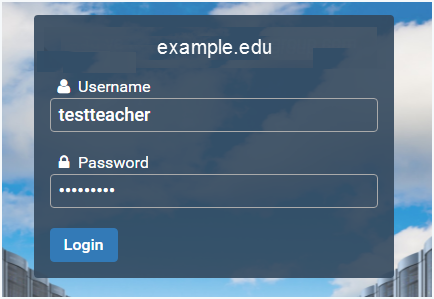
Enter your Username
 and Password
 into the fields in the login box and
then click the Login button. The graphics on the page may be
different from the example shown below. You will be prompted to
change your initial password; see the next section for details.
into the fields in the login box and
then click the Login button. The graphics on the page may be
different from the example shown below. You will be prompted to
change your initial password; see the next section for details.
Change Password During Initial Login
During your first login, you will be required to change your password after you successfully provide your username and initial password. NETLAB+ enforces strong passwords.
Passwords must meet the following requirements:
Not found in the common dictionary and not too simple
7 or more ASCII characters
Contain both numbers and letters
One strategy you may find helpful in selecting a new password is to combine a word together with numbers. For example, you could not use the word “airplane” but you could use “airplane789”. You may not reuse your initial password.
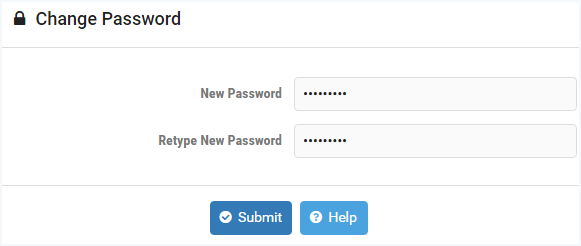
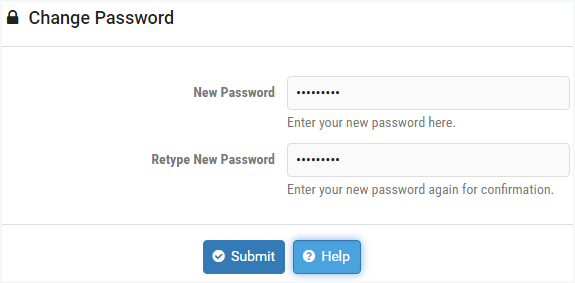
Enter your selection into the New Password field**.**
Enter the password once again in the Retype New Password field and then click Submit.
Examples of typical password errors:
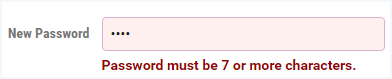
The error message shown below indicates that the password entered did not meet the minimum length requirement.
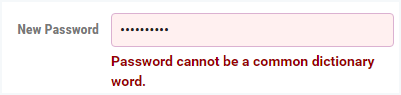
The error message shown below indicates that the new password entered is a simple word found in the common dictionary and, therefore, not eligible to be a password on the system.
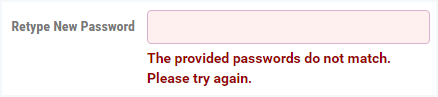
If the values in the two password fields do not match, an error message will be displayed, similar to the one shown below.
[]Change E-mail Address During Initial Login
The next field you will be prompted to enter is your E-mail Address. This field may already contain a value if an e-mail address was entered at the time your account was created. You may edit the e-mail address if needed. Entering an e-mail address is optional.
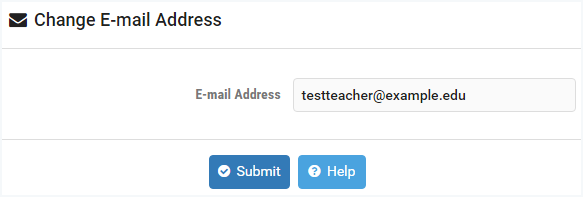
Update the E-mail Address field as desired and click Submit. The e-mail address must be in a valid format (example, username@domain.xxx); otherwise, an error message will be displayed.

[]Change Date and Time Settings During Initial Login
Next, you will select your local time zone and your preferences for dates, times, and calendars. These settings are especially important to ensure that information is displayed accurately when using the scheduler.
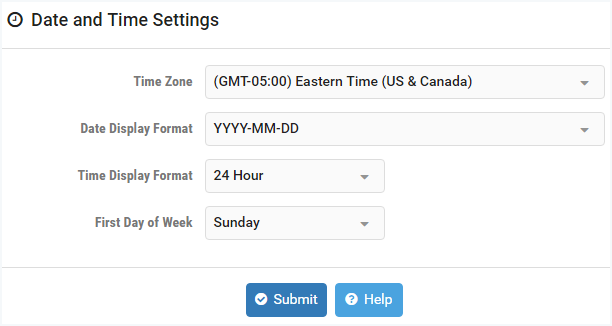
Select the Time Zone where you are located. NETLAB+ will adjust for Daylight Savings Time.
Choose the Date Display Format you prefer. This is the style that dates will be displayed (for example, YYYY-MM-DD).
Select the Time Display Format. Time may be displayed in 12-hour (AM/PM) format or 24-hour format.
Select the First Day of the Week to be shown in the scheduling calendar. Sunday is the default.
When you are finished making any necessary modifications, click Submit.
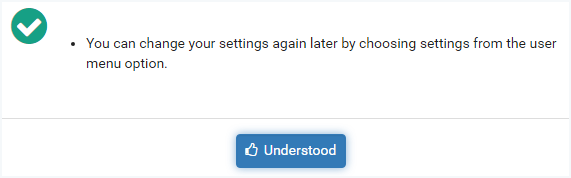
As noted in the message displayed, these settings may be changed as needed. Click Understood.
The MyNETLAB page will be displayed.
[]MyNETLAB Interface
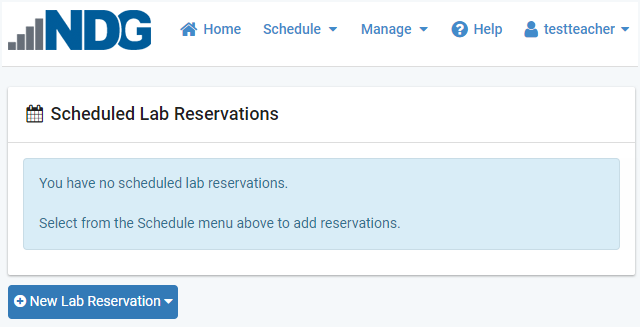
After a successful login, the MyNETLAB page will be displayed. Any scheduled lab reservations will be displayed here. If this is your first time logging into the system, it is likely that there are no scheduled lab reservations to display.
[]Modify User Settings
The settings you made during your initial login may be modified at any time, as needed.
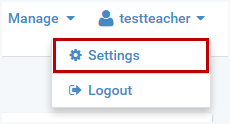
To access the Settings page, click your username in the top-right corner and select Settings.
The Settings page will display the current settings for your instructor account.
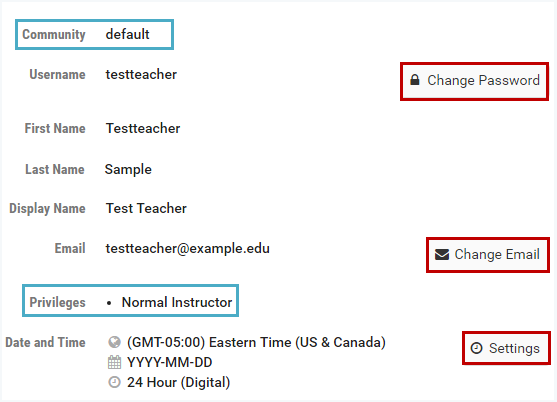
[]Instructor Community and Privileges
Each instructor account is a member of a community. A community is a distinct group of instructors, students, and classes. Your community membership is listed on the instructor Settings page (see example above). Your NETLAB+ system may include multiple communities or a single community (the default community).
**
**
Summary of Instructor Privileges
Normal Instructor Privileges (no additional privileges selected)
Can create and manage student accounts in their community.
Can create and manage classes for which they are a lead.
Can cancel lab reservations made by students in their classes.
Cannot manage other instructor accounts.
Community Administrator
Can create and manage student accounts in their community.
Can create and manage instructor accounts in their community.
Can create and manage classes in their community.
Can attend all lab reservations in their community (except personal instructor reservations).
Can cancel lab reservations made by instructors and students in their community.
System-Wide Account Manager
Can create and manage student accounts in any community.
Can create and manage instructor accounts in any community.
Can create and manage classes in any community.
Can attend all lab reservations in any community (except personal instructor reservations).
Can cancel any lab reservation.
Pod Designer
Can access the Pod Designer tool. The Pod Designer is used to create a custom pod layout. A pod design is a template used to create one or more actual pods on a NETLAB+ system.
Lab Designer
Can access the Lab Designer tool. The Lab Designer provides a means of creating a series of custom laboratory exercises that may be made available for class use. A lab design is a set of labs and related reference material that may include documents, images, and preset configuration files for each lab exercise.
Pod Access Control List (ACL) Manager
Instructors may be appointed as Pod ACL managers.
[]Change Password
Click the Change Password button on the Settings page to display the Change Password page.
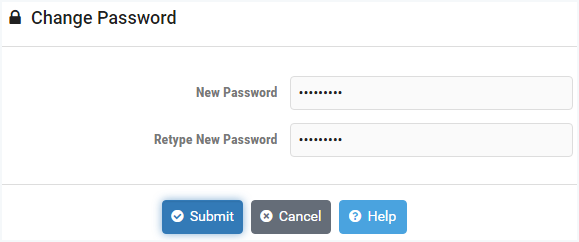
Passwords must meet the following requirements:
Not found in the common dictionary and not too simple
7 or more ASCII characters
Contain both numbers and letters
Enter your selection into the New Password field**.**
Enter the password once again in the Retype New Password field.
To proceed with updating your password, select the Submit button. You will return to the MyNETLAB page. (Or, if you decide that you do not want to change your password, you may select the Cancel button to return to the MyNETLAB page with your password remaining unchanged.
[]Change E-mail
Click the Change E-mail button on the Settings page to display the Change E-mail Address page. Entering an e-mail address is optional.
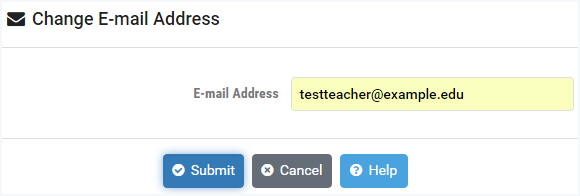
Update the E-mail Address field as desired. Click Submit to save changes and return to the MyNETLAB page. (Or, select Cancel to return with no changes made). The e-mail address must be in a valid format (example, username@domain.xxx); otherwise, an error message will be displayed.
[]Change Date and Time Settings
Click the Settings button on the Settings page to display the Date and Time Settings page. These settings are especially important to ensure that information is displayed accurately when using the scheduler.
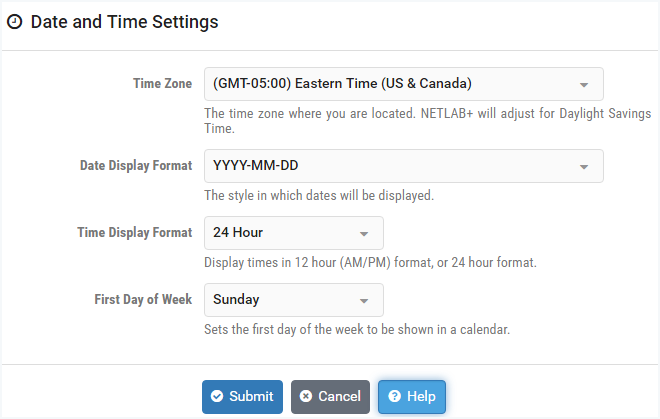
Select the Time Zone where you are located. NETLAB+ will adjust for Daylight Savings Time.
Choose the Date Display Format you prefer. This is the style that dates will be displayed (for example, YYYY-MM-DD).
Select the Time Display Format. Time may be displayed in 12-hour (AM/PM) format or 24-hour format.
Set the First Day of the Week to be shown in the scheduling calendar.
When you are finished making modifications, click Submit. The MyNETLAB page will be displayed. (Or, to return to the MyNETLAB page without saving changes, click Cancel.)
[]Logout
The Logout link is used for logging out of the NETLAB+ system.
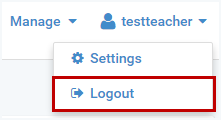
Click your username in the top-right corner of the MyNETLAB page and select Logout.
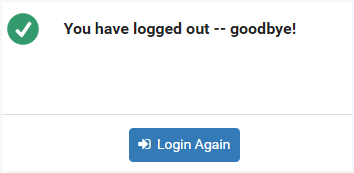
A confirmation message will display, select the button if you want to Login Again and return to the login screen.
[] Manage Classes
 Information for each class using the
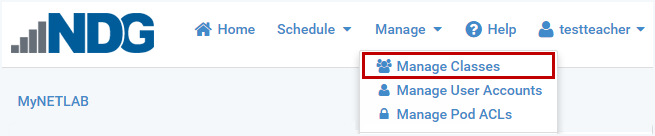
NETLAB+ system must be entered. To manage classes and rosters, click
Manage in the upper-right corner of the Home page and select the
Manage Classes dropdown option.
Information for each class using the
NETLAB+ system must be entered. To manage classes and rosters, click
Manage in the upper-right corner of the Home page and select the
Manage Classes dropdown option.
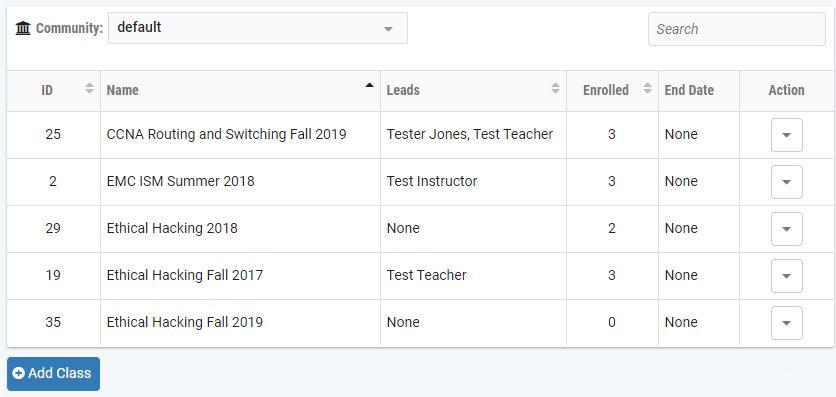
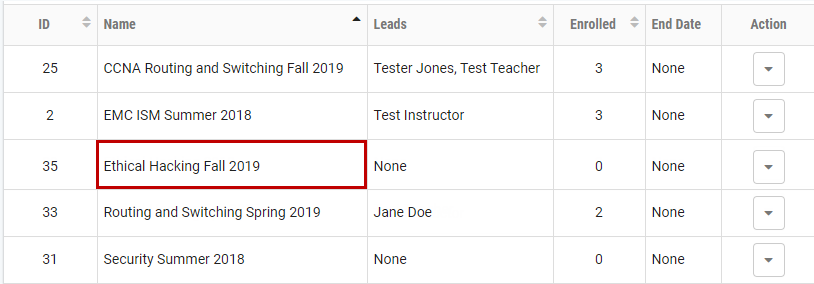
A list of the classes that have been created in your community will be displayed. Classes are listed with the name of the class, lead instructor, the number enrolled, and end date (if specified).
[] Add Classes
To add a class to the system, select the Add Class button at the bottom of the Classes page
Enter the class information into the New Class form. The Name field is required; other fields may be filled out now (refer to the field descriptions below), or later through the Edit function. Click Submit.
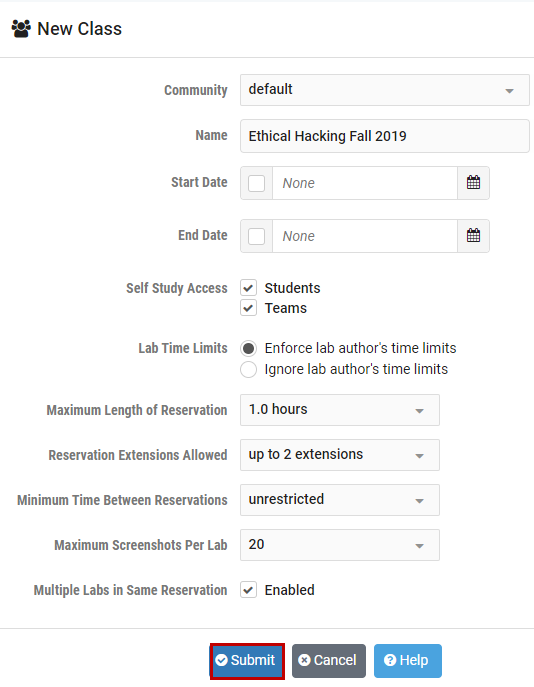
Field Descriptions - Class (Add/Edit)
Community: The NETLAB+ system may contain multiple communities. Each community reflects a separate autonomous group that is using the NETLAB+ system. An instructor with normal privileges may add classes within their assigned community only.
ID: Each class is assigned a unique numeric identification number. This number will be displayed once the class has been added.
Name: The name of the class must be unique on the NETLAB+ system. It is best practice to use a class name that defines the time-frame that the class is offered, such as including “Fall 2019” as part of the name.
Having a descriptive class name and using the class for the specified semester only (as opposed to editing and reusing the class record for another semester) will help to ensure that usage statistics provide an accurate representation of system use.
Start Date: An optional starting date for the class. New pod reservations for this class may not be made before this date.
If the starting date is changed later, existing reservations are not affected.
End Date: An optional ending date for the class. New pod reservations for this class (student or instructor) may not be made after this date.
If the ending date is changed later, existing reservations are not affected.
Self Study Access - Students, Teams: If selected, individual users in the roster can schedule lab reservations. If Students is selected, individual students in the roster can schedule lab reservations. Team reservations may be made if Teams is selected (team assignments must be made by the instructor.
Lab Time Limits
Enforce lab author’s time limits (if any): When a lab author specifies a time limit for a lab exercise, NETLAB+ will always use this limit to determine the length of an individual reservation. When a lab time limit is enforced, the Maximum Length of Reservation setting (described below) will have no effect on the reservation length. The time limit is only imposed upon learners making their own individual reservations. Individual or team reservations created by the lead instructor on behalf of individual learners or teams in the class are not restricted by the lab author’s time limit.
Do not enforce lab author’s time limits: NETLAB+ will disregard any time limits set by lab authors. Individuals may determine how much time is allocated for any lab, up to the Maximum Length of Reservation setting (see below).
Maximum Length of Reservation: Sets the maximum length (in hours) of an individual lab reservation. Lab exercises can also have a time limit. The lower of the two times is used. The maximum time lengths of lab reservations for all classes within a community are subject to community maximums if a community maximum has been set. You may not establish a higher (less restrictive) maximum for the class; it will not override the community maximum. A lower (more restrictive) maximum time length for the class may be enforced by setting a value that is lower than the community maximum.
Lead instructors and instructor-led reservations are not bound by this restriction.
Reservation Extensions Allowed: The maximum number of times a reservation can be extended by a student or team, provided the next time slot for the reserved pod is available. An extension adds 30 minutes to the reservation. An extension can be requested from the lab interface when there are 15 minutes or less available on the Time Remaining clock. This setting does not limit instructors; they may always request an extension in the final 15 minutes if the next time slot is available.
As an instructor with normal privileges, you may set the number of reservation extensions for classes for which you are the lead instructor. The number of
extensions that a student or team can request in a single reservation will be the more restrictive of the community and class settings. Be sure to review the class settings for Reservation Extensions Allowed, which will indicate the current settings.
Example: If the class setting allows 2 extensions and the community setting allows 3 extensions, the more restrictive setting of up to 2 reservation extensions will be allowed.)

Restrictions for All Users:
An extension cannot be made before T-00:15 on the displayed Time Remaining. This is about 26 minutes from the blocked end time and 16 minutes of the usable time remaining.
The next 30-minute time slot must not be already scheduled by another reservation.
The extension cannot exceed the maximum pods in use limit and/or proactive resource awareness settings selected by the NETLAB+ administrator.
Restrictions for Students and Teams:
The number of extensions that a student or team can request is limited by community and class settings.
For backward setting compatibility, communities and classes do not allow extensions to be made by students or teams by default.
The administrator must specifically allow extensions for students and teams per community.
The instructor must specifically allow extensions for students and teams per class.
A learner may not extend an ILT reservation. Only a lead instructor can extend an ILT reservation.
Minimum Time Between Reservations: Sets the minimum amount of time between successive reservations made by an individual or team. This setting can be used to prevent excessive scheduling of labs. For example, a setting of 48 hours prevents the same individual or team from scheduling lab exercises less than 48 hours apart. The default value, no limit will allow a student to make unlimited reservations. The minimum time between reservations for all classes within a community is subject to community minimums if a community minimum has been set. You may not establish a lower (less restrictive) minimum for the class; it will not override the community minimum. A higher (more restrictive) minimum time between lab reservations for the class may be enforced by setting a value that is higher than the community minimum.
Lead instructors and instructor-led reservations are not bound by this restriction
Maximum Screenshots Per Lab: The maximum number of screenshots a student may take in a single lab. A value of 0 effectively disables the screenshot feature for the class. The screenshots feature is available only if it has been enabled for the community by the Administrator.
Multiple Labs in Same Reservation: If enabled, a student or team may change lab exercises within the same reservation. The Exercise tab will be displayed during lab access. Only labs compatible with the reserved pod type will be available for selection. This option only affects Student or Team reservations. Instructor-led training reservations always allow the lead instructor to change exercises.
[]Edit Class Information
Follow the steps below to edit information for a class.
Edit the information for an existing class by clicking the class name in the class list displayed on the class manager page. Here, we will select the record for the recently created Ethical Hacking Fall 2019 class.
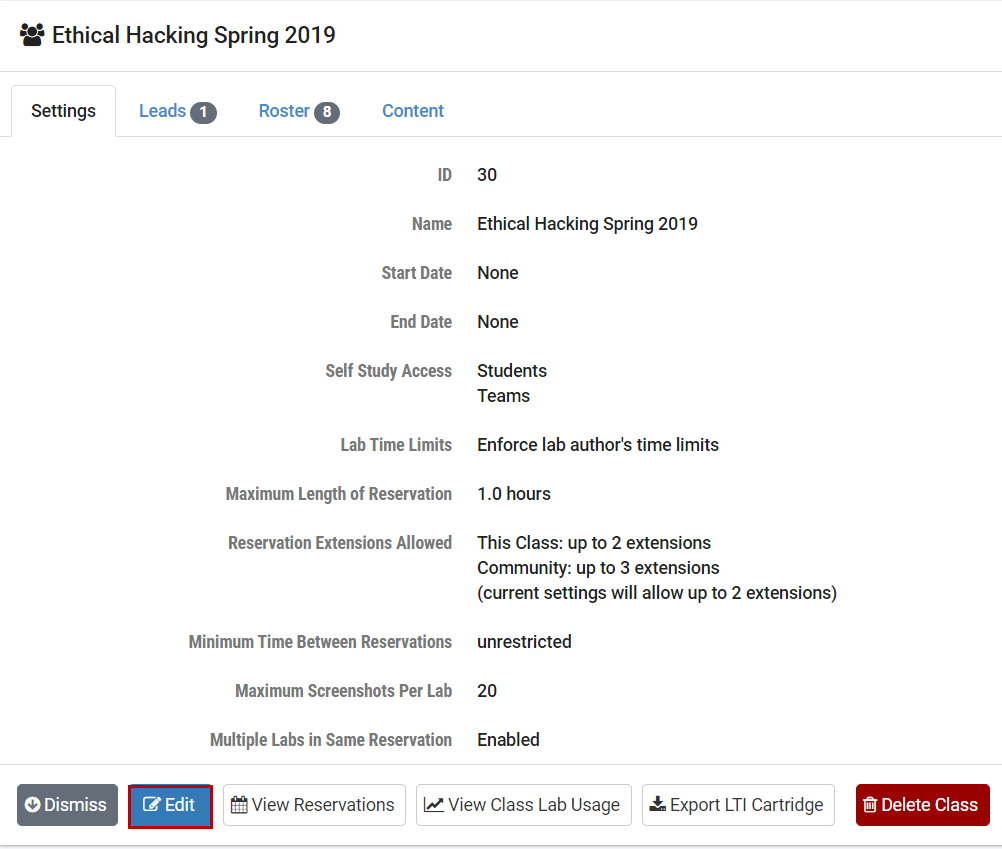
A page showing the current settings for the class will be displayed. Select the Edit button to make the information for the displayed class available for editing.
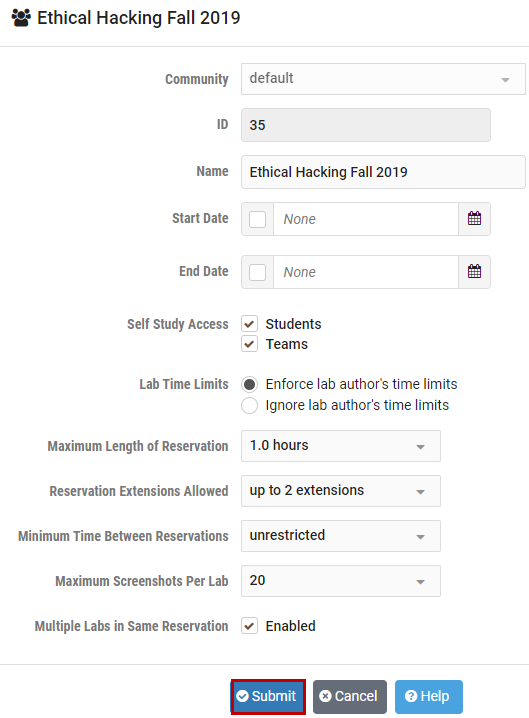
The fields on the class edit page are identical to those on the new class page. Edit the information as needed. Please see the Add Classes section for a detailed description of each field on the page. When you have finished editing, click Submit.
Export LTI Cartridge
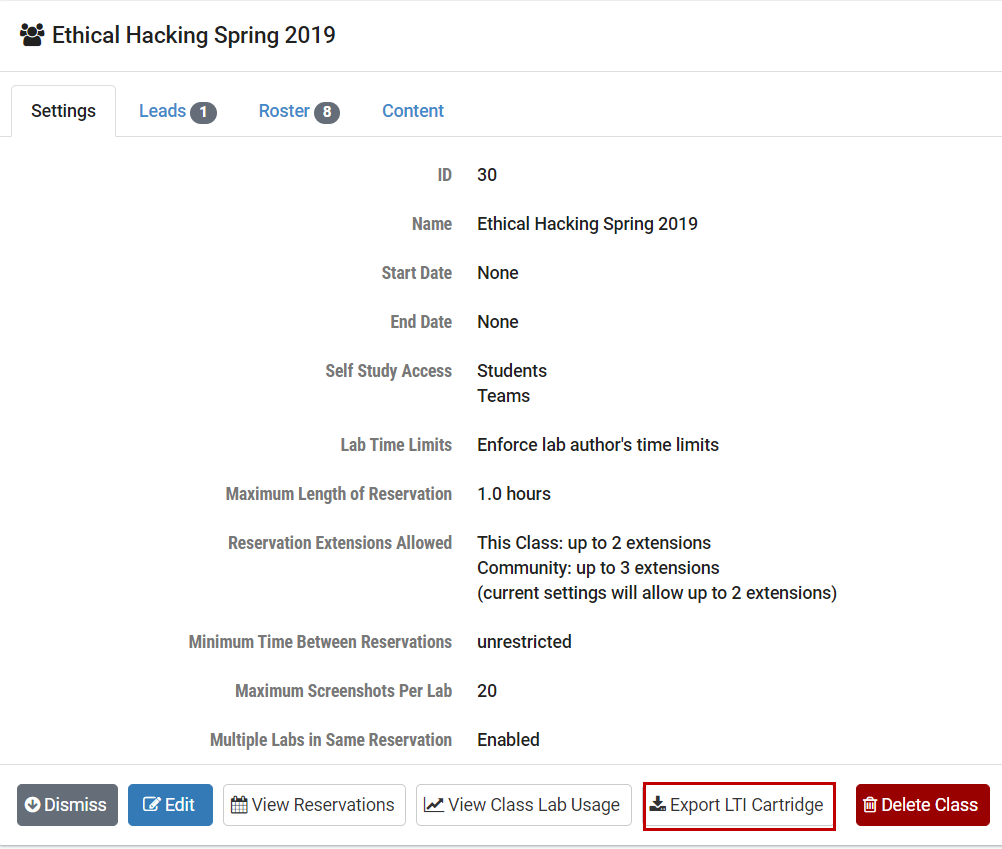
NETLAB+ supports integration with your school’s LMS. Follow the steps below to obtain the common cartridge needed for LTI integration for the class.
If the option to enable LTI Integration has been enabled at the community level, you may select the option to Export an LTI Cartridge that you can import into your school’s LMS in order to configure access to the class.
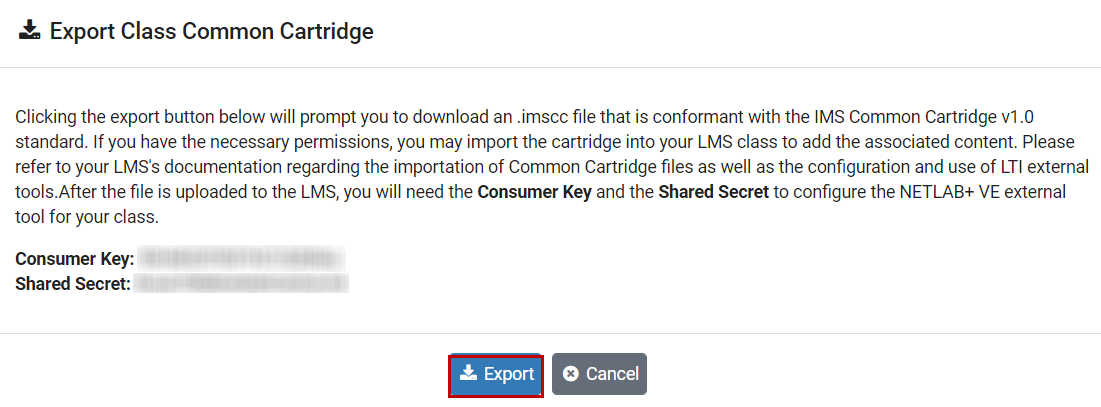
The Export Class Common Cartridge page will be displayed. Clicking the Export button will prompt you to download an .imscc file that is conformant with the IMS Common Cartridge v1.0 standard. If you have the necessary permissions, you may import the cartridge into your LMS class to add the associated content.
[] Add Lead Instructors
When a class record is created by an instructor, the instructor is automatically assigned as a lead instructor. Additional lead instructors may be added to the class. Typical actions performed by lead instructors:
Lead instructors may update class settings.
Lead instructors may make reservations for instructor-led training sessions for the class.
Lead instructors may allow individual students to make reservations themselves, depending on the settings selected for the class.
A lead instructor has the option to participate in any lab reservation associated with the class.
A lead instructor may manage the class roster.
A lead instructor may select the content to be enabled for the class.
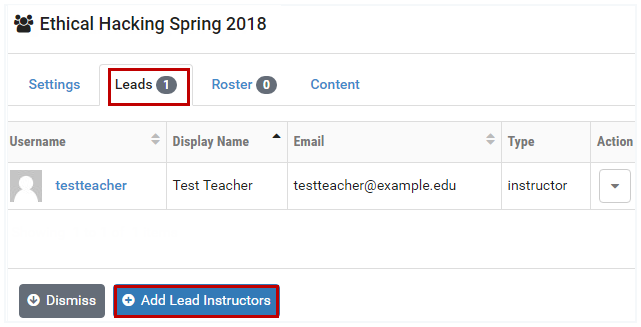
To add lead instructors to a class, select the Leads tab of the class record, and then click the button to Add Lead Instructors.
A list of the instructors in the community is displayed. Select additional lead instructor(s) for the class by checking the Select checkbox and then pressing the Add Selected button.
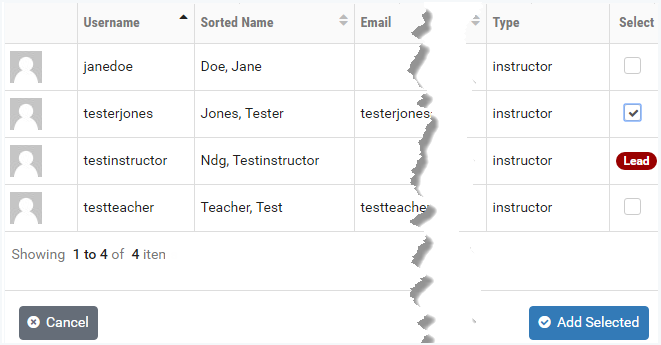
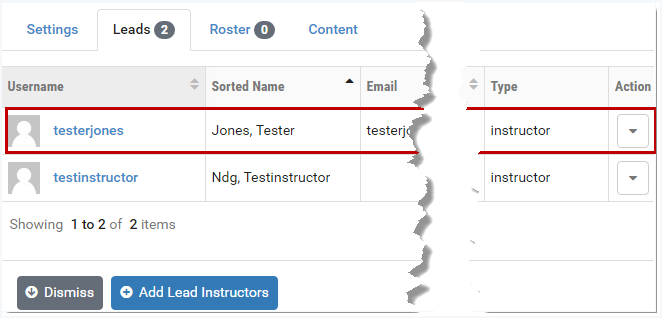
The selected instructor, testerjones, is now added to the Leads list.
[]Remove Lead Instructors
A lead instructor may be dropped from a class. A lead instructor may remove him/herself or another lead instructor from the list of leads.
To remove a lead instructor from a class, select the Leads tab of the class record to display the list of lead instructors.
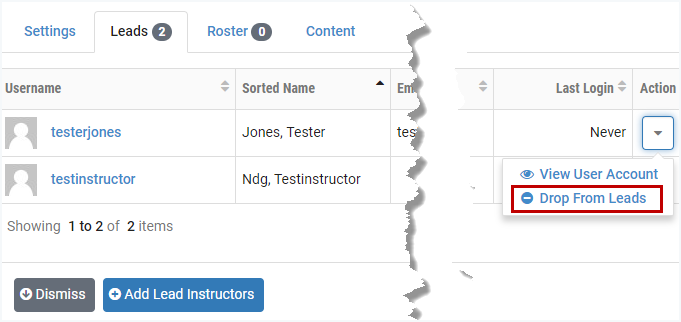
Select the Drop from Leads option on the Action dropdown of the record for the lead instructor to be removed.
You will be prompted to confirm that the lead instructor should be removed from the class.
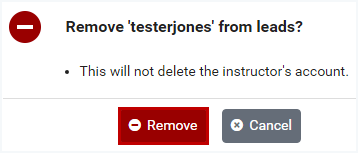
Click Remove to confirm.
[]Manage a Class Roster
A class roster is a list of members, which may include student accounts, instructor accounts, or both. All members must belong to the same community. A class may contain one or more lead instructors (trainers). All other users in the roster (who are not leads) are learners.
As students join and withdraw from a class, you will need to make periodic changes to the class roster. Details are provided in the subsections below.
[] Add Learners to the Class Roster
One method of adding learners to a class is to select learners from the list of user accounts in the community. This is a good approach when accounts have already been created for the learners that you want to add to the class roster.
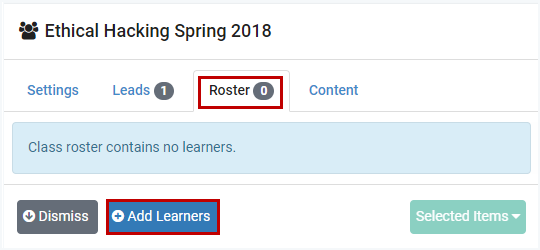
Select the Roster tab on the class page to add learners. A list of learners assigned to the class will be displayed, or the page will indicate that learners have not yet been added to the class roster. Click the Add Learners button.
A list of the user accounts in the community will be displayed. The list includes both instructors and students. Add learners to the class roster by clicking the appropriate Select checkbox(es) and then click the Add Selected button.
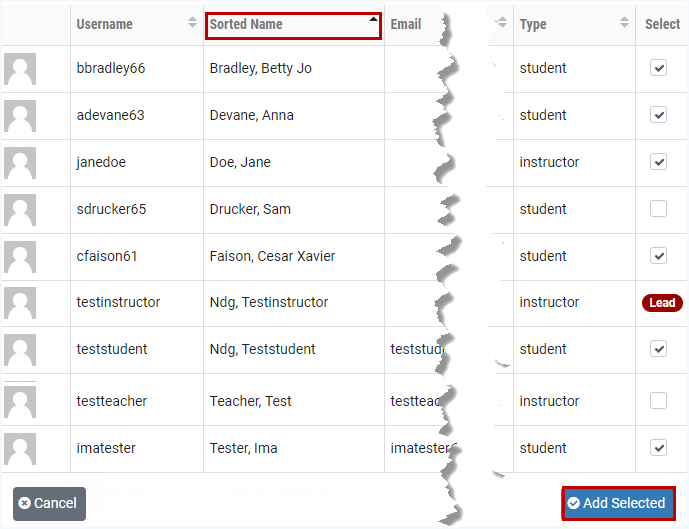
In the example above, six learners have been selected, five students and one instructor (instructors may be added to classes as learners or lead instructors). Notice also that the list shows that testinstructor has already been selected as a class lead instructor.
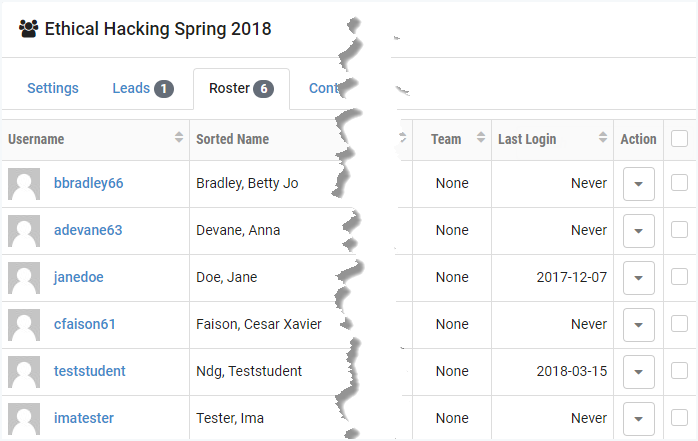
The learners are now listed in the class roster. Notice that the date of the Last Login into NETLAB+ is listed for each class member.
[]View User Account Details from the Class Roster
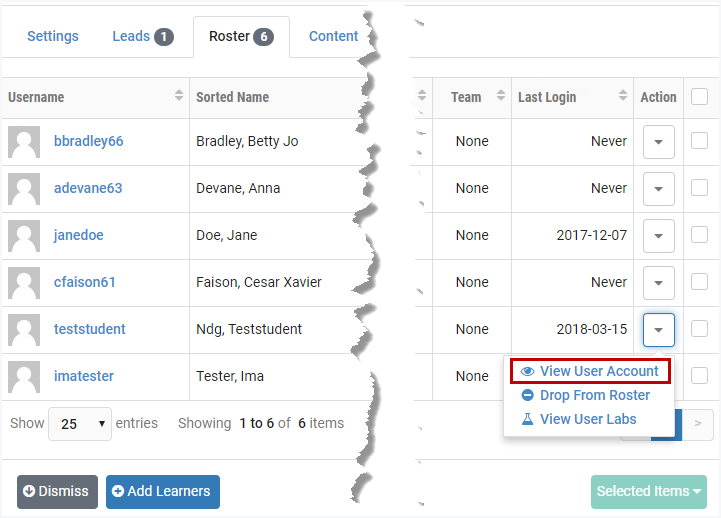
There are several options available from the class roster that allow you to view additional information pertinent to individual class members, including viewing user account details.
Click the Action dropdown on any of the detail rows and select View User Account.
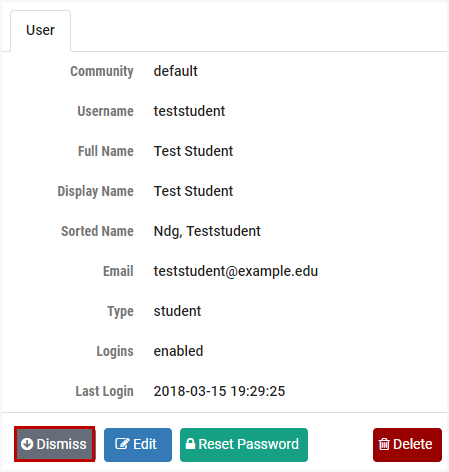
The User detail page will be displayed. Please refer to the Manage User Accounts section for more information on the options available from this page. Click Dismiss to return to the class roster.
[]Drop Learners from the Class Roster
A learner may be removed from the class roster by selecting the Drop From Roster option on the Action dropdown.
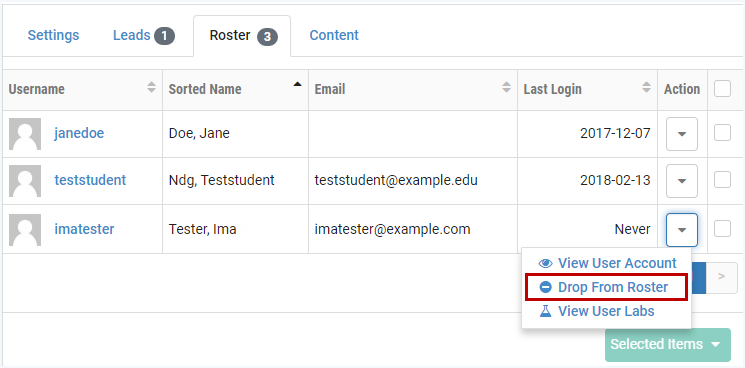
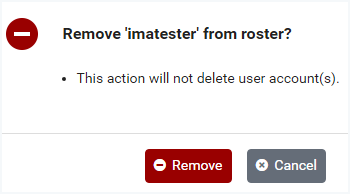
You will be prompted to confirm the removal of the learner from the class roster. Click Remove to confirm the action.
[]View User Labs from the Class Roster
There are several options available from the class roster that allow you to view additional information pertinent to individual class members, including viewing lab usage details.
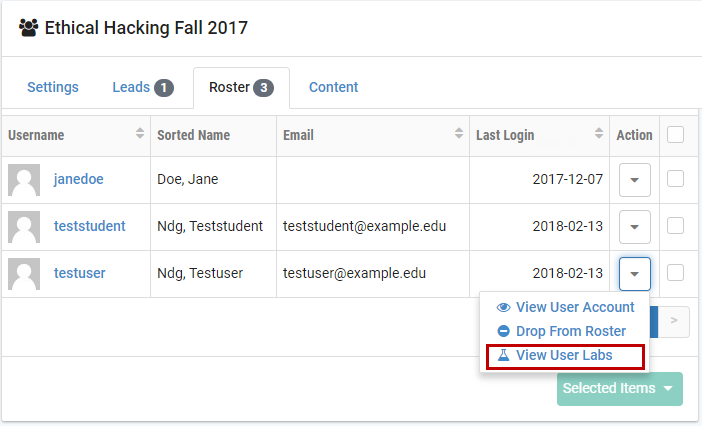
Click the Action dropdown on any of the detail rows and select View User Labs.
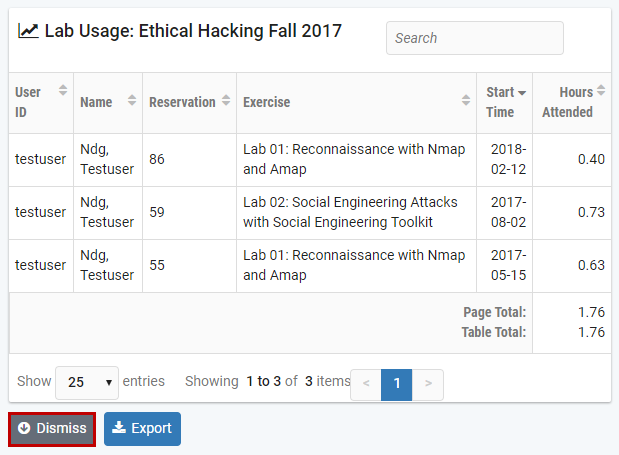
The lab usage details will be displayed, showing the labs completed by the learner for this class. For more discussion on lab usage reporting, please see the Lab Usage section. Click Dismiss to return to the roster.
[]Group the Class Roster Into Teams
Classes can be configured to allow students to have self-study lab access both as individuals and as part of an assigned team. The use of teams is optional.
You may place class members into teams labeled A to Z. Teams allow students to work in groups for self-study reservations and share access to equipment at the same time. Students may not change their own team assignment; however, the lead instructor(s) can adjust team assignments as needed.
Here, we will group the 6 learners on the Ethical Hacking Spring 2018 class roster into 3 teams. We will select the learners to add to each team.
Using the checkboxes, select the members of the class roster to be placed together on a team. We will assign the first 2 learners on the roster to a team.
Click the Selected Items box and select the option to Add to Team.
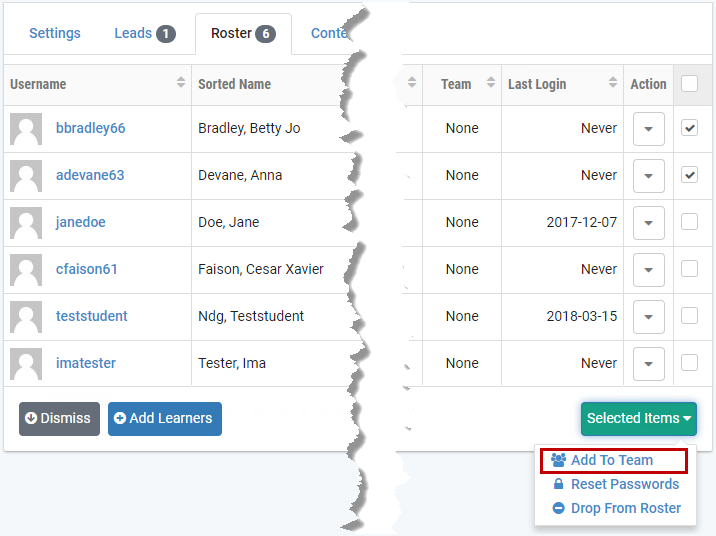
The Add Learner to Team page will be displayed and will indicate that 2 users will be assigned. On the Team dropdown, select A.
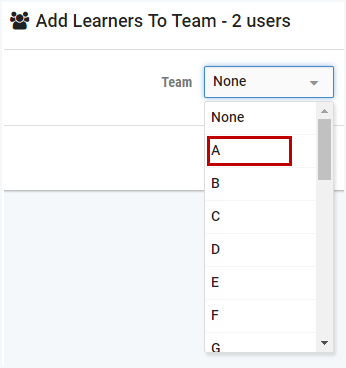
Click the Submit button.
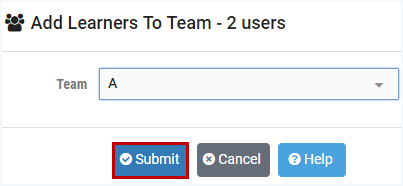
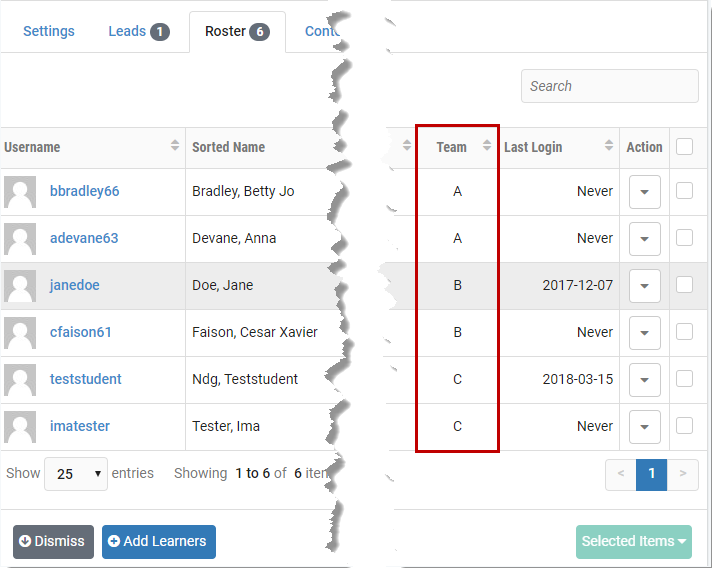
The team assignment of A is now shown on the class roster for the 2 selected roster members.
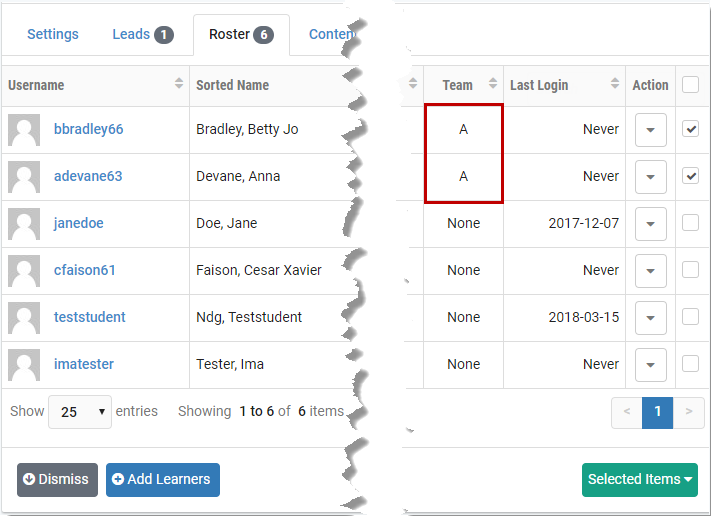
Repeat the process of selecting members of the class roster and making assignments for each team. In the example below, teams B and C have been assigned; all members of the class roster have been added to a team.
[]Reset Account Passwords for One or More Learners
It may be necessary to reset an account password if a user has lost or forgotten their current password. If you need to reset the password for multiple users in a class, you may do so by performing the following steps.
Check the Select boxes for each respective user on the class roster (the checkbox at the top of the column may be used to select all users).
Click the Selected Items button and select Reset Passwords.
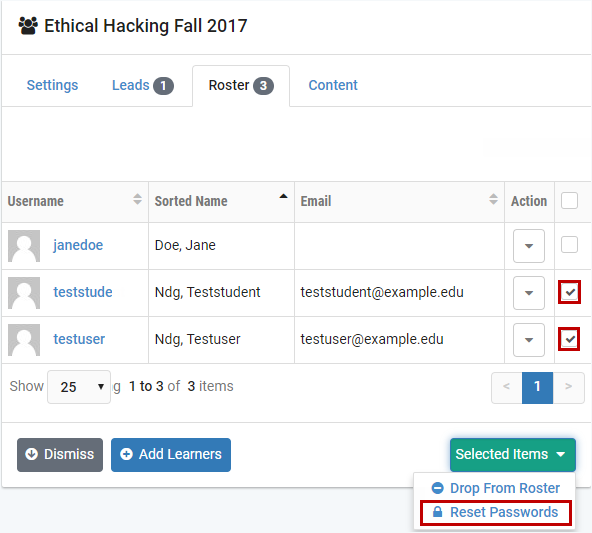
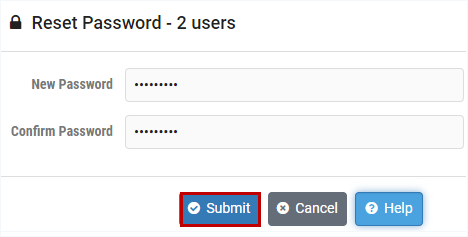
The Reset Password page will be displayed. Enter the new, temporary password for the account(s) and then re-enter it to confirm. Click Submit.
Passwords must meet the following requirements:
Not found in the dictionary and not too simple
Between 7 and 16 characters
Contain both numbers and letters
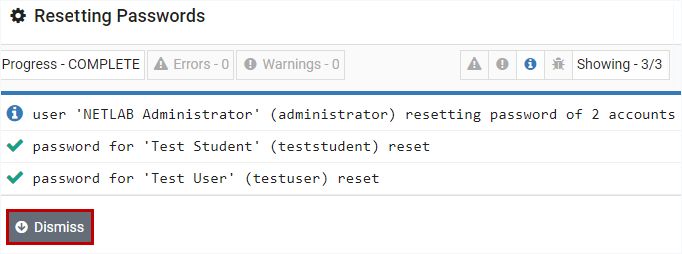
You will see system log entries indicating the progress of the password reset for each user. When complete, click Dismiss.
[]Add Content to a Class
Selecting the content for a class will make available the appropriate instructional material (typically, lab exercises for scheduled lab reservations).
Select the Content tab on the class record and click the Add Content button.
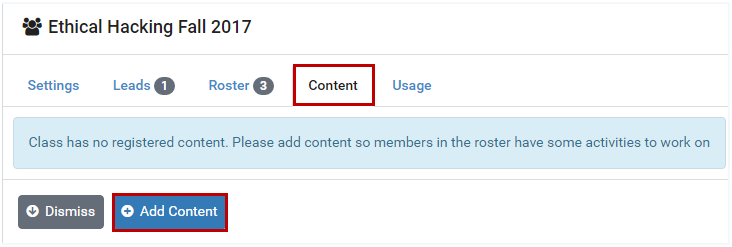
A list of Available Lab Content is displayed. In the example below, the content for NDG Ethical Hacking is selected for the class.
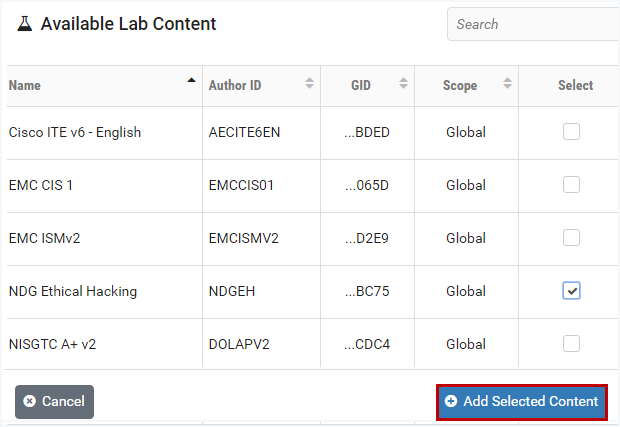
Click the Add Selected Content button. A message will confirm that the content has been added.
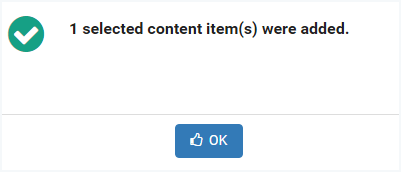
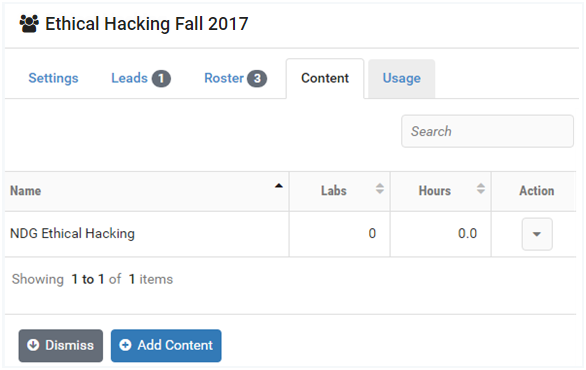
Click OK to return to the class details.
NDG Ethical Hacking is now included in the content list. The total number of Labs performed and number of Hours of lab reservation time currently indicate zero, since the content has just been added.
[]Remove Content from a Class
The option to Remove Content is available on the Action dropdown of the Content tab for a class.
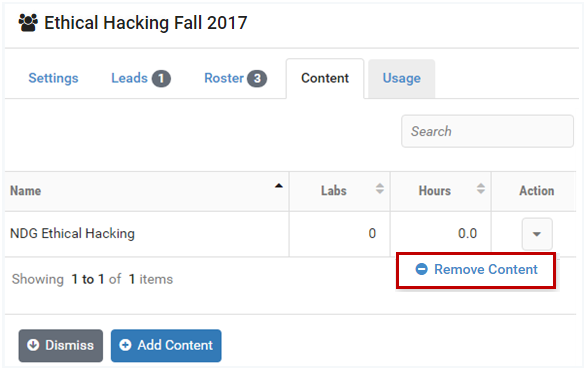
Select Remove Content on the Action dropdown. You will be prompted to verify that you want the content removed. As noted, removing the content will not affect lab reservations already made for this class.
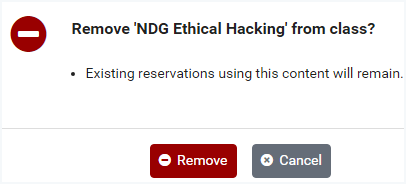
Select Remove to confirm that you want to remove the content. A message will verify that the content has been removed from the class.
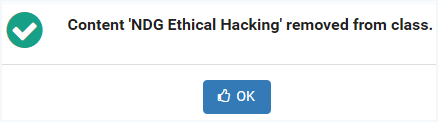
Select OK.
[] Delete Classes
Class records may be removed from the NETLAB+ system. All information associated with the class, including the class roster, will be removed from the system. The option to delete the accounts for students exclusively enrolled in the class may be selected.
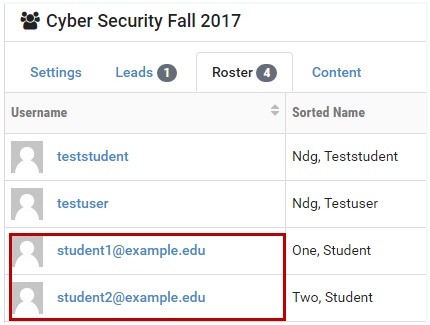
In the steps below, we will delete the Cyber Security Fall 2017 class, but before we proceed, let us examine the class roster. There are four learners enrolled. Assume the following for the example below:
Two of the learners in the class roster, teststudent and testuser, are enrolled in an Ethical Hacking class, in addition to being enrolled in the Cyber Security Fall 2017 class.
The other two student accounts (highlighted below) student1 and student2, are enrolled in the Cyber Security Fall 2017 class exclusively; these learners are not enrolled in any other classes. You may choose to delete these accounts when deleting the class.
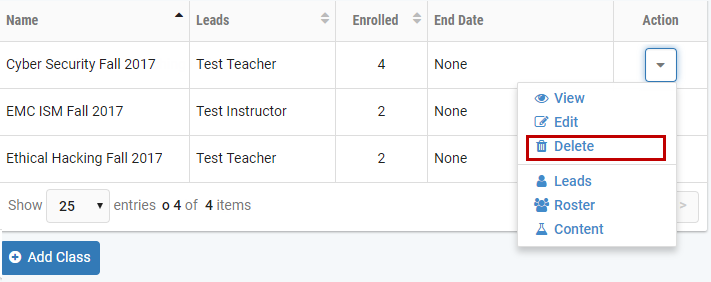
To delete a class record, select a class on the class list and click the Delete option on the Action dropdown.
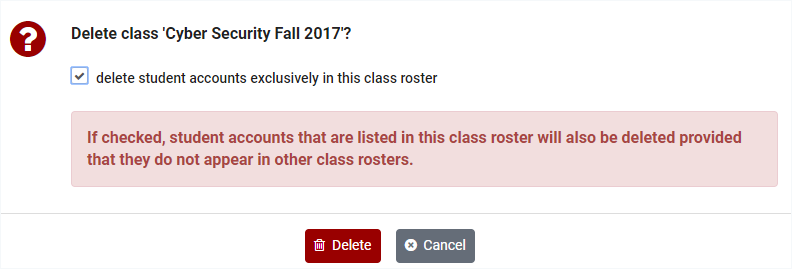
When deleting a class, you may choose to either retain or delete the student accounts on the class roster. Accounts will not be deleted if the student is enrolled in other classes. Below, the checkbox is selected to delete student accounts exclusively in this class roster. Click Delete.
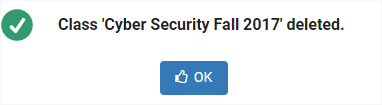
The class has been deleted from the NETLAB+ system. Select OK to return to the list of classes.
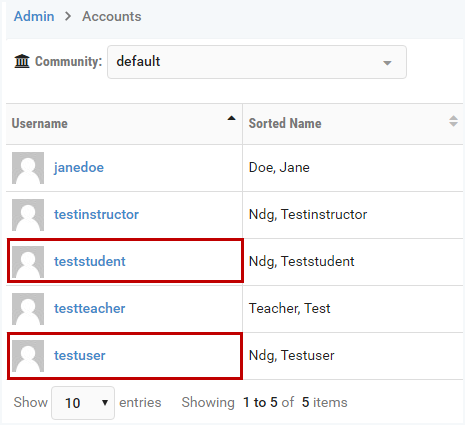
Because the option to delete student accounts exclusively in this class roster was checked, two student accounts, student1 and student2, have been deleted. The teststudent and testuser accounts are still present on the system (see the Accounts list below, see also the Manage User Accounts section).
[] Manage User Accounts
 This function is used to add, delete, and modify user
account information. A student account should be created for each
student to allow them to participate in lab reservations.
This function is used to add, delete, and modify user
account information. A student account should be created for each
student to allow them to participate in lab reservations.
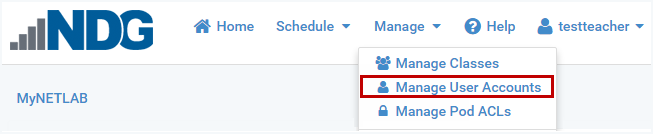
To manage user accounts, click Manage in the upper-right corner of the Home page and select the Manage User Accounts dropdown option.
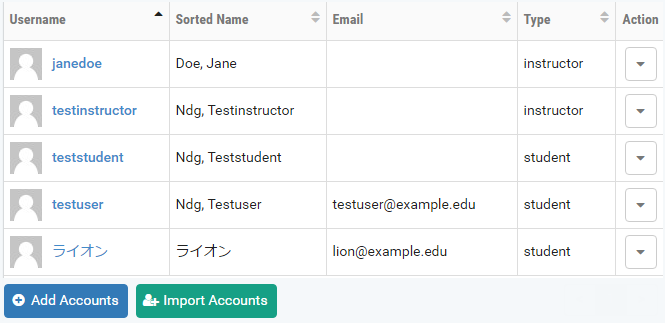
A list of all users in the community will be displayed.
[]Add Accounts
An account should be created for each user to allow them to participate in lab reservations. There are two methods of adding user accounts to NETLAB+ VE, which are explained in detail in the subsections below.
Importing data from a file: If you have the information needed to create the user accounts in a file (see requirements below), you may import this information into NETLAB+. This is a good choice when you have a file available from a class roster or LMS and many accounts to add.
Entering data: Create user accounts individually by entering the data into a form. This is a good option when you just need to add a few accounts quickly.
[]
Importing Data from a File
User account information can be imported into NETLAB+ from a comma or tab-delimited file (*.csv or *.txt). An account should be created for each user to allow them to participate in lab reservations. Account information may be imported into NETLAB+ from a file with these characteristics:
The file must be in a comma or tab-delimited file format (*.csv or *.txt).
The first row of the file may contain column headers that identify each field to import.
The file may contain additional, extraneous columns of data. You will select which columns are used by NETLAB+.
The file must include the data fields, as described below.
Field Descriptions - Account Information File
Required Fields (these fields must be included in the input file):
Username: A user identifier that is unique to each user. REQUIRED
The username credential used to log in to the account. The Username can contain letters, numbers, and the following punctuation characters: period (.), at sign (@), hash (#), underscore (_), and hyphen (-). The UTF-8 character set is supported.
Name Information for each user. REQUIRED (choose Option 1 or 2).
You have two options as to how this information may be imported, depending on the data available in your input file. The UTF-8 character set is supported.
Option 1: Your file includes name data in one field:
Full Name: The name given to a user at birth. The user’s complete name including any inherited names, given names, or initials. Note that certain titles, prefixes, and suffixes can interfere with name processing and automation.
Option 2: Your file includes name data in two fields:
Given/First Name: The name given to a user at birth.
Family/Last Name: The name shared by the user’s family.
Optional Fields (you have the option to import this information into NETLAB+)
Display Name: Users (instructors and students) will see this name in collaborative applications, such as instructor-led training. If this field is not included in the input file, it will be automatically populated during the input process. You may edit the Display Name as needed.
This name may be visible to student accounts. Do not use personally identifiable information in this field when privacy must be maintained.
Sorted Name: This name will be seen by instructors and administrators in sorted lists. If this field is not included in the input file, it will be automatically populated during the input process. You may edit the Sorted Name as needed.
Using the Sorted Name field allows the option of displaying lists, such as class rosters, in order by last name, first name.
Email: An email address for the user.
**
**
Initial Password: The account users will be required to change this password during their initial login. Passwords must meet the following requirements:
Not found in the dictionary and not too simple
Between 7 and 16 characters
Contain both numbers and letters
To import a file:
Select a comma or tab-delimited file from the local file system that contains the account data to be imported. Files used for importing accounts must contain lines with an equal number of commas or tab-separated values and carry a “.csv” or “.txt” file extension.
Identify the required information in the input file (see information above on the required fields).
After the account information has been imported from the file, you will complete the process of adding accounts on the Enter New Account Information page, where you will have the option to change the community setting and modify the account type (student vs. instructor) as needed, depending on your instructor privileges.
[]Importing Data Example A
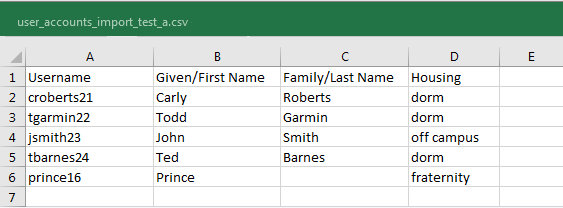
In this example, we will import account data from a comma-delimited file. Let’s
look at the file using a spreadsheet program, so we can view the data and make the appropriate choices for importing account information.
 `
`
Notice a few important things about this file:
The file name user_accounts_import_test_a.csv is a comma-delimited file, which is an acceptable format for importing.
The file includes the recommended column headers in the first row.
The file includes the required Username field.
The file includes name information in a format meeting one of the two acceptable options (see above). In this case, the fields, Given/First Name and Family/Last Name are present, which meets the requirements for Name Information Option 2.
In the 6th row, the record displayed (“Prince”) does not have a value in the Family/Last Name field. This user’s name is a single word only, and that is OK.
An additional field, Housing, is present in the file. This data has no relevance to this process; however, it is not necessary to remove this data from the file; it will simply be ignored.
To Import the data:
On the accounts page, select the option to Import Accounts.
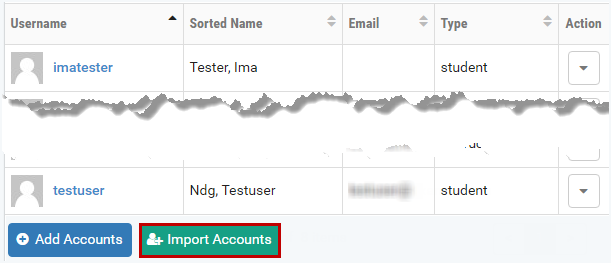
Select the Import File
 button.
Navigate your file system and select the file that includes the data that you want to import. Here, we will import user_accounts_import_test_a.csv.
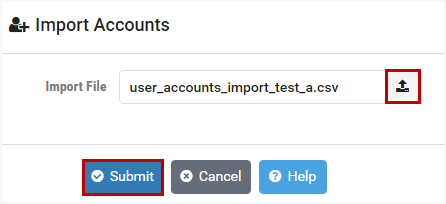
Select the Submit button.
The data that NETLAB+ was able to extract from the file is shown in a table. Notice that the last column, which contains the unneeded housing data, is grayed out, and the checkbox at the top is not selected. This is fine since we do not want to import this data.
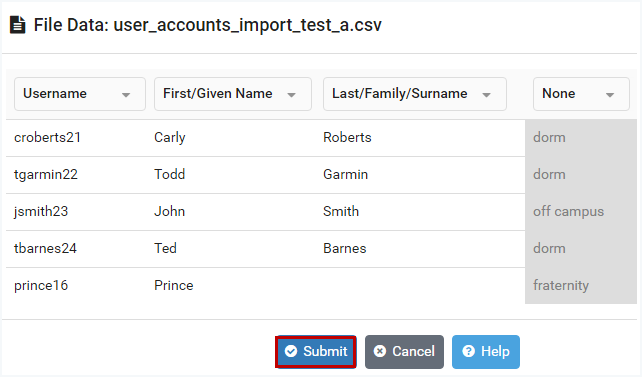
Select the Submit button.
The imported information will be included on the Import Accounts page. The process of adding the new accounts will be completed here.
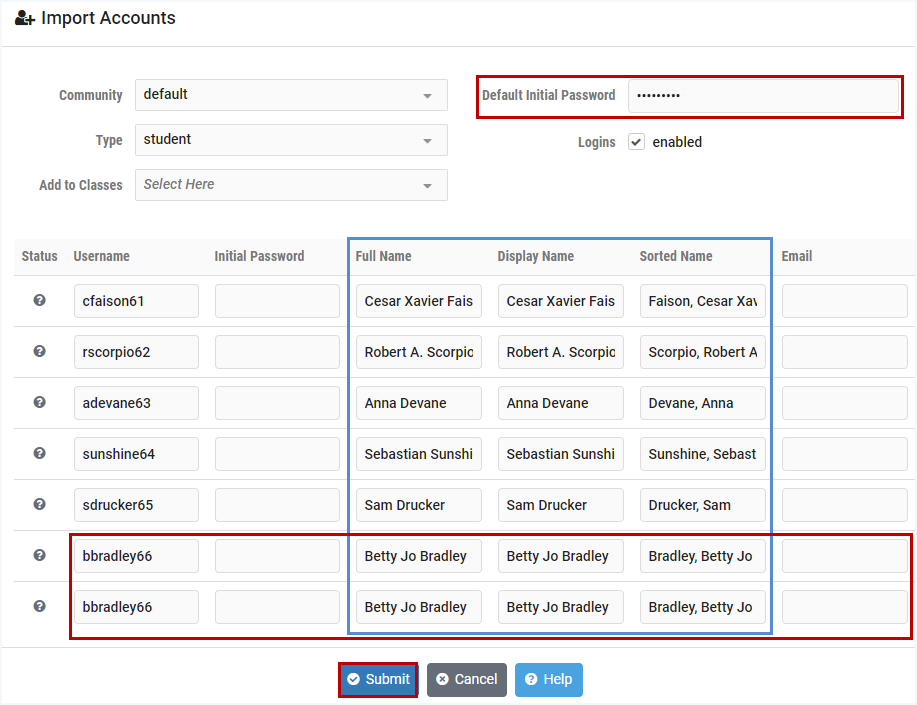
a. An initial password must be specified. If initial passwords were not included with the imported account data (as in this example), a Default Initial Password must be entered, which will be used for all new accounts being created on this page.
b. The import process has generated Full Names based on the input data provided and populated the Full Name for each record. The values may be edited as needed.
c. The import process has generated Display Names based on the input data provided and populated the Display Name field for each record. The values may be edited as needed.
d. The import process has generated Sorted Names based on the input data provided and populated the Sorted Name field for each record. The values may be edited as needed.
e. We did not import email addresses, nor have we entered them here. Assume for this example that students will enter their email addresses themselves when they initially access their accounts.
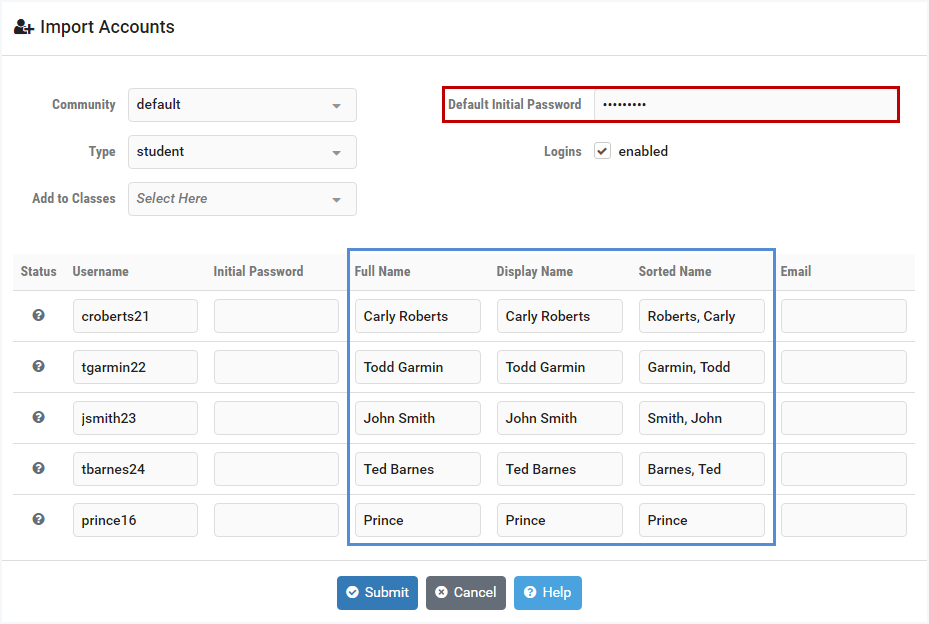
Once again, select the Submit button. This will complete the process of adding the new accounts to your system.
[]Importing Data Example B
In this example, we will again import account data from a comma-delimited file. Let’s
look at the file using a spreadsheet program, so we can view the data and make the appropriate choices for importing account information.
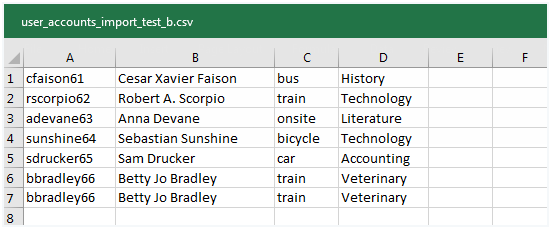
Notice a few important things about this file:
The file name user_accounts_import_test_b.csv is a comma-delimited file, which is an acceptable format for importing.
The file does not include the recommended column headings. As you will see, we can still use the file “as is”; however, the import process may require user intervention to determine the appropriate data to import.
The file includes a column with a unique identifier to be used as a Username.
The file includes name information in a format meeting one of the three acceptable options (see above). In this case, a single name field containing both
Given/First Name and Family/Last Name is present, which can be used as Display Name, Name Information Option 3.
Two additional columns are present in the file. This data has no relevance to this process; however, it is not necessary to remove this data from the file; it will simply be ignored.
The file includes an error, a duplicate record (see lines 6 & 7). We will see how this error will be identified in the import process below.
As in Example 1, select Import Accounts > Import File
.Navigate your file system and select the file that includes the data that you want to import. Here, we will import user_accounts_import_test_b.csv.
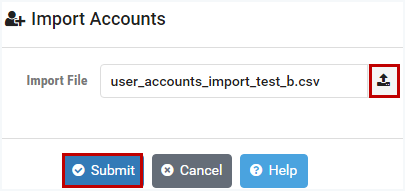
Select the Submit button.
The data that NETLAB+ was able to extract from the file is shown in a table.
All of the table data is grayed out since the import process did not have sufficient information to determine what fields contain input data.
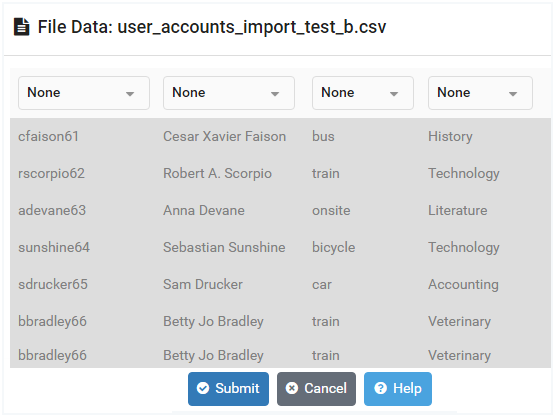
Select the first column and set the dropdown to Username.
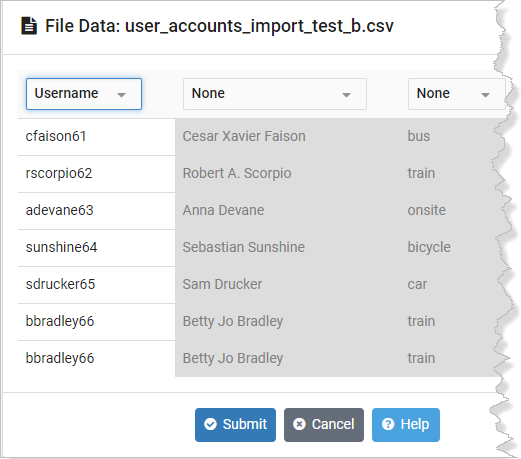
Select the second column and set the dropdown to Full Name.
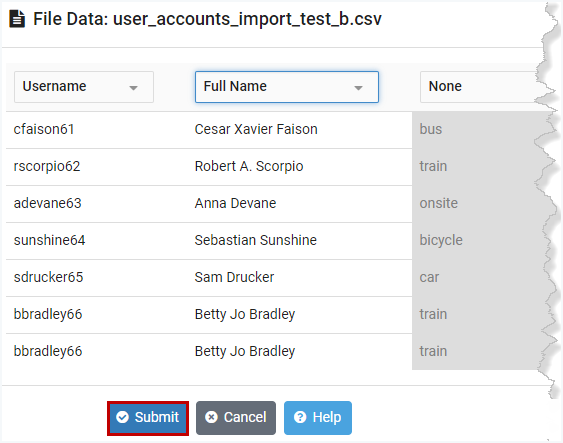
The other data columns that are still grayed out are not needed and will not be imported. Click the Submit button.
The imported information will be included on the Import Accounts page. The process of adding the new accounts will be completed here.
a. An initial password must be specified. If initial passwords were not included with the imported account data (as in this example), a Default Initial Password must be entered, which will be used for all new accounts being created on this page.
b. The import process has generated Display Names based on the input data provided and populated the Display Name field for each record. The values may be edited as needed.
c. The import process has generated Sorted Names based on the input data provided and populated the Sorted Name field for each record. The values may be edited as needed.
d. We did not import email addresses, nor have we entered them here. Assume for this example that students will enter their email addresses themselves when they initially access their accounts.
e. Notice the list of accounts to be imported includes a duplicate for username bbradley66 (last record in the list).
Click the Submit button.
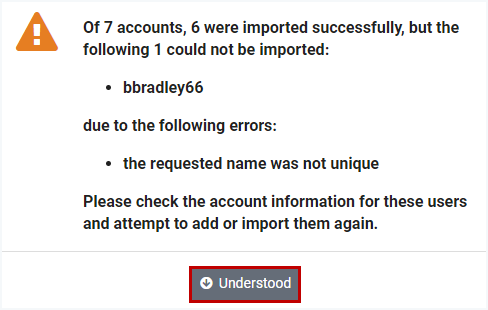
An alert message will indicate that 6 accounts were imported successfully, but the duplicate record was not imported. Usernames must be unique in NETLAB+. Click Understood. This will complete the process of adding accounts to your system.
[]
Entering Account Data
An account should be created for each user to allow them to participate in labs and have access to content.
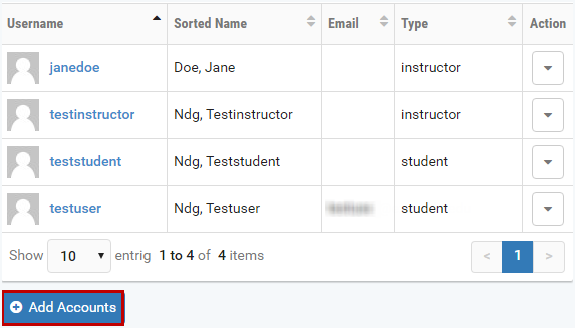
Select the Add Accounts button at the bottom of the user account list.
The New Account page will be displayed. Complete the form with the appropriate details for the new user. Refer to the field descriptions at the end of this section. In the example below, a student account is being created for user techjones.
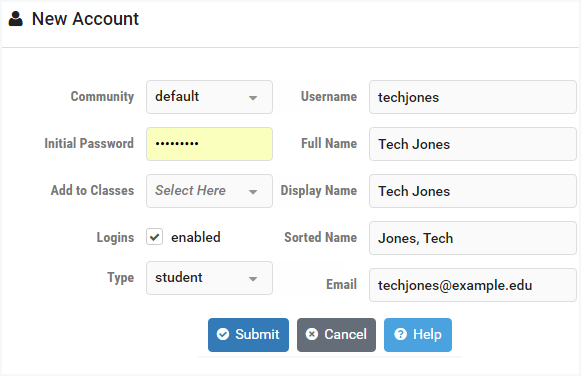
Select Submit at the bottom of the page to add the new account to the system.
A confirmation message will indicate that the account has been added. Select Add More Users to add more accounts or select Done to return to the Accounts list.
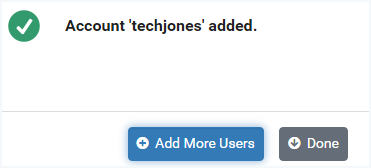
**
**
Field Descriptions - Account (New/Edit)
Community: All users belong to a community. If only one community is present on the system, all users will be members of the default community.
Initial Password: Assign an Initial Password to the accounts by entering a value for the initial password. The account users will be required to change this password during their initial login. Passwords must meet the following requirements:
Not found in the dictionary and not too simple
Between 7 and 16 characters
Contain both numbers and letters
Add to Classes: Add the user to the class roster for one or more classes available in the community. The dropdown will display a list of available classes, which may be checked to select.
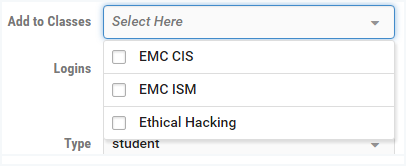
Logins enabled: Check to enable logins for this user. If unchecked, logins will be disabled for this user.
Account Type: The account type: student or instructor, must be selected for each account. Once an instructor record is created, the instructor may be assigned as a lead instructor for a class or may join a class as a learner. A class may contain one or more lead instructors (trainers). All other users in the roster (who are not leads) are learners.
An instructor with normal privileges may add student accounts only.
Username: The username credential used to log in to the account. Username can contain letters, numbers, and the following punctuation characters: period (.), at sign (@), hash (#), underscore (_), and hyphen (-). The UTF-8 character set is supported.
Full Name: This name will be used by instructors and administrators for managing the user account. Users with student accounts will see their own full name in their user settings. Users with student accounts will not see the full names of other users during collaborative activities such as instructor-led training. The UTF-8 character set is supported.
Display Name: Users (instructors and students) will see this name in collaborative applications, such as instructor-led training. This field will be automatically populated based on the value you enter into the Full Name field. You may edit the Display Name as needed.
This name may be visible to student accounts. Do not use personally identifiable information in this field when privacy must be maintained.
Sorted Name: This name will be seen by instructors and administrators in sorted lists. This field will be automatically populated based on the value you enter into the Full Name field. You may edit the Sorted Name as needed.
Email: The user’s email address. Entering an email address is optional; account users will be prompted to add/update their email address and time zone information when they initially log in to their account.
[] Edit Accounts
Locate the record(s) you wish to edit by entering a full or partial User Id or name in the search box. This may allow you to avoid scrolling through a long list if there are a large number of accounts in your community. The results of your search query will be displayed in a list.
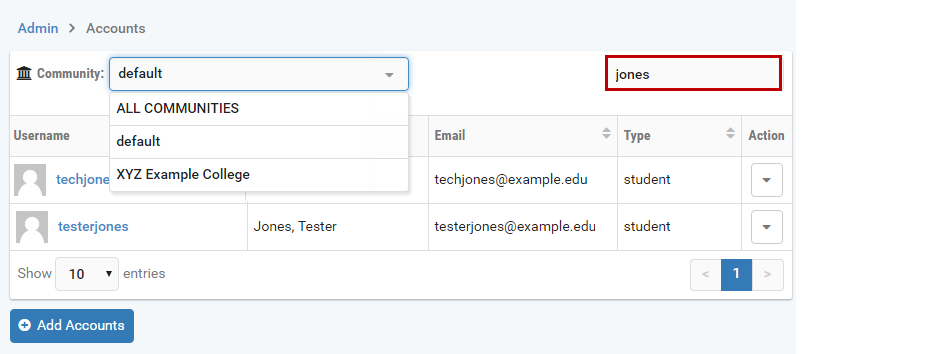
Select an account by clicking on a Username. The User tab of the account detail page will be displayed.
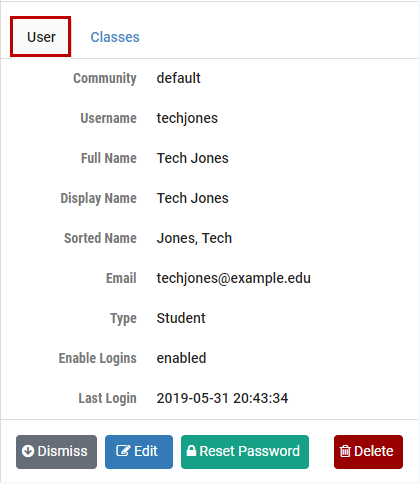
Click on the Classes tab to see a list of the classes in which the user is enrolled as a learner or lead instructor.
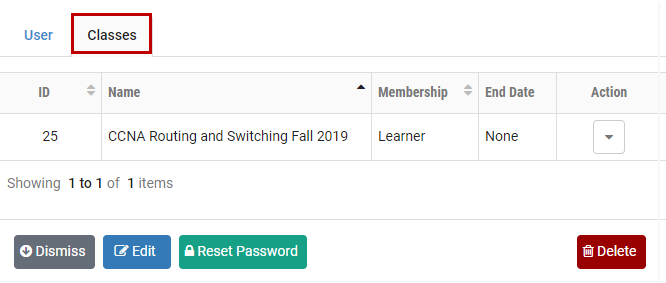
To proceed to the edit page for this account, select the Edit button. The account edit page may be used to modify the account name, email address and to enable and disable account logins. When account logins are disabled, the user will not be able to login to the NETLAB+ system.
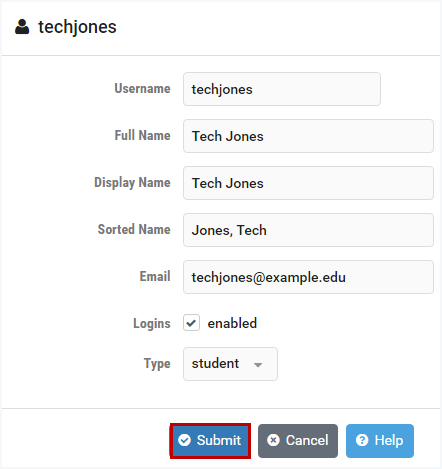
Select Submit to save changes to the account record.
Please refer to the Entering Account Data section for a detailed description of the fields on this page or select the Help button to display the field descriptions.
[]Delete Accounts
As an instructor with normal privileges, you may delete student accounts in your community.
Considerations before you delete an account:
Keep in mind that accounts may be assigned to multiple classes.
If the accounts are for students who will continue to use your NETLAB+ system in other classes, you can keep the accounts and add them to the class roster of other classes as needed.
To delete an account, perform the following steps:
As described in the Edit Accounts section, select the account detail page of the account you want to delete, and then click Delete.
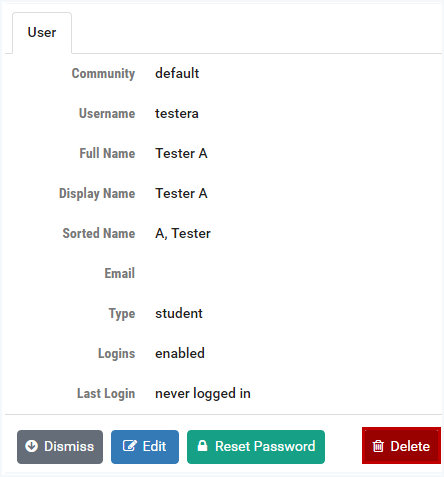
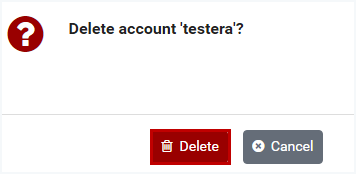
Click Delete to confirm that you want to delete the account.
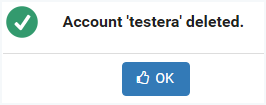
A message will indicate the account has been deleted, click OK.
[]Reset Account Passwords
It may be necessary to reset an account password if a user has lost or forgotten their current password. You may use the reset password function. Upon initial login following the reset, the user will be required to change the password.
As described in the Edit Accounts section, select the account detail page of the account for which you want to reset the password.
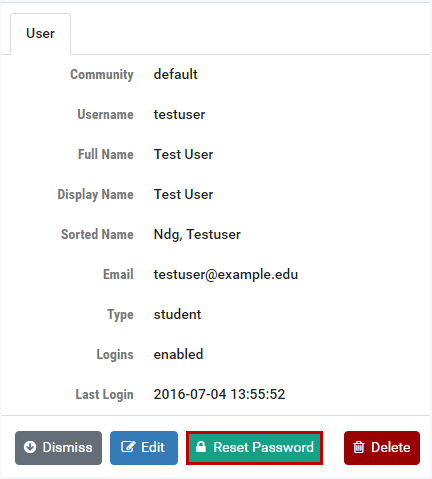
Select the Reset Password button to display the password reset screen.
Passwords must meet the following requirements:
Not found in the dictionary and not too simple
Between 7 and 16 characters
Contain both numbers and letters
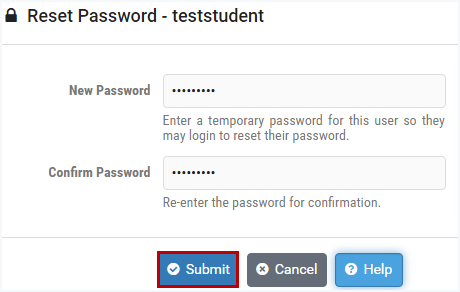
Enter the new, temporary password for the account and then re-enter it to confirm.
Click Submit.
[] Manage Pod ACLs
If the NETLAB+ Administrator has appointed you to be a Pod Access Control List (ACL) Manager for a pod, you will have access to manage the ACL rules of the pod. Perform the following steps to manage Pod ACLs:
Click Manage in the upper-right corner of the Home page and select the Manage Pod ACLs dropdown option.
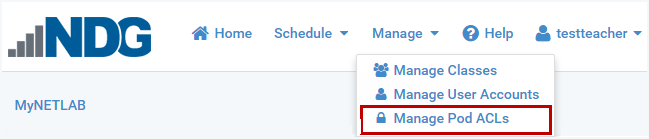
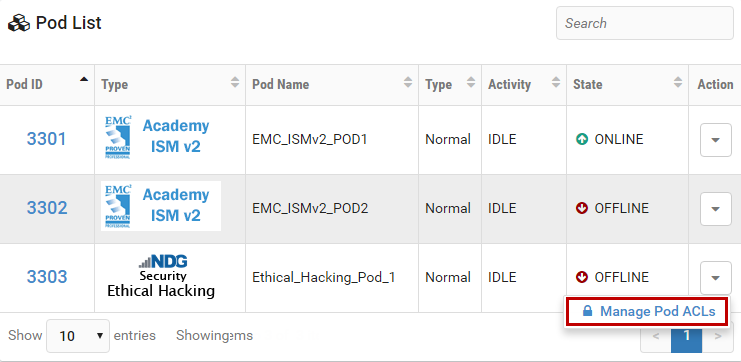
A list of the pods for which you have permission to manage the ACL is displayed. On the Action dropdown for a pod, select Manage Pod ACLs.
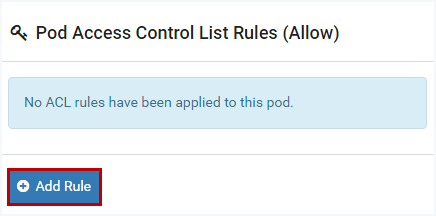
The Pod Access Control List Rules page will be displayed. Click Add Rule.
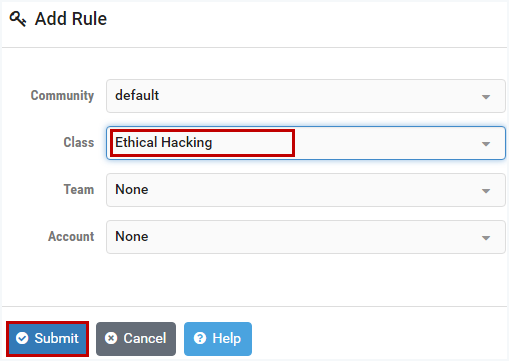
The Add Rule page will be displayed. For details on completing this page, see the field descriptions below for guidance or select Help. In the example below, we will add a pod rule that will allow all learners in the Ethical Hacking class to access the pod by selecting the class name in the Class field and then clicking Submit.
Field Descriptions - Add Rule page
Community: As an instructor with normal privileges, you may assign pod rules within your community only.
Class: Select the class that will be allowed to schedule this pod.
Team: Select the team that will be allowed to schedule this pod. A Team (a subset of a class) may only be selected if a Class has been selected. Please note that Team and Account selections are mutually exclusive.
Account: Select the account that will be allowed to schedule this pod. Please note that Account and Team selections are mutually exclusive.
A message will indicate that the ACL rule has been added to the pod. Click OK.
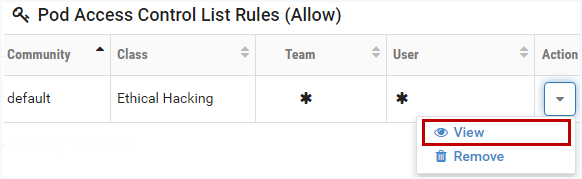
The pod rule that specifies all members (notice the “*” wildcard indicator in the Team and User fields) of the Ethical Hacking class have access to the pod is now displayed in the Pod Access Control List Rules. To review the details of a pod rule, select View on the Action dropdown.
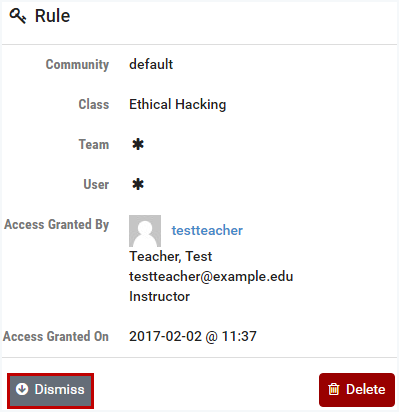
Details of the rule are displayed; the option to delete the rule is also available. Click Dismiss.
[]Usage
 Usage reporting provides valuable feedback
on the use of your NETLAB+ system, allowing you to examine user activity
at a variety of levels. The reporting information can be exported to a
CSV file, allowing you to add the data to your own spreadsheets or
reporting system.
Usage reporting provides valuable feedback
on the use of your NETLAB+ system, allowing you to examine user activity
at a variety of levels. The reporting information can be exported to a
CSV file, allowing you to add the data to your own spreadsheets or
reporting system.
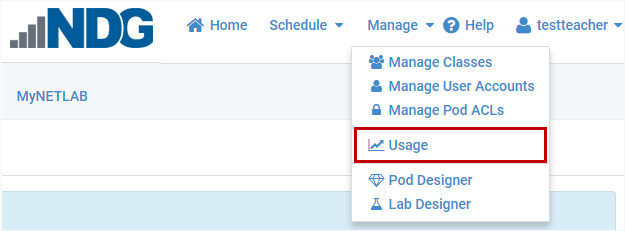
To see usage information, click Manage in the upper-right corner of the Home page and select the Usage dropdown option.
The Usage page will be displayed. There are several levels of reporting available, each with a selection of sorting options. Usage information includes Reservations Made, Labs Attended, Hours Reserved, and Hours Attended, summarized according to your selection of usage level.
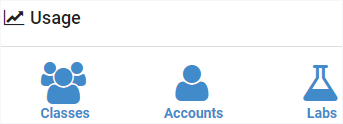
Usage Levels (see subsections below for details):
Classes: Usage is reported for selected classes.
Accounts: Usage is reported for individual users.
Labs: Total number of labs and lab hours per user.
[] Class Usage
 Usage
information at the class level is displayed when class usage reporting
is selected. The report may be customized by selecting options (see
field descriptions below).
Usage
information at the class level is displayed when class usage reporting
is selected. The report may be customized by selecting options (see
field descriptions below).
To generate usage reporting at the class level, select MyNETLAB > Classes.
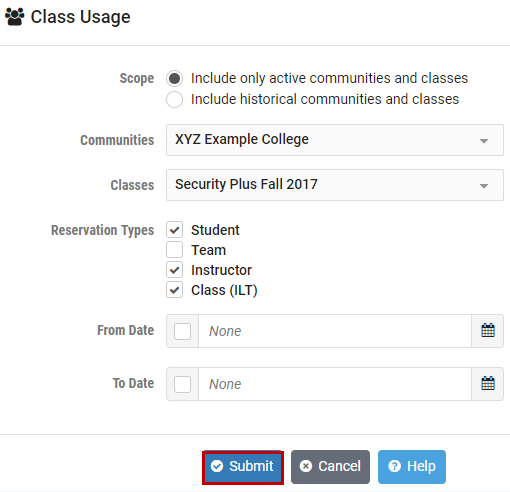
Use the options on the page to construct a query to search the log entries (optional, see field descriptions below).
Click Submit to view the results.
**
**
Field Descriptions - Class Usage
Scope: Select the scope of communities and classes to be displayed on the report.
Include only active communities and classes: Choose to limit community and class selections to those that currently exist or expand selections to include deleted items that only reside in historical records. Typically, instructors will be more interested in active communities and classes, which will provide a view of what students are doing in the classes they are teaching.
Include historical communities and classes: The inclusion of historical data is useful for looking at how NETLAB+ is being utilized, in general, over longer periods of time.
Communities: Your community will be shown here. As an instructor with normal privileges, you may view usage information within your own community for classes you lead.
Classes: Classes for which you are a lead instructor are listed. The reporting will include data for all the classes you select.
Reservation Types: Select the type(s) of reservations to include in the usage report.
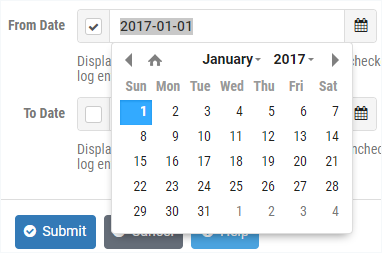
From Date and To Date: An optional From Date and/or To Date may be applied by selecting the checkbox and then selecting a date on the calendar pop-up. The information displayed will be limited by the selected date range. If left unchecked, the report will contain usage information starting from the earliest log entry available, through the present.
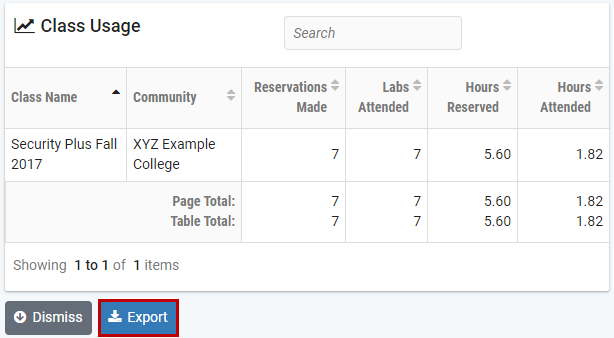
The Class Usage report is displayed. The information includes Class Name, Community, Reservations Made, Labs Attended, Hours Reserved, and Hours Attended. You may sort the data in ascending/descending order by clicking any of the header fields. Next, we will export the data by selecting Export.
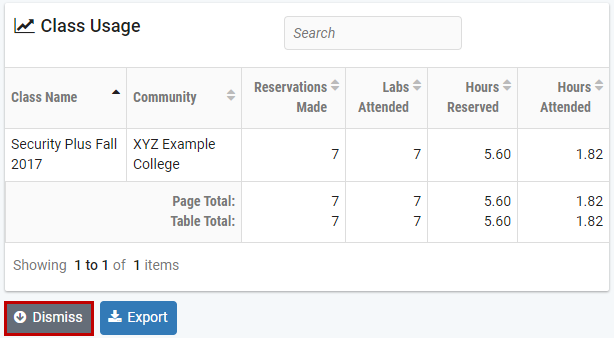
The data has been exported to a file, class_usage.csv. Locate the file in your computer’s downloads folder (the folder name may vary depending on your preferences and settings). The file can be viewed with a spreadsheet program or text editor.

When you are finished reviewing the information in NETLAB+, click Dismiss.
[]Account Usage
 Usage information at the individual account level is
displayed when account usage reporting is selected. The report may be
customized by selecting options (see field descriptions below).
Usage information at the individual account level is
displayed when account usage reporting is selected. The report may be
customized by selecting options (see field descriptions below).
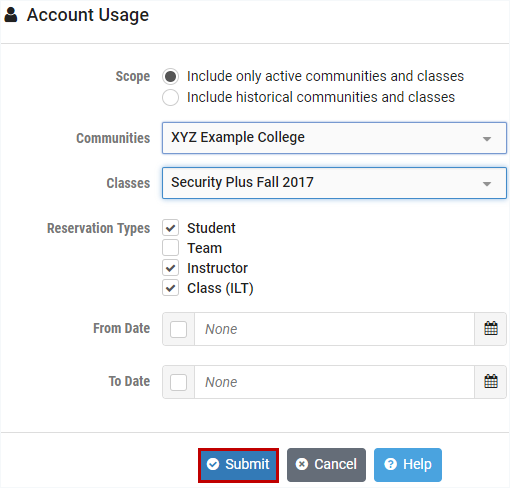
To generate usage reporting at the account level, select MyNETLAB > Accounts.
Use the options on the page to construct a query to search the log entries (optional, see field descriptions below).
Click Submit to view the results.
**
**
Field Descriptions - Account Usage
Scope: Select the scope of communities and classes to be displayed on the report.
Include only active communities and classes: Choose to limit community and class selections to those that currently exist or expand selections to include deleted items that only reside in historical records. Typically, instructors will be more interested in active communities and classes, which will provide a view of what students are doing in the classes they are teaching.
Include historical communities and classes: The inclusion of historical data is useful for looking at how NETLAB+ is being utilized, in general, over longer periods of time.
Communities: Your community will be shown here. As an instructor with normal privileges, you may view usage information within your own community for classes you lead.
Classes: Classes for which you are a lead instructor are listed. The reporting will include data for all the classes you select.
Reservation Types: Select the type(s) of reservations to include in the usage report.
From Date and To Date: An optional From Date and/or To Date may be applied by selecting the checkbox and then selecting a date on the calendar pop-up. The information displayed will be limited by the selected date range. If left unchecked, the report will contain usage information starting from the earliest log entry available, through the present.
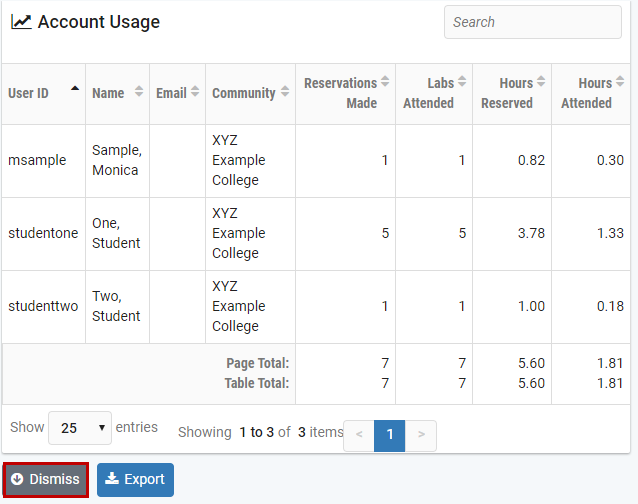
The Account Usage report is displayed. The information includes User ID, Name, Email, Community, Reservations Made, Labs Attended, Hours Reserved, and Hours Attended. You may sort the data in ascending/descending order by clicking any of the header fields. Notice in the example below, we are displaying information for only one of the communities on the system. When you are finished reviewing the information, click Dismiss.
[] Lab Usage
Usage information at the lab level is displayed when
Lab Usage reporting is selected. The report may be customized by
selecting options (see field descriptions below). Lab Usage data may be
aggregated (grouped) by labs and/or accounts.
To generate usage reporting at the lab level, select MyNETLAB > Labs.
Use the options on the page to construct a query to search the log entries (optional, see field descriptions below). In the example below, the option to aggregate is not selected (we will show that in a second example, below).
Click Submit to view the results.
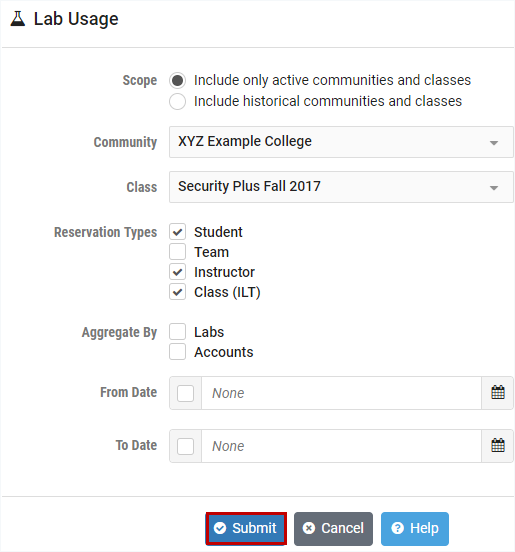
Field Descriptions - Lab Usage
Scope: Select the scope of communities and classes to be displayed on the report.
Include only active communities and classes: Choose to limit community and class selections to those that currently exist or expand selections to include deleted items that only reside in historical records. Typically, instructors will be more interested in active communities and classes, which will provide a view of what students are doing in the classes they are teaching.
Include historical communities and classes: The inclusion of historical data is useful for looking at how NETLAB+ is being utilized, in general, over longer periods of time.
Communities: Your community will be shown here. As an instructor with normal privileges, you may view usage information within your own community for classes you lead.
Classes: Classes for which you are a lead instructor are listed. The reporting will include data for all the classes you select.
Reservation Types: Select the type(s) of reservations to include in the usage report.
Aggregate By: Choose the Labs and/or Accounts option to aggregate (group) the lab usage information
From Date and To Date: An optional From Date and/or To Date may be applied by selecting the checkbox and then selecting a date on the calendar pop-up. The information displayed will be limited by the selected date range. If left unchecked, the report will contain usage information starting from the earliest log entry available, through the present.
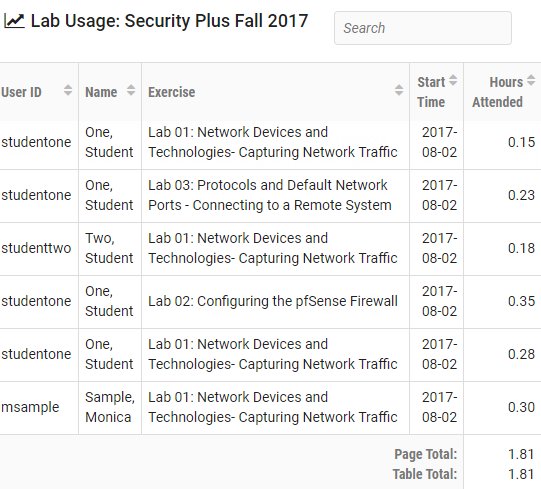
The Lab Usage report is displayed. The information includes User ID, Name, Email, Community, Reservations Made, Labs Attended, Hours Reserved, and Hours Attended. You may sort the data in ascending/descending order by clicking any of the header fields. In the example below, the data is sorted by User ID. The report includes detail for every lab attended for each user. Click any of the detail rows of the report to view the lab history, specific to the reservation. We’ll discuss lab history in the next section. Click Dismiss to return to the previous page.
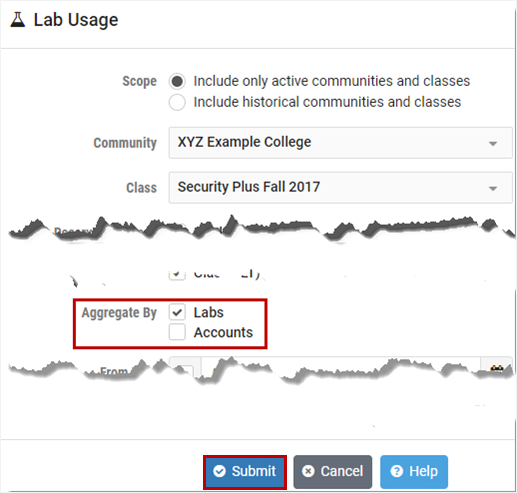
In this example, we will generate the report again, but this time, we will aggregate our results by labs.
From the Lab Usage page, select Labs and click Submit.
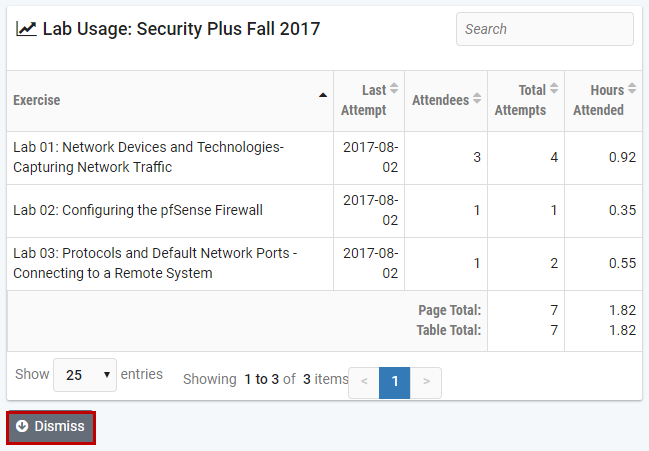
Now, our report shows one detail line per lab, with summary information for the number of Attendees, Total Attempts, and Hours Attended for all learners in the class. Click Dismiss.
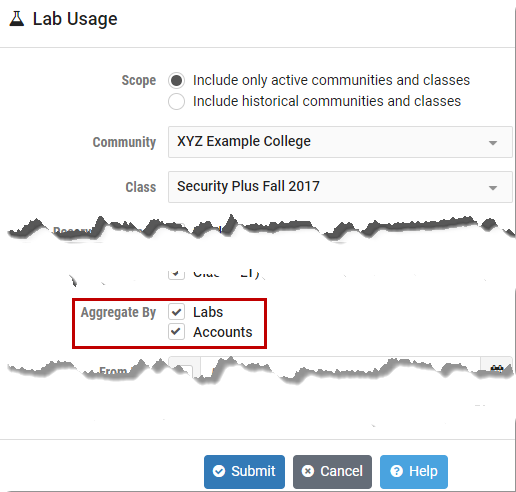
For this example, we will generate the report again, aggregating our results by both Labs and Accounts.
Select the options as shown and click Submit.
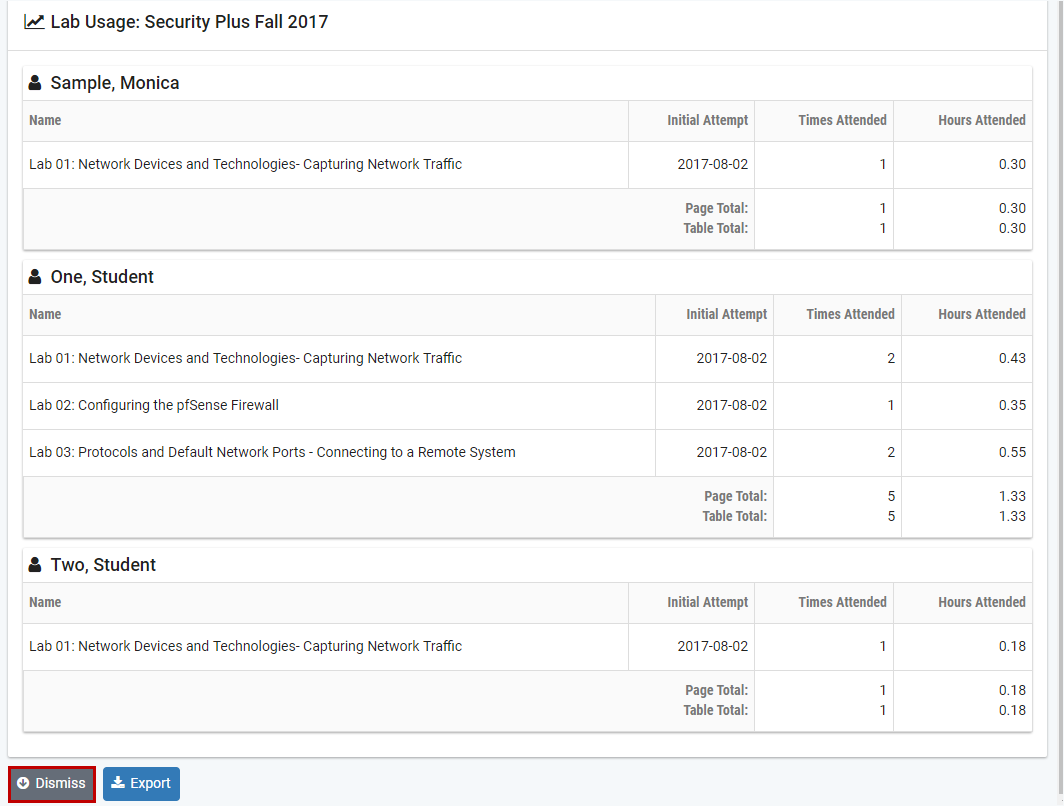
Here is an excerpt of the results; notice the report is now grouped by account. When you are finished viewing the results, click Dismiss.
[]Lab History and Screenshots
In the previous section, we discussed how to generate a lab usage report. We will now take a look at lab history details for a reservation listed on the report.
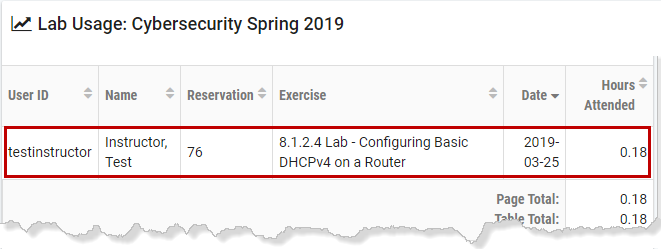
To see the lab history for a reservation listed on a Lab Usage report, click on a reservation detail row on the report.
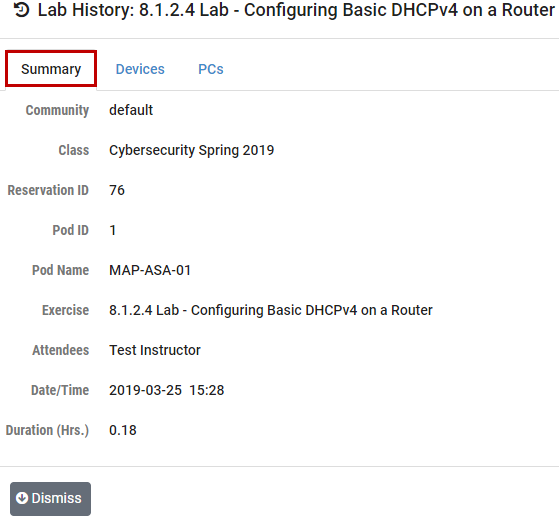
The Lab History Summary tab will be displayed, showing details specific to the reservation.
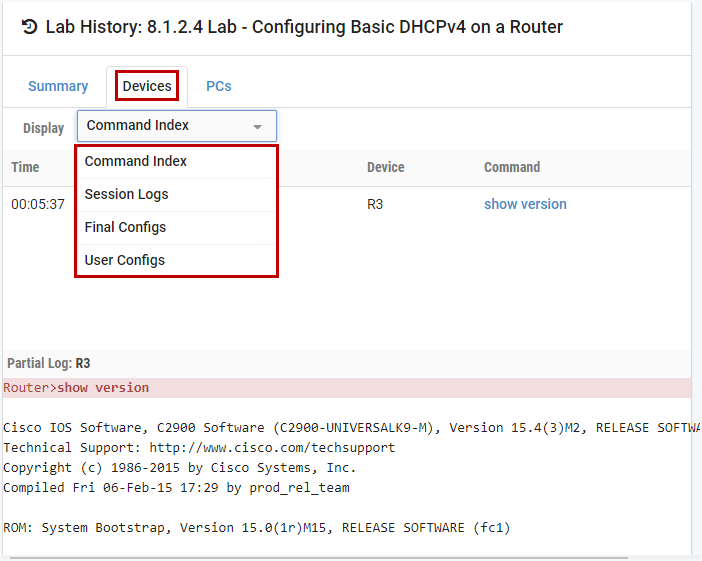
If the lab topology includes lab devices (physical devices, such as routers and switches), you will find details of your interaction with those devices on the Devices tab. The display options are listed below. Click Dismiss to return to the lab list (it may be necessary to scroll down if you are on the Devices tab).
Display Options on the Devices Tab
Command Index: A listing of the commands entered during the lab.
Session Logs: A log of the activity occurring on the selected device.
Final Configs: The configuration file saved by NETLAB+ at the end of the lab session for the selected device.
User Configs: Configuration files saved by the user during the lab session for the selected device.
Here, the Command Index has been selected.
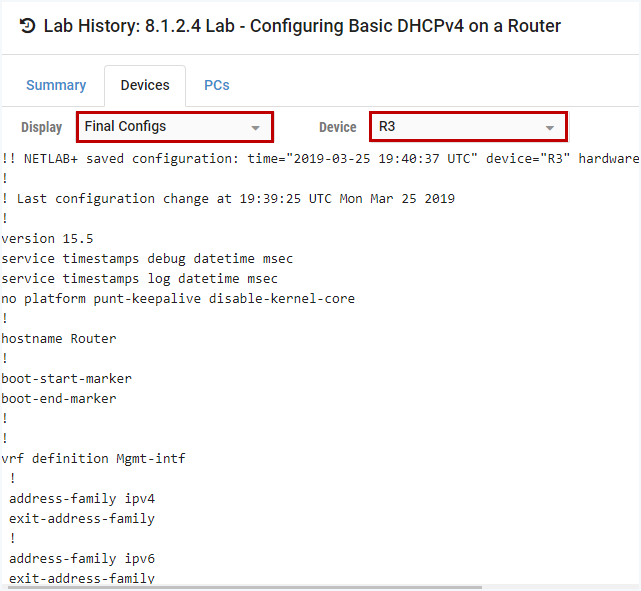
In the example below, the Final Configs for device R3 are displayed.
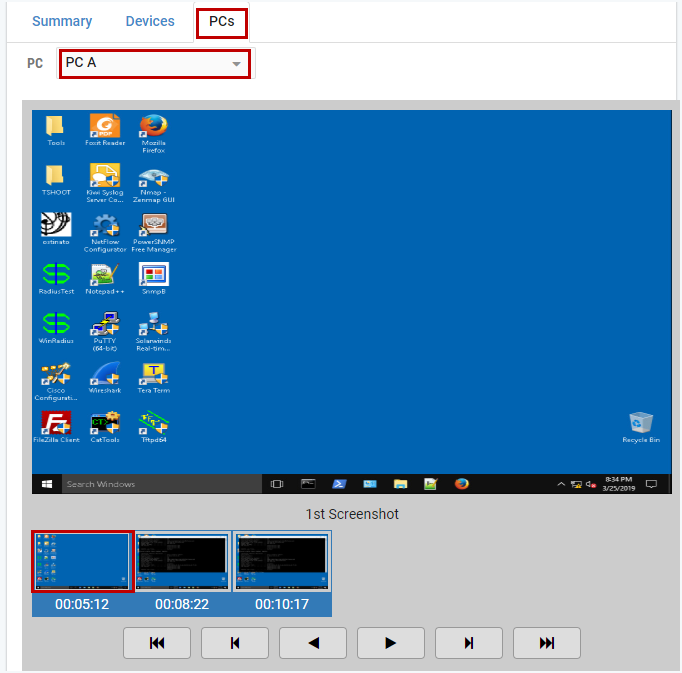
If the lab topology includes PCs, click on the PCs tab to view any screenshots of remote PCs that were captured during the lab session. If more than one PC is included in the topology, select a device on the dropdown (for example, PC A is selected below). Thumbnail images are displayed at the bottom of the page. Click on any thumbnail to display the screenshot. You may also scroll through the screenshots using the button controls below the thumbnails.
[]Pod Designer
 Pod Designer is used in order to create
a custom pod layout. A pod design is a template used to create one or
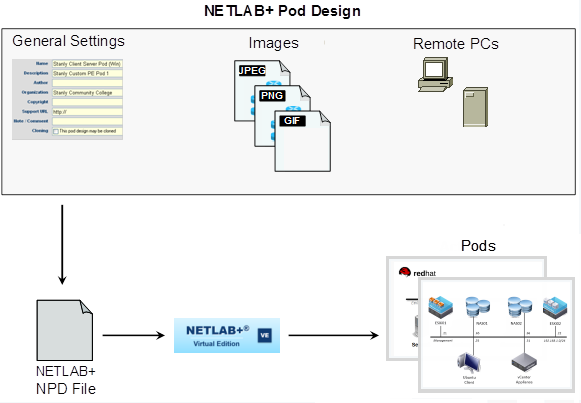
more actual pods on a NETLAB+ system.
Pod Designer is used in order to create
a custom pod layout. A pod design is a template used to create one or
more actual pods on a NETLAB+ system.
The Pod Designer tool is used to gather the required information about remote PCs and images. This data is stored in a Pod Design File. Pod design files are portable. They can be shared, exported, and installed on other NETLAB+ systems. A set of options and passwords control how the pod design can be used.
See the subsections below for details on performing basic tasks in Pod Designer, including viewing a list of installed pod designs and pod design details.
Please refer to the NETLAB+ Pod Design Guide for details on implementing custom pod designs.
[]Accessing Pod Designer
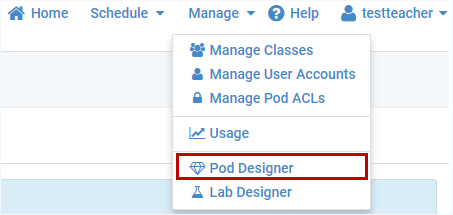
To access the Pod Designer, click Manage in the upper-right corner of the Home page and select the Pod Designer dropdown option.
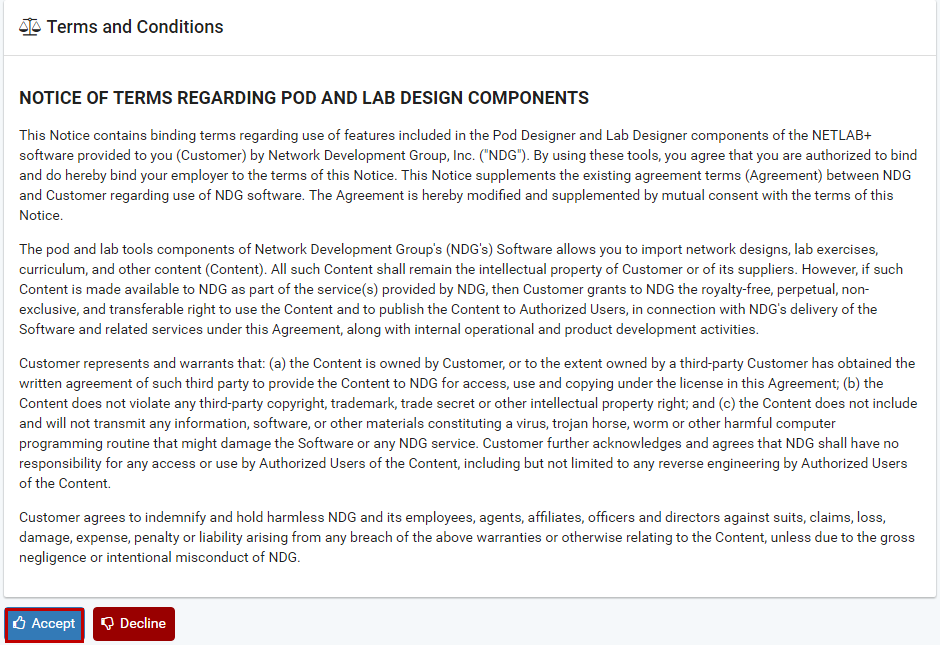
If this is your first time accessing the Pod Designer, you will be required to accept the terms and conditions. Review the notice and then click Accept.
A welcome message will be displayed, click Understood.
[]Viewing Pod Designs
To see a list of the pod designs available on your NETLAB+ system:
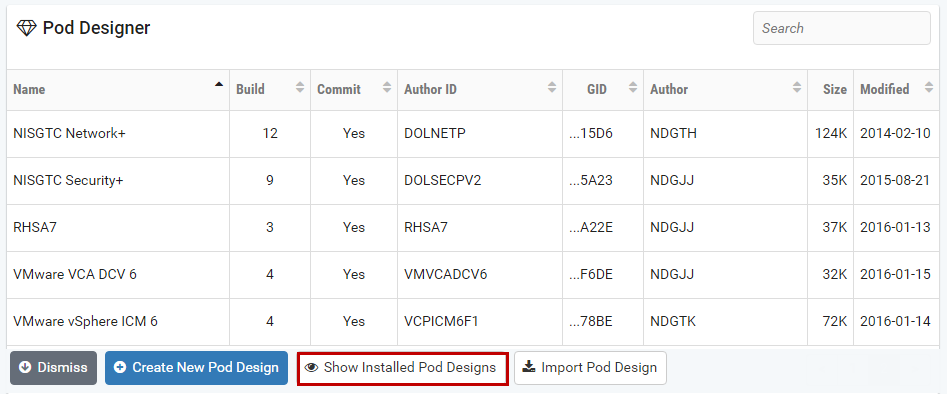
The Pod Design List is displayed when the Pod Designer option is selected on the Manage dropdown (see the previous section for info on first-time access).
To see the pod designs have been installed in the local NETLAB+ pod type database on this system, click Show Installed Pod Designs.
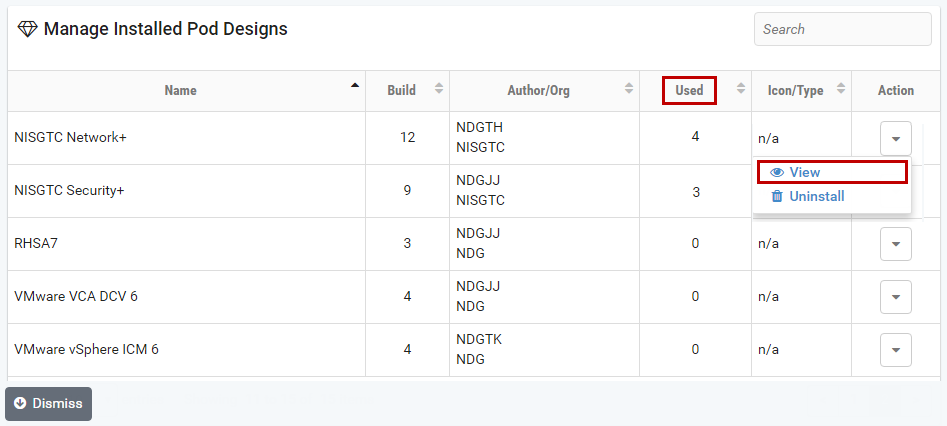
The currently installed pod designs will be displayed. The Used column indicates the number of instantiated pods of each type. Click on a pod for additional details and management options. Select the View option on the Action dropdown to see additional details for any of the pods displayed.
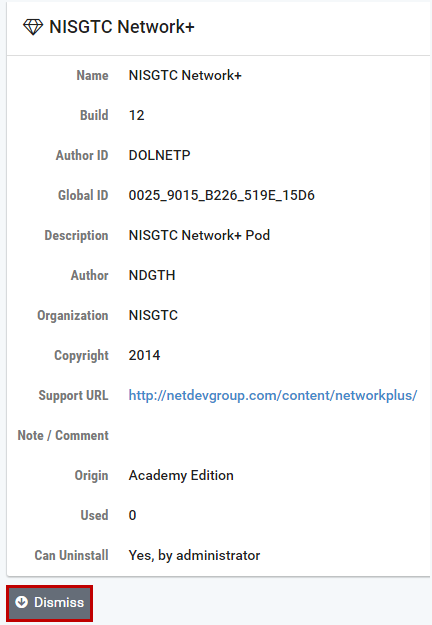
Details of the pod design are displayed. Click Dismiss to return to the list of installed pod designs.
[]Lab Designer
 The Lab Designer provides a means of
creating a series of custom laboratory exercises that may be made
available for class use.
The Lab Designer provides a means of
creating a series of custom laboratory exercises that may be made
available for class use.
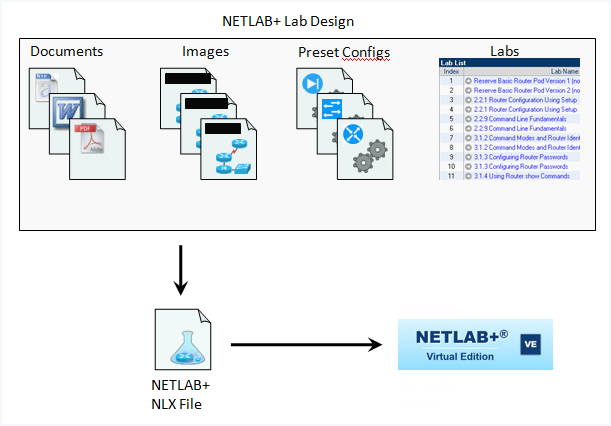
A lab design is a set of labs and related reference material that may include documents, images, and preset configuration files for each lab exercise. This data is stored in a Lab Design File. Lab design files are portable. They can be shared, exported, and installed on other NETLAB+ systems. A set of options and passwords control how the lab design can be used.
See the subsections below for details on performing basic tasks in Lab Designer, including viewing, and managing access to lab designs.
Please refer to the NETLAB+ Lab Design Guide for details on implementing custom lab designs.
[]Accessing Lab Designer
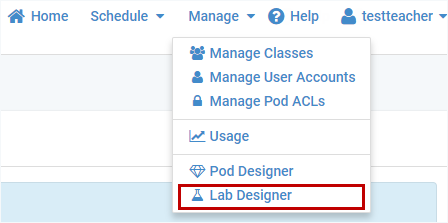
To access the Lab Designer, click Manage in the upper-right corner of the Home page and select the Lab Designer dropdown option.
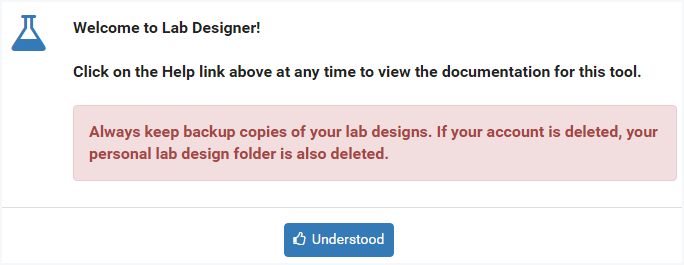
If this is your first time accessing the Lab Designer, you will be required to accept the terms and conditions. Review the notice and then click Accept.
A welcome message will be displayed, click Understood.
[]Viewing Lab Designs
To see a list of the lab designs available on your NETLAB+ system:
The Lab Design List is displayed when the Lab Designer option is selected on the Administrator interface. This list shows the lab design files that are tied to your account. These lab designs may be viewed and modified by you. If there are no lab designs tied to your account (as shown here), this list will be empty.
A lab design must be installed before it can be used by the system. Click Manage Installed Lab Designs to install lab designs and make them available to users.

The currently installed lab designs will be displayed. The scope of a lab design can be public or private (see the Access column). Private lab designs can be used only by one instructor (the trustee). The Classes column indicates the number of classes that use the design. Select the View option on the Action dropdown for additional details and management options for any of the labs displayed.
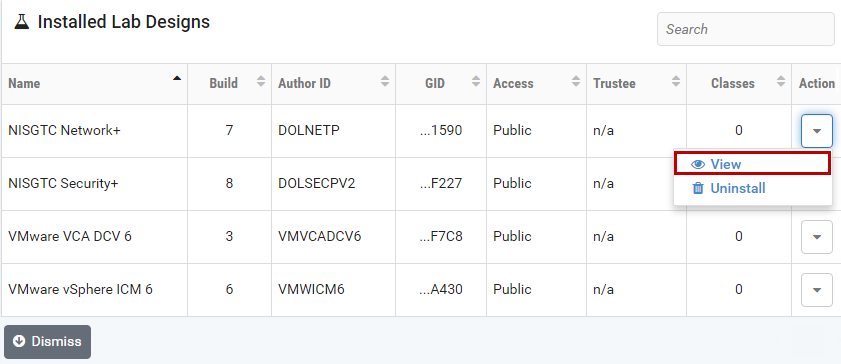
Details of the lab design are displayed. Click Dismiss to return to the list of installed lab designs.
[] Manage Configuration Files
 The File Manager is used to view, add,
change, or delete configuration files and folders. NETLAB+ can upload
and download configuration files to console-based devices such as
routers, switches, and firewall devices in the lab. These files are
stored in the NETLAB+ file system. The NETLAB+ file manager provides
access to files and folders.
The File Manager is used to view, add,
change, or delete configuration files and folders. NETLAB+ can upload
and download configuration files to console-based devices such as
routers, switches, and firewall devices in the lab. These files are
stored in the NETLAB+ file system. The NETLAB+ file manager provides
access to files and folders.
Files contain the actual device configurations.
Folders may contain other folders and configuration files. Folders may be either class (shared) folders or account (specific to the user) folders.
The files in the class-shared folder may be accessed by the students enrolled in the class. Students may view files, copy files, and load devices with configuration files and folders. Students do not have access to add, edit, or delete items in the class-shared folder.
Account folders may be accessed by the user or by the NETLAB+ Administrator.
[]Configuration File Management Outside of a Lab Reservation
Using the File Manager, you can create and edit configuration files and folders. You may find it useful to create a configuration file outside of a lab reservation when you want to practice your router commands or create files to use in later sessions. These files can be created/edited whether or not you have access to a router pod. These configuration files can be saved and later applied to one or more routers in the topology during a lab session.
From the MyNETLAB home page, click the Manage option and select Configuration Files.
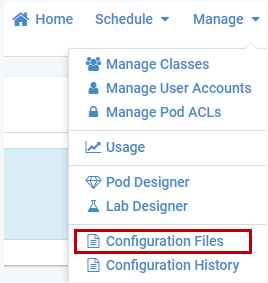
A list of folders will be displayed. Notice the list includes both account folders and class folders. In the subsections below, we will show examples of editing a configuration file and creating configuration files and folders.
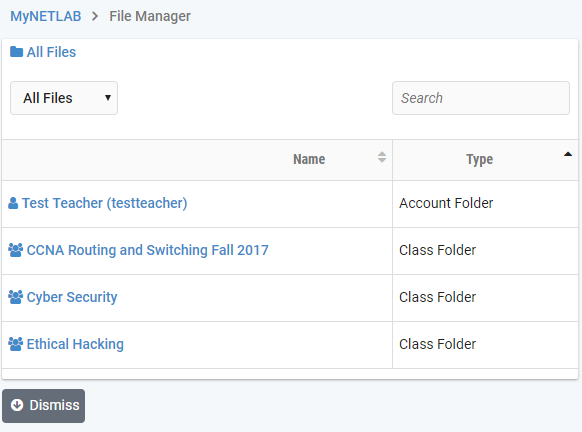
[]Viewing and Editing Configuration Files
Configuration files may be viewed and edited outside of a lab reservation. Your file can be saved and later applied to one or more lab devices in the topology during a lab session. For the purpose of this example, we assume that the configuration files and folders referenced have been created during a recent lab session (see Saving Configuration Files During a Lab Reservation).
Select the Lab 2.5.1.2 Device Configs folder and then click the R1 file to open it.
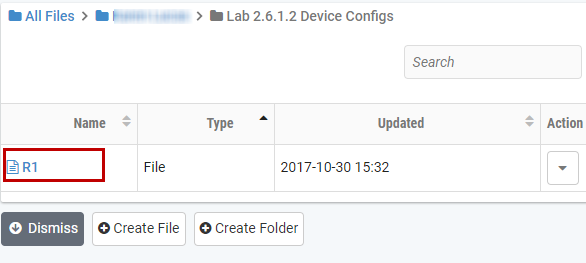
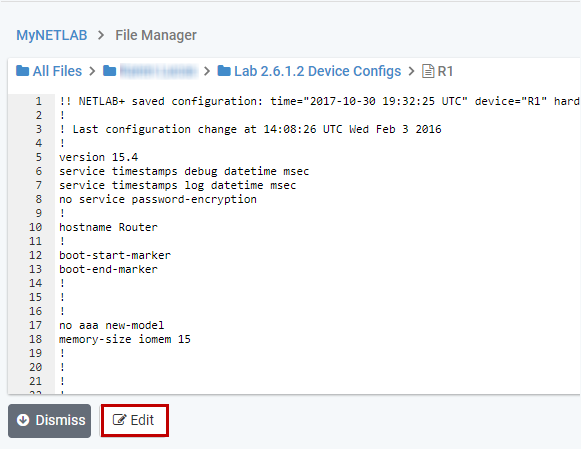
The R1 file is displayed. For this example, we will not only view the file but also edit it. Click the Edit button.
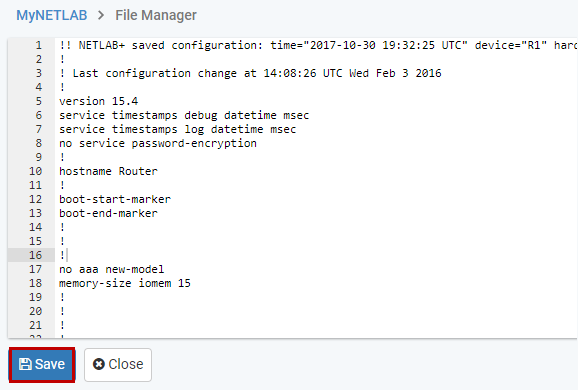
Click inside the window and edit the file as desired. Select Save to save the modified version.
[]Creating Folders and Files
Configuration files and folders may be created outside of a lab reservation. Your files can be saved and later applied to one or more lab devices in the topology during a lab session.
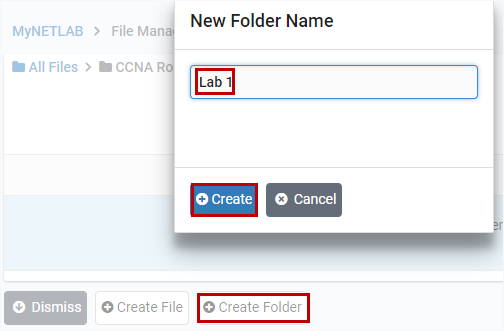
In this example, we will be creating a folder and configuration file in the CCNA Fall 2017 Routing and Switching folder. To create a subfolder for your file, select Create Folder, enter a folder name, and then select Create.
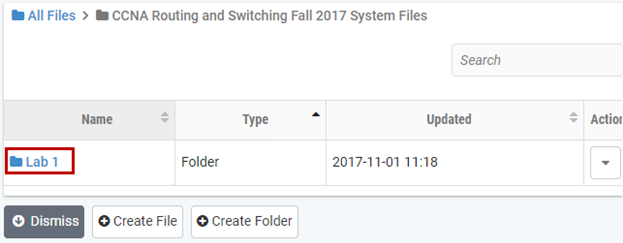
The Lab 1 folder will be displayed in the folder list. Click the folder name to select it as the current folder.
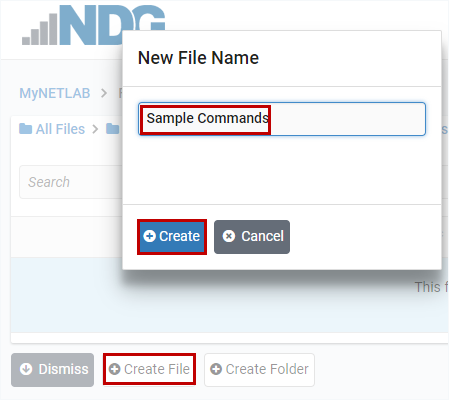
Select the Create File button, enter a file name, and then click Create.
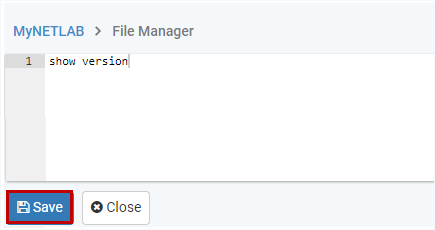
After entering CLI commands, select Save to store the configuration file.
[]Deleting Folders and Files
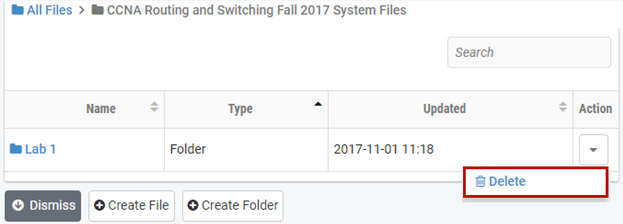
To delete a file or folder in the current directory, click the Action dropdown and select Delete.
[]Configuration History
Configuration files for all lab devices in a topology are saved automatically by NETLAB+ at the end of a lab reservation, creating a saved “history”. The files are stored in a folder named for the lab exercise. You may view these configuration files outside of a lab reservation.
From the MyNETLAB home page, click the Manage option and select Configuration History.
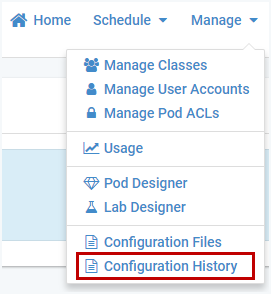
The History Manager will be displayed. Select the account folder.
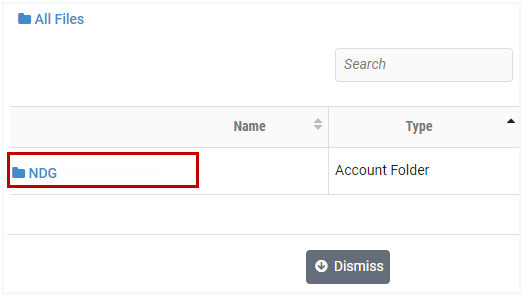
You will see Config Group folders that contain configuration files that were automatically saved by NETLAB+ at the end of each lab reservation. Select a folder by clicking on the name. In this example, we select the folder from a reservation completed on 2018-06-14, lab exercise 2.6.1.2 (CCNA Security).
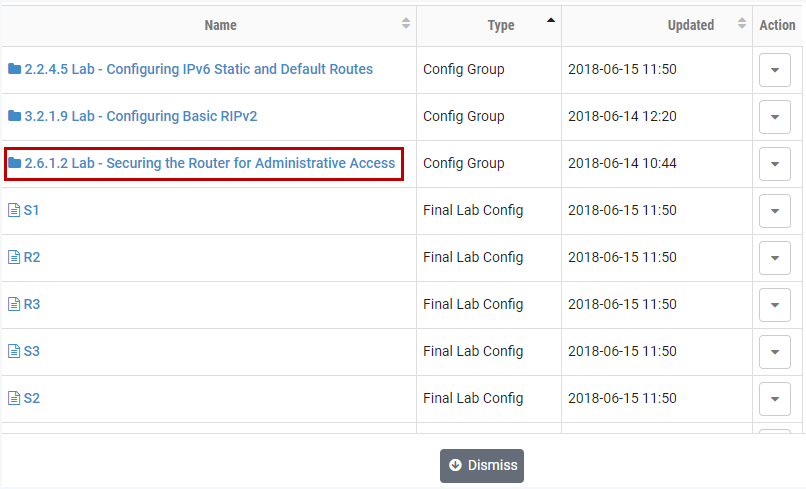
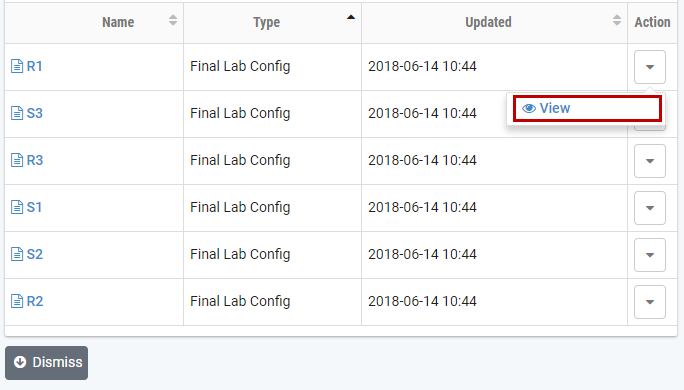
The configuration files saved at the end of the lab reservation for each device in the lab topology are listed (file type is Final Lab Config). You may View any file by selecting the option on the Action dropdown.
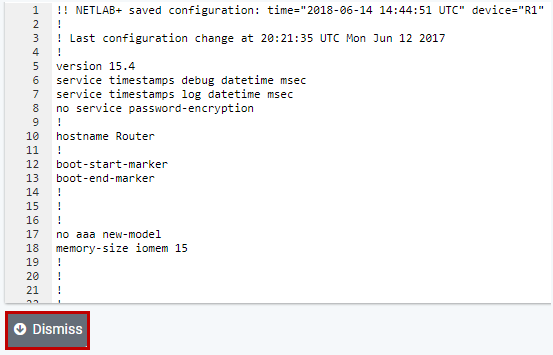
The configuration file is displayed. When you are finished viewing the file, click Dismiss.
[]Configuration File Usage During Lab Reservations
In the subsections below, we will show how to save, load, and erase configuration files during a lab reservation. To illustrate these processes, we have created a lab reservation on a Multi-purpose Academy Pod (MAP). The MAP includes 3 routers and 3 switches.
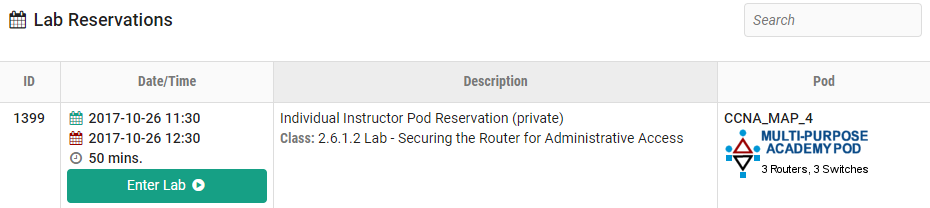
[] Saving Configuration Files During a Lab Reservation
When saving a configuration, NETLAB+ captures the output from the ‘show running’ or equivalent commands.
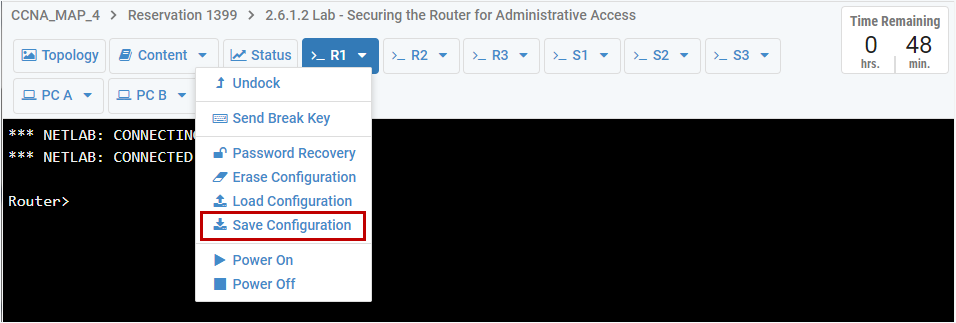
To save a configuration file during a lab reservation, select the device (R1 in this example). Click the R1 button again to display the dropdown menu and select the option to Save Configuration.
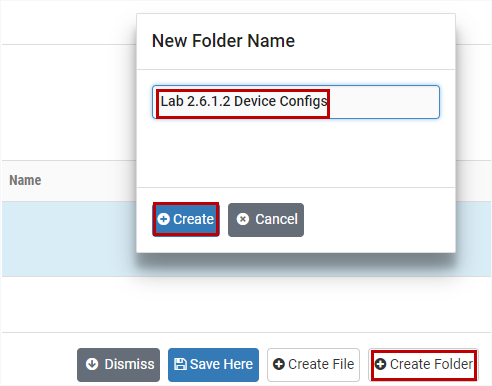
You have the option to create a subfolder for your file(s), which can be helpful in keeping your files organized. Here, we will create a folder for device configuration files for this lab by selecting Create Folder, entering a folder name, and then selecting Create.
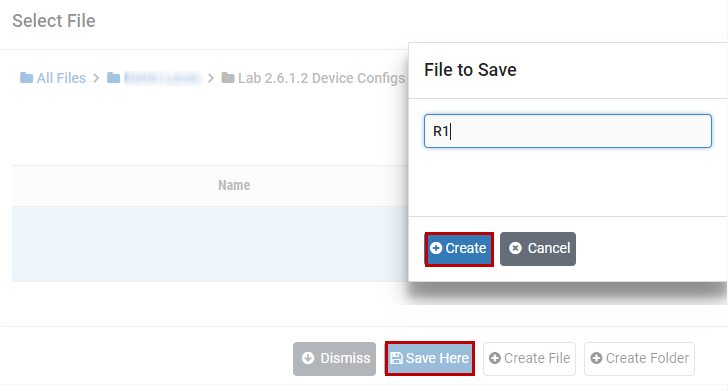
Click the name of the new folder to select it as the current folder. Select the option to Save Here. The pop-up box will show the default file name as R1 since we are saving the configuration of the R1 device. Click Create. The file will be saved in the Lab 2.6.1.2 Device Configs folder.
[]Loading Configuration Files During a Lab Reservation
When loading a configuration into a device, NETLAB+ will enter configuration mode and send each line of the configuration file as if you had typed it manually.
To load a configuration file during a lab reservation, select the device (R1 in this example). Click the R1 button again to display the dropdown menu and select the option to Load Configuration.
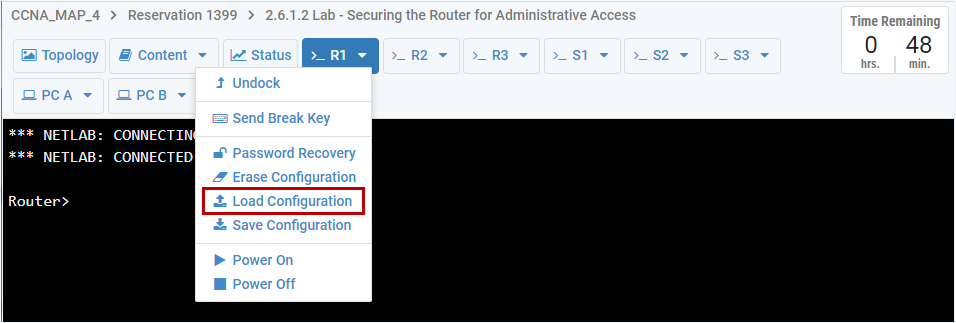
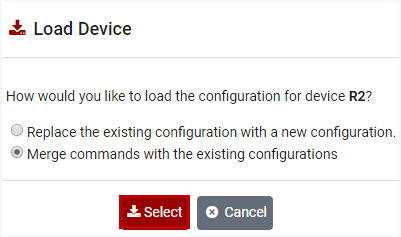
The Load Device pop-up window will be displayed. You may choose to replace the existing configuration or merge commands with the existing configuration on the device. For this example, we will choose to Replace the existing configuration with a new configuration and click the Select button.
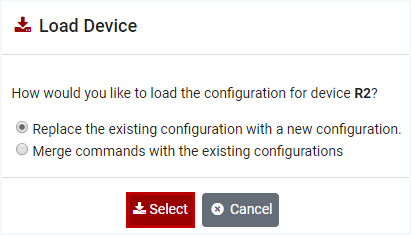
Confirm your choice to replace the existing configuration on the device by selecting Yes.
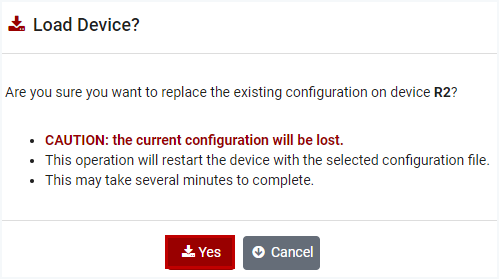
Select the source location of the configuration file. For this example, we will select History, which will allow us to use a configuration file saved from a previous lab session.
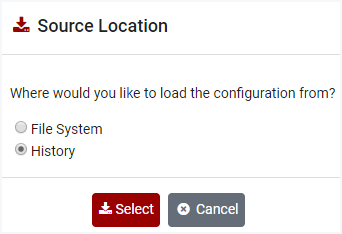
Select the account folder by clicking the folder name.
The Select File page will be displayed. You will see Config Group folders that contain configuration files that were automatically saved by NETLAB+ during previous lab reservations. Select a folder by clicking on the name. In this example, we select the folder from a reservation completed on 2018-06-14, lab exercise 2.6.1.2 (CCNA Security).
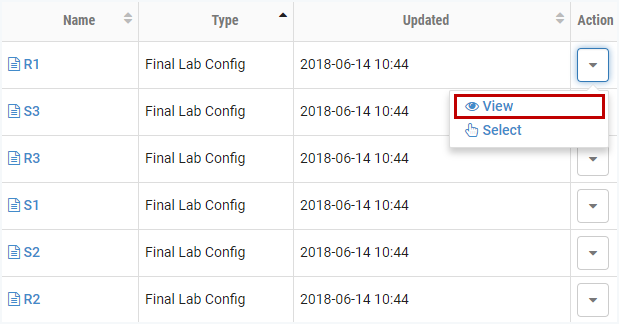
The configuration files saved at the end of the lab reservation for each device in the lab topology are listed (file type is Final Lab Config). You may View any file by selecting the option on the Action dropdown.
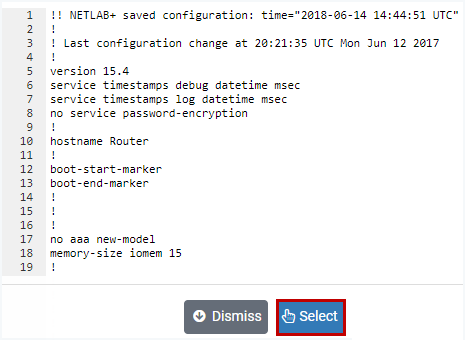
The configuration file is displayed. You may choose to load this file on the device by clicking the Select button.
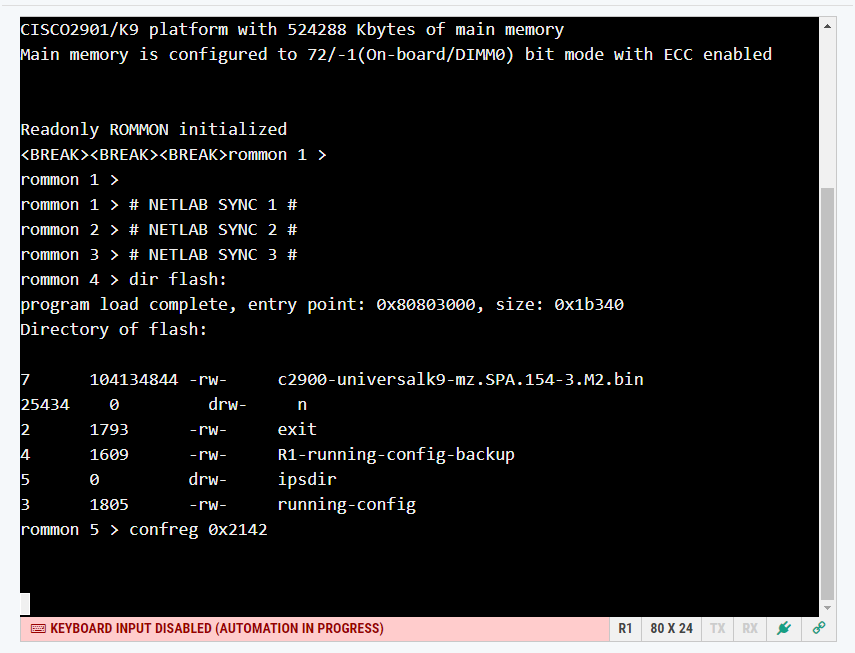
You will see the configuration loading. Keyboard input will be disabled while the automation is in progress.
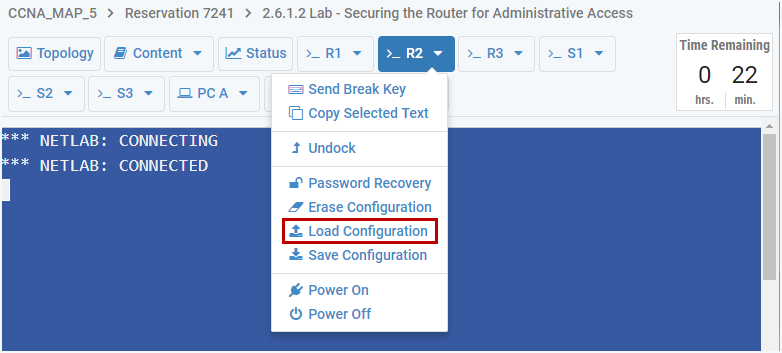
Next, we will load a configuration file into device R2. To load a configuration file during a lab reservation, select the device (R2 in this example). Click the R2 button again to display the dropdown menu and select the option to Load Configuration.
To load a configuration file without erasing the current configuration on a device, select the option to Merge commands with the existing configurations.
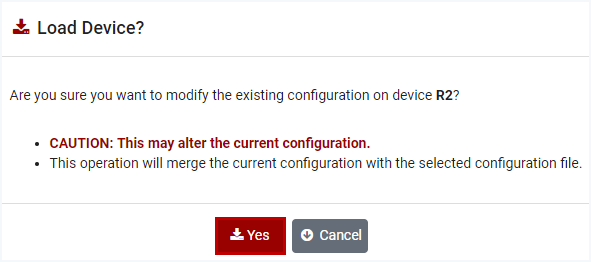
Confirm your intention to modify the existing configuration by clicking the Yes button.
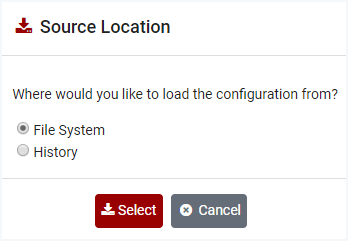
For this example, we will use a file that was saved by the user during a previous lab reservation. Select the option to load a configuration from the File System.
The Select File page will be displayed. The list of files/folders includes class and account folders. Select a folder by clicking on the folder name.
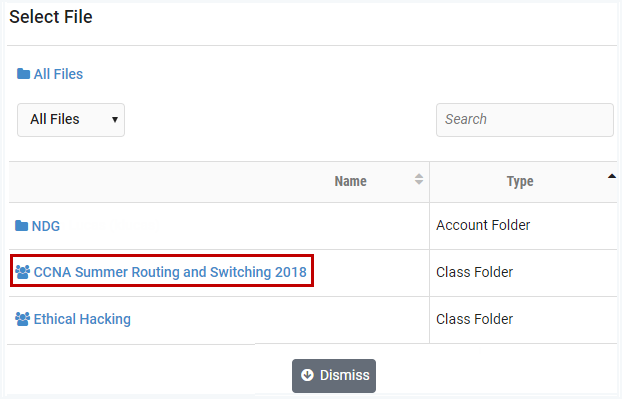
The class folder in this example contains a file that was previously saved by the instructor. To view the file, click the file name.
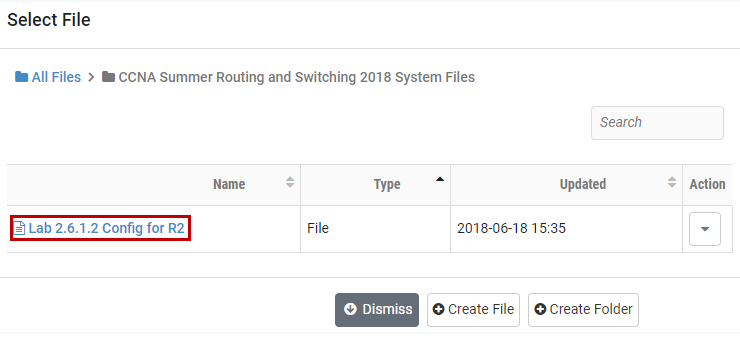
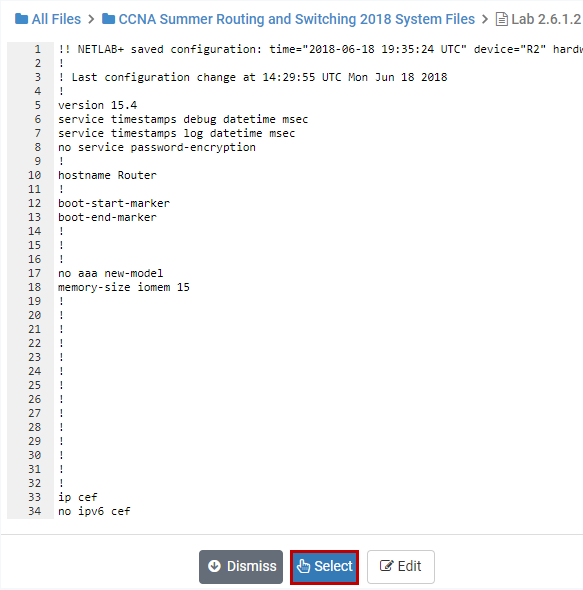
The configuration file will be displayed. Click Select to load the file.
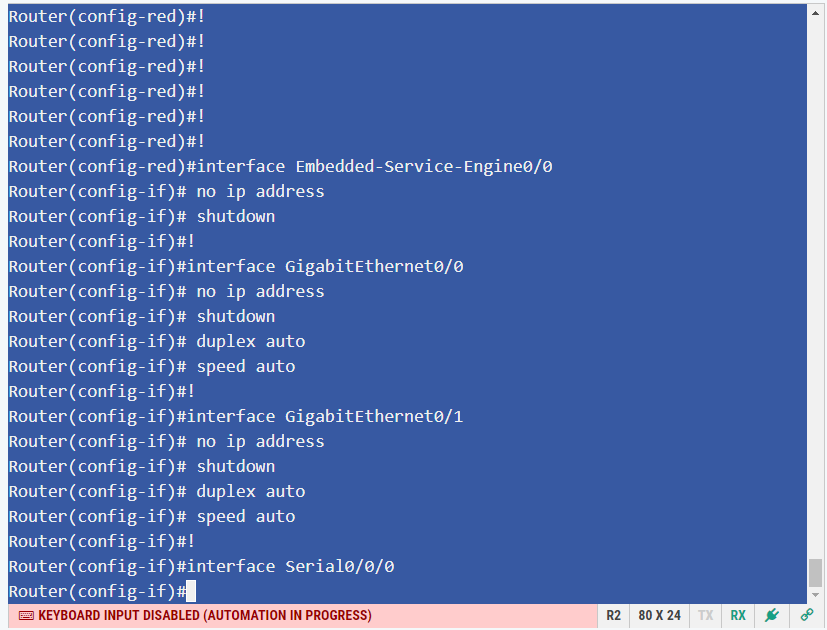
You will see the configuration loading. Keyboard input will be disabled while the automation is in progress.
[]Erasing the Configuration on a Device During a Lab Reservation
To erase the configuration on a device during a lab reservation, select the device (R1 in this example). Click the R1 button again to display the dropdown menu and select the option to Erase Configuration.
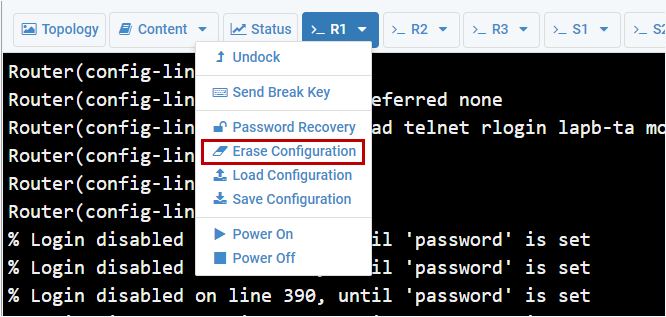
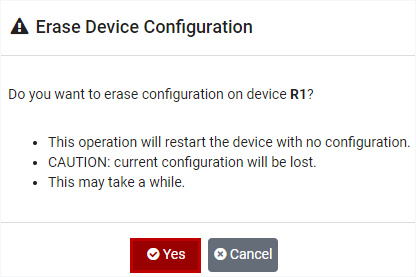
A warning message will be displayed. Select Yes to confirm that you want to erase the configuration.
[] Schedule Lab Reservations
NETLAB+ includes a scheduling feature to facilitate scheduled lab access. Reservations can be scheduled for instructor-led training, personal use, for use by a student, or for use by a team. The scheduling options are displayed by clicking Schedule on the top menu bar as shown below, or by selecting the New Lab Reservation button.
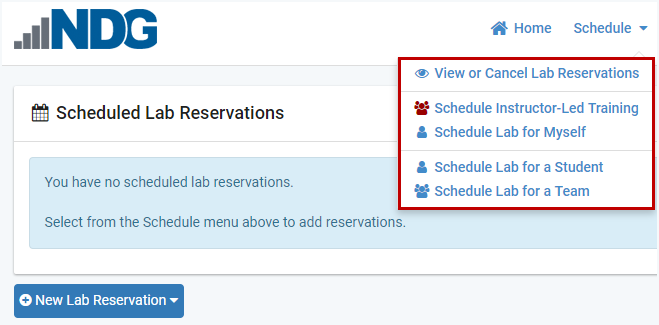
The following options are explained in detail in the subsections below.
 View or Cancel Lab Reservations: See
a list of the lab reservations currently scheduled.
View or Cancel Lab Reservations: See
a list of the lab reservations currently scheduled. Schedule Instructor-Led Training:
Use this option for lecturing or guiding a class of learners. With
this option, you and a designated class will share the same lab
reservation time.
Schedule Instructor-Led Training:
Use this option for lecturing or guiding a class of learners. With
this option, you and a designated class will share the same lab
reservation time. Schedule Lab for Myself: Use lab
equipment for your own practice.
Schedule Lab for Myself: Use lab
equipment for your own practice.-
Schedule Lab for a Student:
Designate a student to work on a specific exercise or free time to
gain practice.
 Schedule Lab for a Team: With this
type of reservation, you can allow your students to share lab time as
teams.
Schedule Lab for a Team: With this
type of reservation, you can allow your students to share lab time as
teams.
[]
Schedule Instructor-led Training
You may make reservations for instructor-led training for any class that you are a lead instructor. With this option, you and a designated class will share the same lab reservation. Use this option for lecturing or guiding an entire class of students.
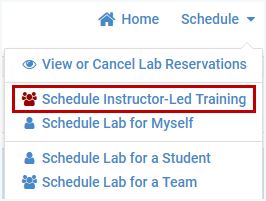
Select Schedule Instructor-Led Training as the scheduling option.
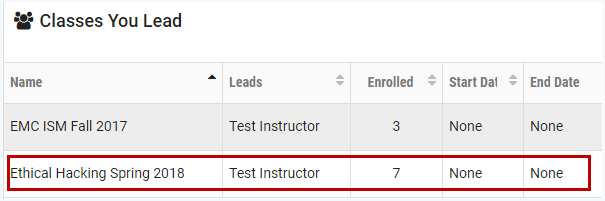
A list of all classes for which you have been designated lead instructor will be displayed. Select the class that will be using the lab reservation by clicking anywhere on the row. In the example below, the Ethical Hacking Spring 2018 class is selected.
A list of lab exercises associated with the class will be displayed. Select a lab exercise by clicking the lab name.
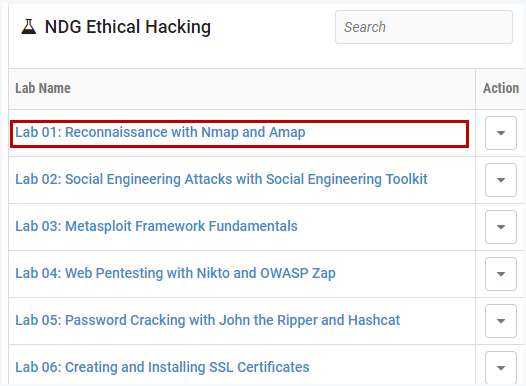
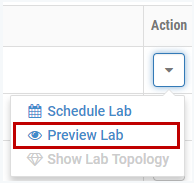
To see a preview of the instructional material associated with a lab, select Preview Lab on the Action dropdown at the end of the lab list row (previewing the lab is optional).
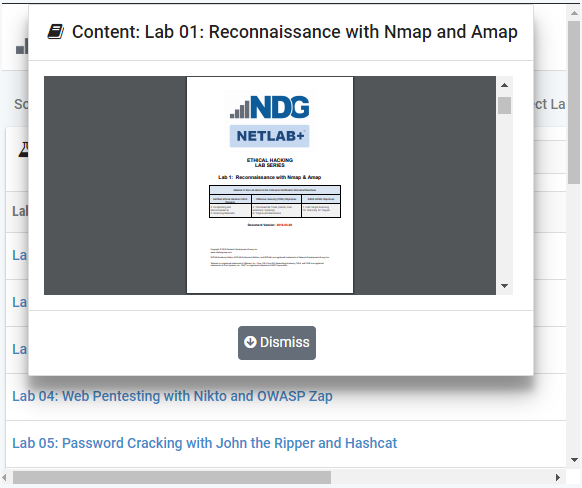
The content will be displayed. The options available to zoom, view, download, and print the content will vary, depending on your browser settings. Select Dismiss to return to the list of labs.
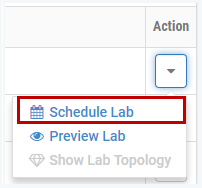
To schedule a lab session to perform Lab 01, select Schedule Lab on the Action dropdown at the end of the lab list row.
The Pod Scheduler will be displayed, allowing you to schedule a lab reservation for the selected lab.
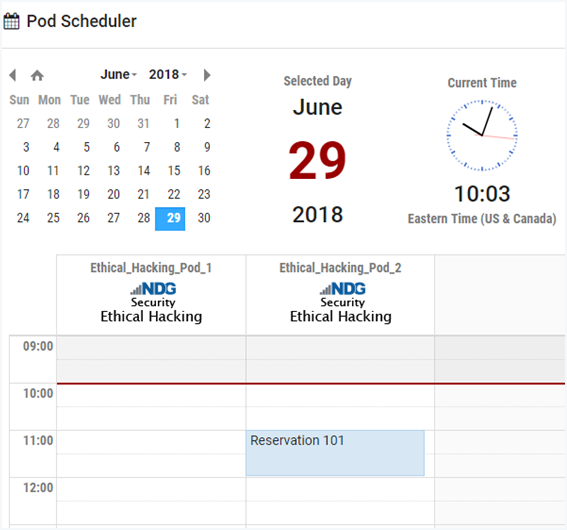
Pod Scheduler Features:
Calendar: Use the calendar in the upper-left corner to select the date for the reservation by clicking on the date of your choice. You may scroll from month to month by selecting the
 and
and
 buttons. Select the
 button to reset the selected day to
today’s date.
button to reset the selected day to
today’s date.
Selected Day: The day selected on the calendar is shown here. It is initially set to today’s date but can be modified by making a new selection on the calendar.
Current Time: Displays the current time according to your time zone settings. The time may be displayed using 12-hour or 24-hour time, depending on your settings.
Schedule Table: The columns of the table show the pods available to you for scheduling the selected lab. The number of pods available will depend upon the number and type of pods that have been installed on your NETLAB+ system. Consult your instructor or NETLAB+ administrator if you have questions about the pods available to you. The rows of the table show reservation times. The solid red line indicates the current time.
To select a lab reservation time, scroll the table as needed to display available time-slots. The time-slots below the red line (current time) may be selected if available. Select a lab reservation time on a pod by clicking the appropriate box.
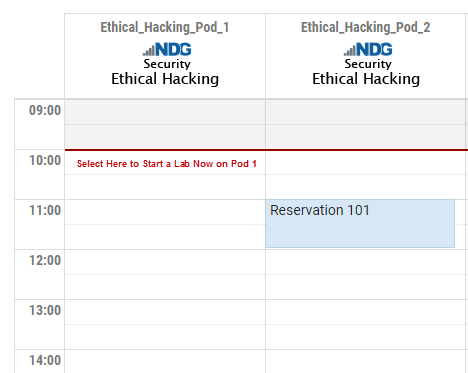
In the example above, notice that the 11:00 time-slot for Pod 2 is not available since a reservation for that time has already been made.
Details of the lab reservation are displayed. In this example, a reservation for an instructor-led training reservation has been selected on Pod 1. Review the details, change the End Time if needed (see picture below) and then click Submit.
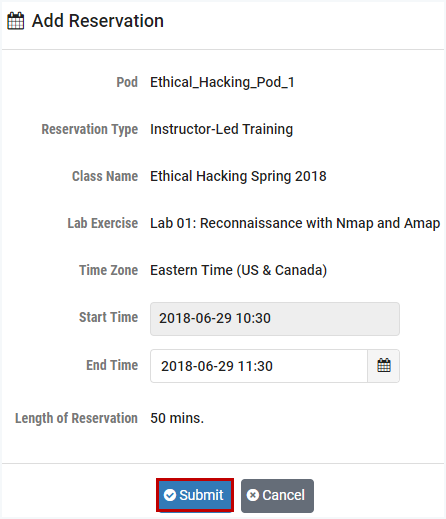
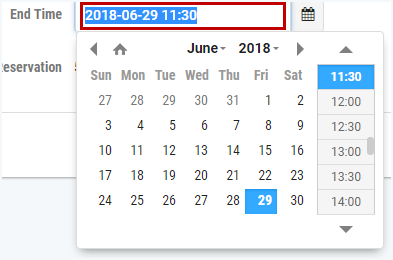
A confirmation message will display. Select OK to return to the MyNETLAB page.
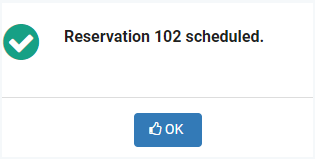
The lab reservation for instructor-led training is now displayed on the MyNETLAB page. This information will also display on the MyNETLAB page for all learner accounts in the class roster, allowing them to enter and participate in the lab reservation.
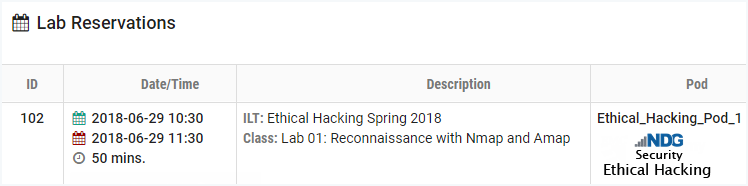
At the scheduled time, the Enter Lab button will display. Notice that the description shows that this is an ILT (instructor-led training) reservation.
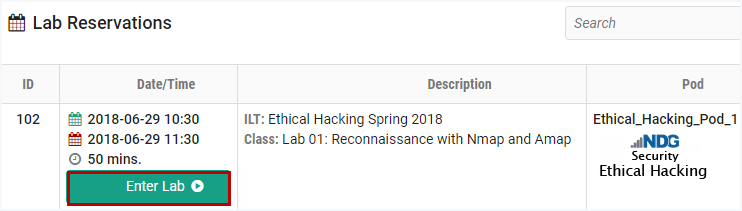
For details on entering and performing a lab reservation, please see the Enter a Lab Session section.
[]Schedule Lab for Myself
NETLAB+ includes a scheduling option to allow instructors to schedule lab reservations for their own private use. You may schedule a private lab reservation associated with any class that you are a lead instructor.
Select Schedule Lab for Myself as the scheduling option. A list of all classes for which you have been designated lead instructor will be displayed.
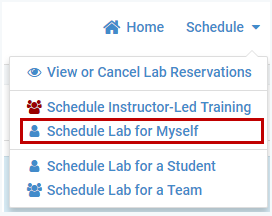
Select a class by clicking anywhere on the row. In the example below, the Ethical Hacking Spring 2018 class is selected.
After selecting the name of the class, a list of lab exercises associated with the class will be displayed. Select a lab by clicking on the lab name.
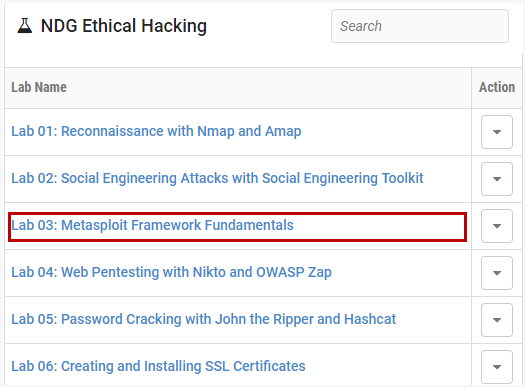
For this example, we will not preview the lab material. For an example of previewing the lab, please see the Schedule Instructor-led Training section.
The Pod Scheduler will be displayed, allowing you to schedule a lab reservation for the selected lab.
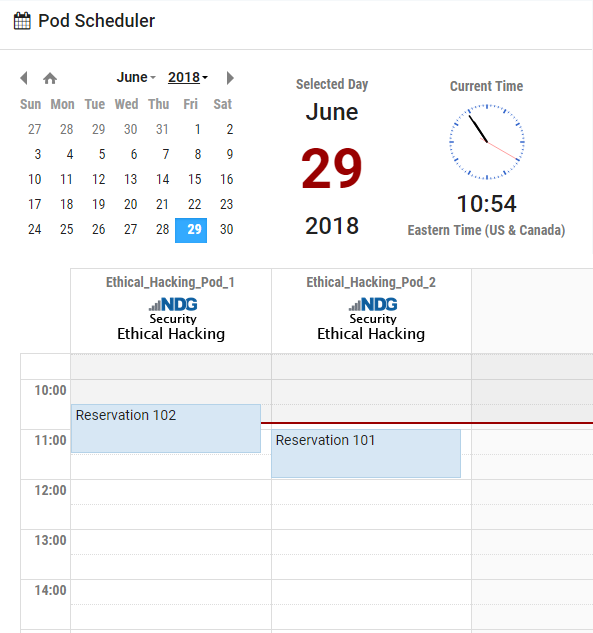
Pod Scheduler Features:
Calendar: Use the calendar in the upper-left corner to select the date for the reservation by clicking on the date of your choice. You may scroll from month to month by selecting the
and
buttons. Select the
button to reset the selected day to
today’s date.
Selected Day: The day selected on the calendar is shown here. It is initially set to today’s date but can be modified by making a new selection on the calendar.
Current Time: Displays the current time according to your time zone settings. The time may be displayed using 12-hour or 24-hour time, depending on your settings.
Schedule Table: The columns of the table show the pods available to you for scheduling the selected lab. The number of pods available will depend upon the number and type of pods that have been installed on your NETLAB+ system. Consult your NETLAB+ administrator if you have questions about the pods available to you. The rows of the table show reservation times. The solid red line indicates the current time.
To select a lab reservation time, scroll the table as needed to display available time-slots. The time-slots below the red line (current time) may be selected if available. Select a lab reservation time on a pod by clicking the appropriate box.
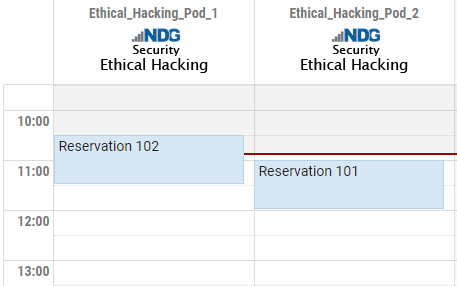
In the example above, notice there are time-slots already reserved and not available for selection.
Details of the lab reservation are displayed. In this example, a reservation for an instructor private reservation has been selected on Pod 1. Review the details, including changing the End Time if needed (see picture below) and then click Submit.
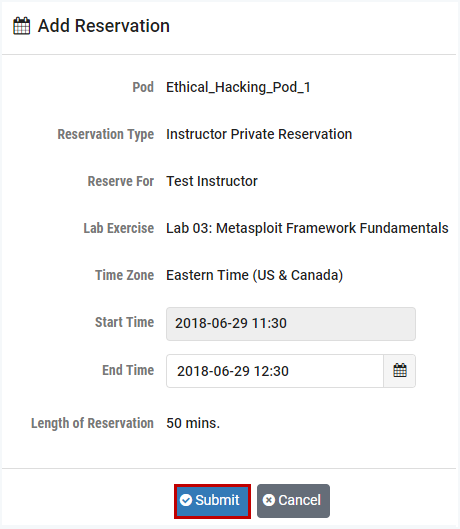
A confirmation message will display. Select OK to return to the MyNETLAB page.
The lab reservation for the instructor’s personal use is now displayed on the MyNETLAB page.
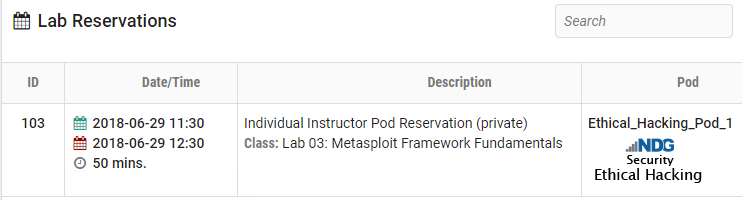
At the scheduled time, the Enter Lab button will display, allowing the instructor to enter and participate in the lab session.
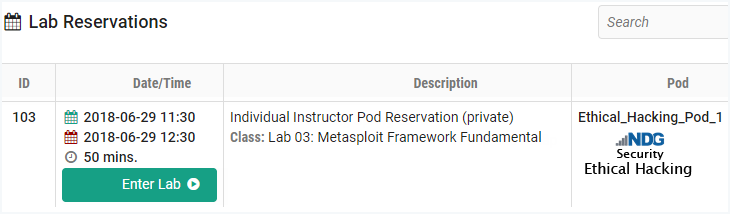
For details on entering and performing a lab reservation, please see the Enter a Lab Session section.
[]Schedule Lab for a Student
You may make lab reservations for use by individual students of any class that you are a lead instructor.
Select Schedule Lab for a Student as the scheduling option.
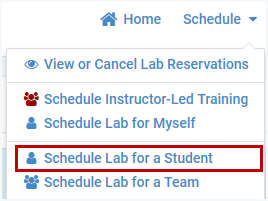
A list of all classes for which you have been designated lead instructor will be displayed. Select a class by clicking anywhere on the row. In the example below, the Ethical Hacking Spring 2018 class is selected.
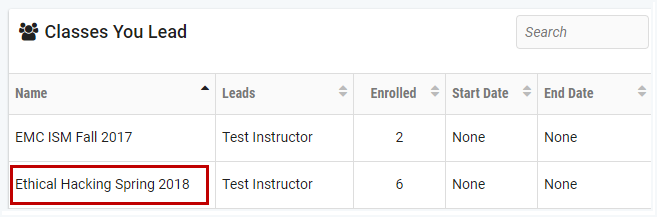
The class roster will be displayed. Select a student by clicking on a Username.
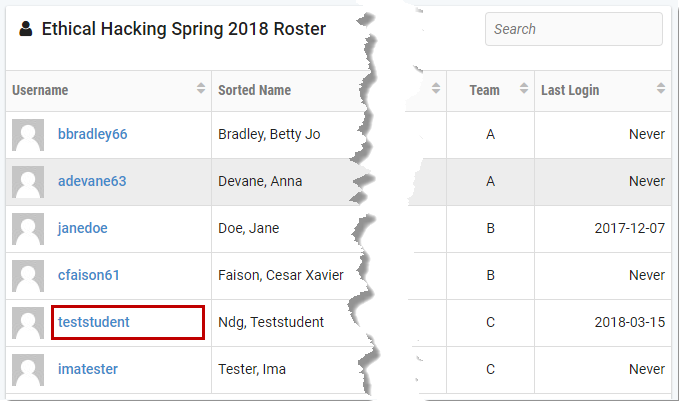
After selecting the student who will be using this lab reservation, a list of lab exercises associated with the class will be displayed. Select a lab exercise by clicking the lab name.
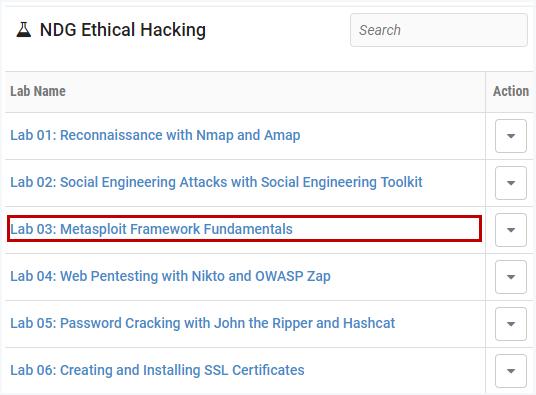
The Pod Scheduler will be displayed, allowing you to schedule a lab reservation for the selected lab.
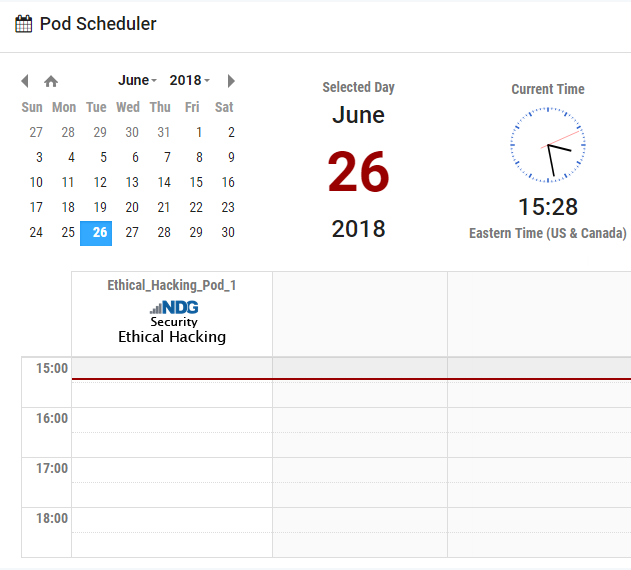
Pod Scheduler Features:
Calendar: Use the calendar in the upper-left corner to select the date for the reservation by clicking on the date of your choice. You may scroll from month to month by selecting the
and
buttons. Select the
button to reset the selected day to
today’s date.
Selected Day: The day selected on the calendar is shown here. It is initially set to today’s date but can be modified by making a new selection on the calendar.
Current Time: Displays the current time according to your time zone settings. The time may be displayed using 12-hour or 24-hour time, depending on your settings.
Schedule Table: The columns of the table show the pods available to you for scheduling the selected lab. The number of pods available will depend upon the number and type of pods that have been installed on your NETLAB+ system. Consult your instructor or NETLAB+ administrator if you have questions about the pods available to you. The rows of the table show reservation times. The solid red line indicates the current time.
Scroll the table as needed to display available time-slots. The time-slots below the red line (current time) may be selected if available. Select a lab reservation time on a pod by clicking the appropriate box.
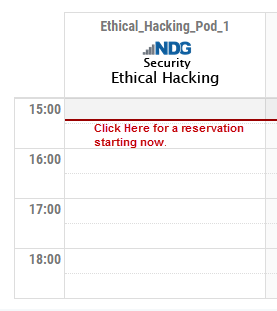
Details of the lab reservation are displayed. Verify the details and then click Submit. Review the details, including changing the End Time if needed, and then click Submit.
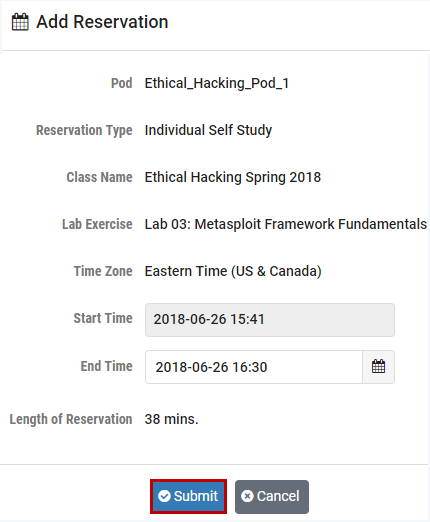
A confirmation message will display. Select OK to return to the MyNETLAB page.
The lab reservation will be listed on the student’s MyNETLAB page. Once the lab reservation is active, the reservation for the individual lab session will be displayed on the MyNETLAB page for both the instructor and the designated student.
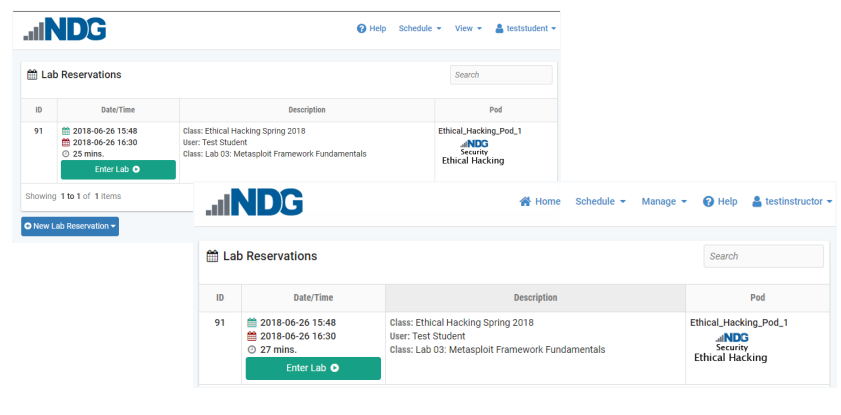
For details on entering and performing a lab reservation, please see the Enter a Lab Session section.
[]Schedule Lab for a Team
You may make lab reservations for use by student teams of any class that you are a lead instructor.
Select Schedule Lab for a Student as the scheduling option.
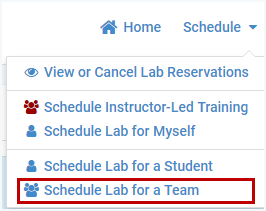
A list of all classes for which you have been designated lead instructor will be displayed. Select a class by clicking anywhere on the row. In the example below, the Ethical Hacking Spring 2018 class is selected.
The Teams page will be displayed, showing the team assignments that have been made by the instructor to learners on the class roster. Notice the list is sorted by team. Select a team by clicking on the list (you will see that all members of the team will be highlighted, as you select it). For this example, we have selected team A.
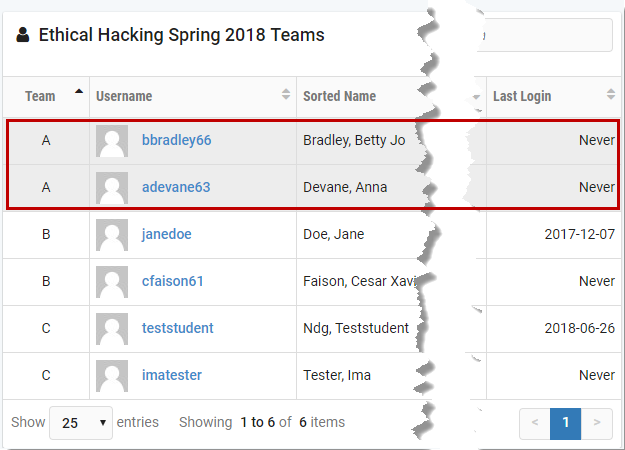
After selecting the team who will be using the lab reservation, a list of lab exercises associated with the class will be displayed. Select a lab exercise by clicking the lab name.
The Pod Scheduler will be displayed, allowing you to schedule a lab reservation for the selected lab.
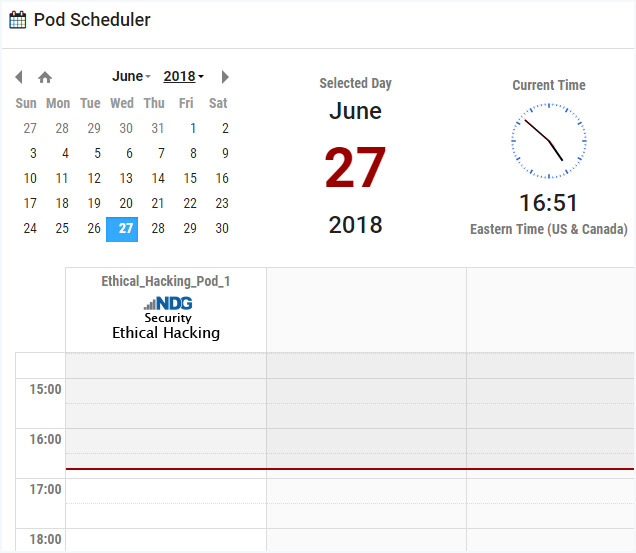
Pod Scheduler Features:
Calendar: Use the calendar in the upper-left corner to select the date for the reservation by clicking on the date of your choice. You may scroll from month to month by selecting the
and
buttons. Select the
button to reset the selected day to
today’s date.
Selected Day: The day selected on the calendar is shown here. It is initially set to today’s date but can be modified by making a new selection on the calendar.
Current Time: Displays the current time according to your time zone settings. The time may be displayed using 12-hour or 24-hour time, depending on your settings.
Schedule Table: The columns of the table show the pods available to you for scheduling the selected lab. The number of pods available will depend upon the number and type of pods that have been installed on your NETLAB+ system. Consult your instructor or NETLAB+ administrator if you have questions about the pods available to you. The rows of the table show reservation times. The solid red line indicates the current time.
Scroll the table as needed to display available time-slots. The time-slots below the red line (current time) may be selected if available. Select a lab reservation time on a pod by clicking the appropriate box.
Details of the lab reservation are displayed. Verify the details, change the End Time if needed, and then click Submit.
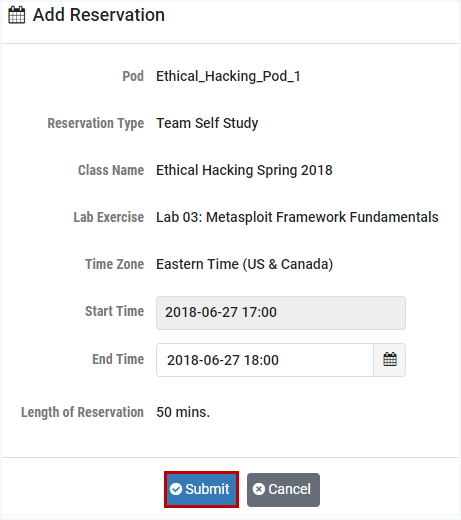
A confirmation message will display. Select OK to return to the MyNETLAB page.
The lab reservation for the team lab session will be displayed on the MyNETLAB page for the instructor and the learners that were assigned to team A.
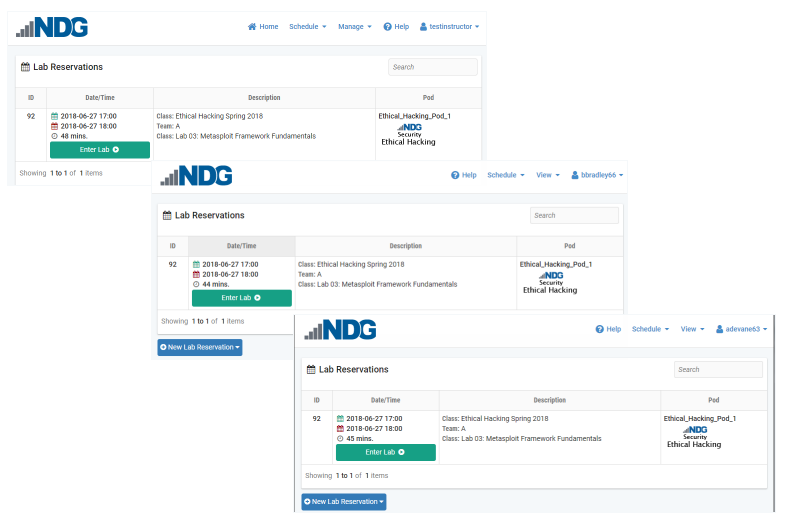
For details on entering and performing a lab reservation, please see the Enter a Lab Session section.
[] View or Cancel Reservations
Select the View or Cancel Lab Reservations schedule option to see a list of the lab reservations currently scheduled.
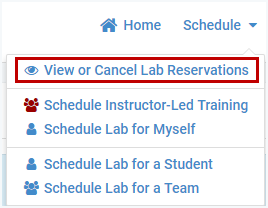
A list of the current reservations is displayed. The options to view or cancel a lab reservation are accessible by selecting the Action dropdown.
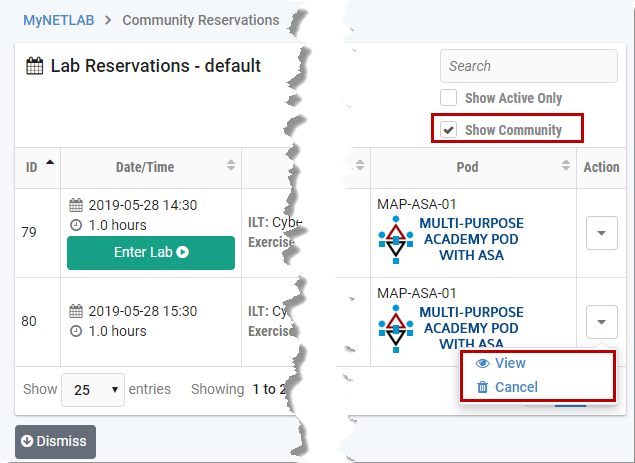
Select View to display the details of a lab reservation.
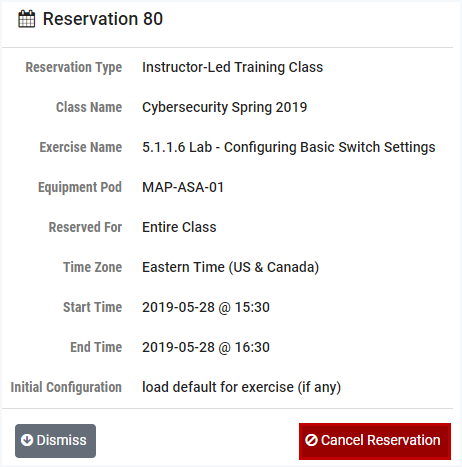
You may select Dismiss to return to the list of labs or select Cancel Reservation. You will be prompted to confirm the cancellation.
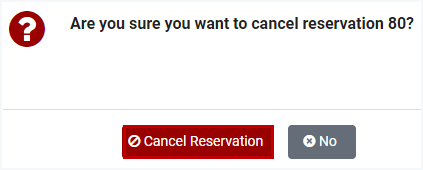
A message will display, confirming that the reservation has been cancelled. Select OK to return the MyNETLAB page.
[] Enter a Lab Session
At the scheduled time of a lab reservation, the Enter Lab button will display. Select the button to enter the lab and display the lab access interface.
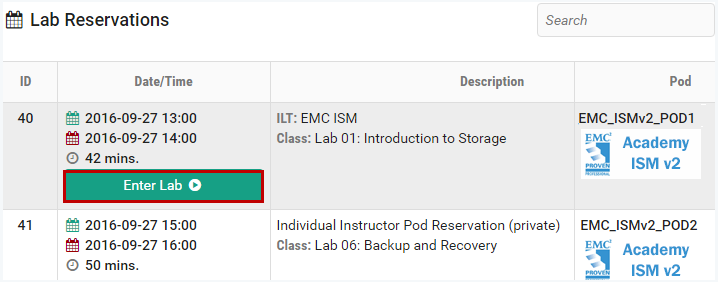
You may see the Initializing POD indicator displayed on the page at the beginning of your session. This indicates that NETLAB+ is in the process of initializing the lab devices in the pod to prepare them for use. Allow the initialization to proceed.
[]Explore the Tabbed Sections of the Lab Access Interface
The lab access interface is divided into several tabbed sections. The Topology, Content, and Status tabs provide access to NETLAB+’s functions. Additional tabs provide access to the devices in the pod (devices included in pods vary).
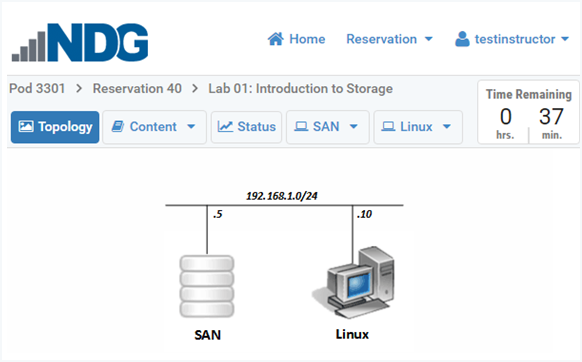
As you perform different actions throughout your lab session in any of the tabbed sections, you will see Lab Notifications displayed in the right corner, below the Time Remaining Indicator. Most messages are set to display only briefly.
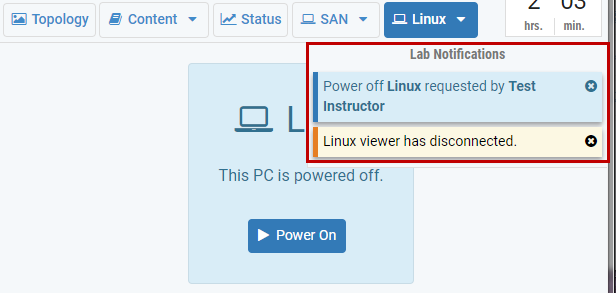
[]Topology Tab
The Topology tab displays the lab topology, including the IP addressing scheme and physical or logical connections.
In this example, the topology diagram shows two devices: a SAN and a Linux machine.
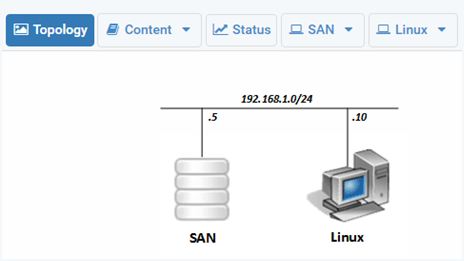
[]Content Tab
The Content tab displays the lab content, the instructional material associated with the lab.
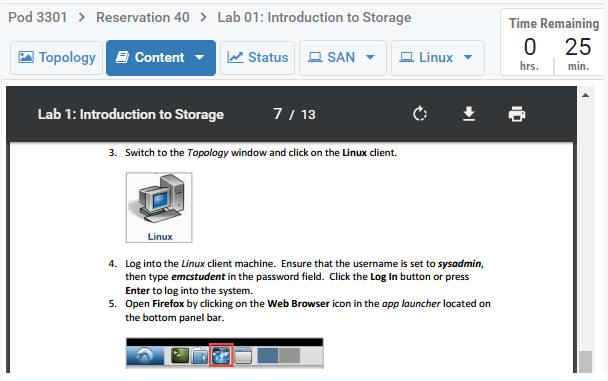
You may see options to rotate the display of the content, download, and print. The options available will vary depending on your choice of browser and your browser settings.

To adjust your view of the content, you may see buttons to toggle the content display between Fit to Width/Fit to Display and Zoom in/Zoom out. (These options will vary, depending on your browser selection and browser settings.)
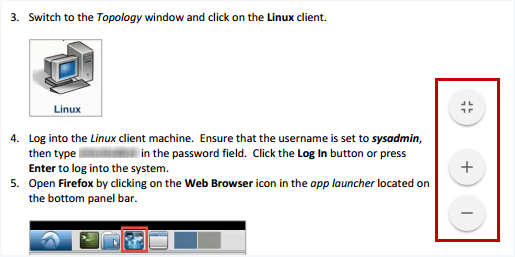
[]Configure the Browser to Display Content
If your browser is not configured to view PDF files inside the browser, the content will not be displayed. Instead, you will see a message similar to the screen shown below.
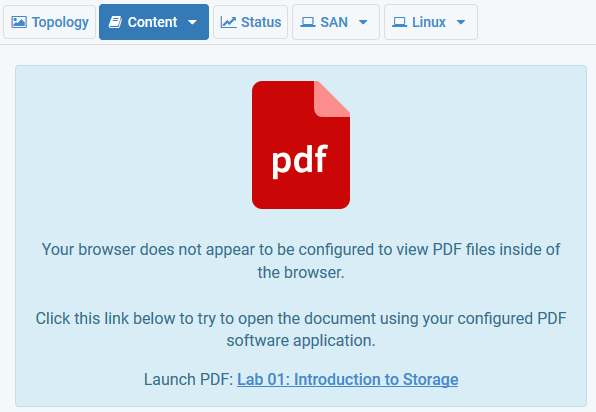
You may launch the PDF in a separate window by clicking the link. But, if you would like to configure your browser to display the PDF, you may do so by following the steps below. For this example, we will configure the Firefox browser. The steps required to configure your browser will vary, depending on your selection of browser and browser settings.
Open the Firefox menu and select Options, which will open in a new browser tab.
Scroll down the Options page and locate the Applications section. Select the Content Type of Portable Document Format (PDF) and set the Action to Preview in Firefox.
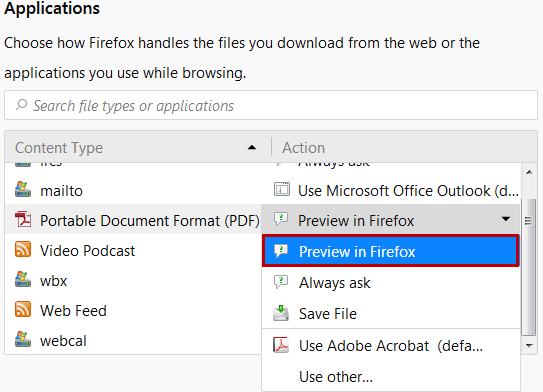
Select the browser tab to return to your NETLAB+ lab session. It may be necessary to reload the browser page and re-select the Content tab. The content should now be displayed.
[]Status Tab
The status of all devices in the pod is displayed on the Status tab.
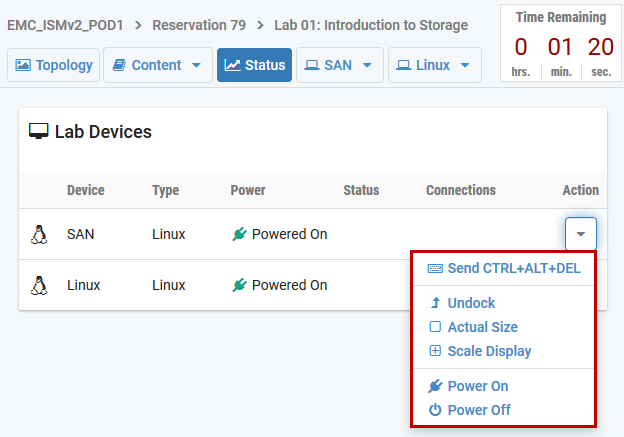
NETLAB+ provides several options for managing devices (options available vary by device), which may be accessed by clicking on the Action dropdown:
Send CTRL+ALT+DEL: Simulate the action of pressing CTRL+ALT+DEL on the device.
Undock: Access to the device is made available in a separate, floating window, allowing you to position and arrange windows to suit your needs. (for details, see the Undock and Dock Device Windows section.
Actual Size, Scale Display: Options to adjust the size of the output displayed in the window, relative to the size of the viewer window.
Power on, Power Off: Options to toggle the power of the device.
[]
Access a Device
In this section, we will illustrate the process of accessing one of the devices in the pod, starting from the Topology tab. For this example, we will use a Multi-purpose Academy Pod (MAP).
Access the R1 router by clicking the icon on the topology diagram or by clicking on the R1 device tab.
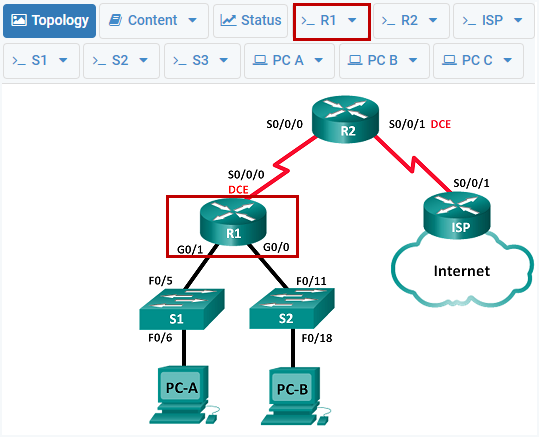
The active tab will change to the R1 tab, and the R1 router will be displayed in the viewer. You may interact with the device as if you were accessing it directly, including entering credentials (typically provided in content) and entering commands.
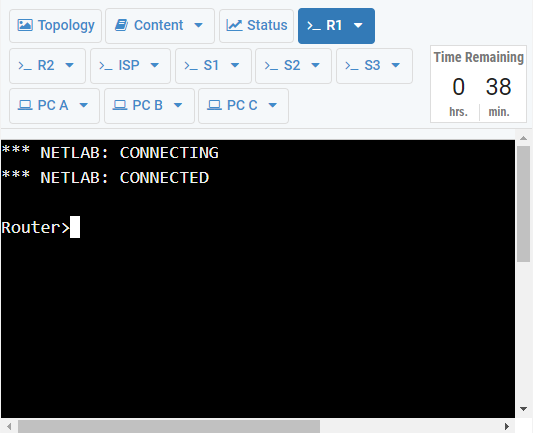
As we saw in the Status Tab, NETLAB+ provides several options for managing devices, which may also be accessed by clicking on the currently selected device name tab (R1, in this example).
Options available on specific devices may vary; typical choices for routers (as in this example) include:
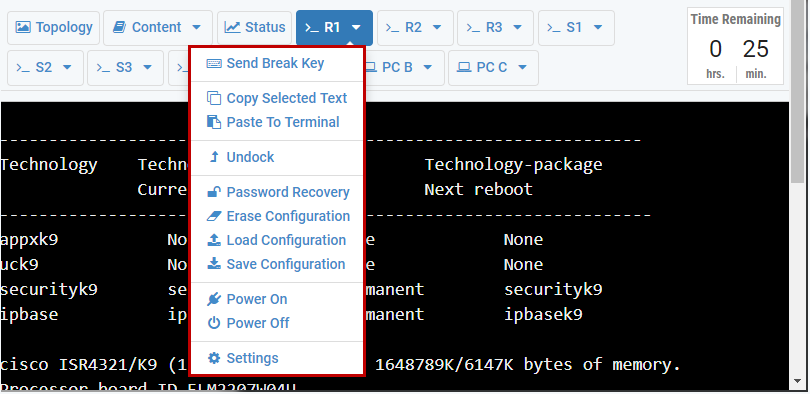
Send Break Key: Simulate the action of the Break Key sequence on the device.
Copy Selected Text: Copy selected text to the clipboard (see the Copy Selected Text subsection below).
Paste to Terminal: Paste configuration text to a device’s terminal (see Paste to Terminal).
Undock: Access to the device is made available in a separate, floating window, allowing you to position and arrange windows to suit your needs (see the Undock and Dock Device Windows subsection below).
Password Recovery: Unlock the console and enable passwords on a device. See the Password Recovery subsection below.
Erase, Load, and Save Configurations: If you are accessing console-based devices such as Cisco routers, switches, and firewalls, you will see additional options to erase, load, and save configurations. Please see the Manage Configuration Files section for details on using and managing configuration files.
Power on, Power Off: Options to toggle the power of the device.
Settings: Custom terminal styles allow you to select the background color, text color, and font size for your device. Styles are saved and used in all future labs using the same pod type. Please see the Terminal Settings section below for details.
[] Copy Selected Text
To copy text from the terminal to the clipboard, perform the following steps.
Select the text by holding down the left mouse button and dragging the mouse pointer to highlight the text.
Click the Copy Selected Text option on the device tab.
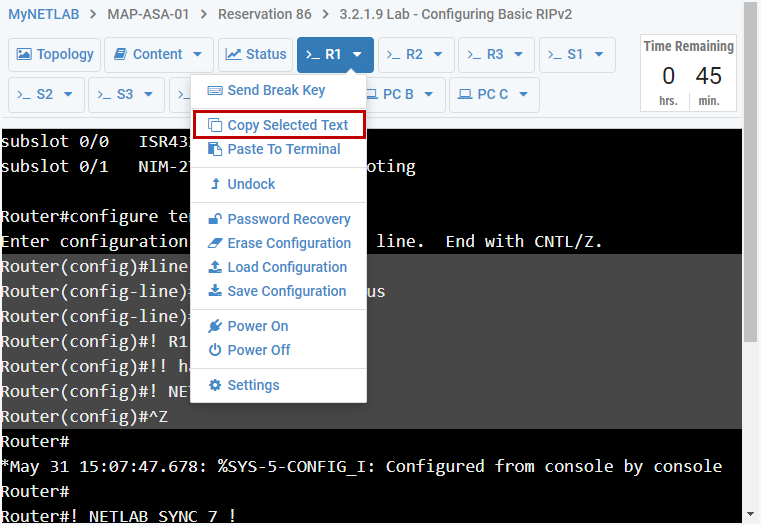
Notice a lab notification message will briefly display, confirming the selected text was copied to the clipboard. You may paste the text to the application of your choice. To paste into a typical Windows application, use CTRL+V or Right-click > Paste. Your options for pasting may vary, depending on your system selections and settings.
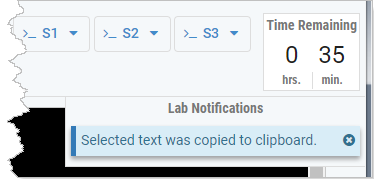
[] Paste to Terminal
The Paste to Terminal option is used in order to paste configuration text to a device’s terminal.
Click the Paste To Terminal option on the device tab.
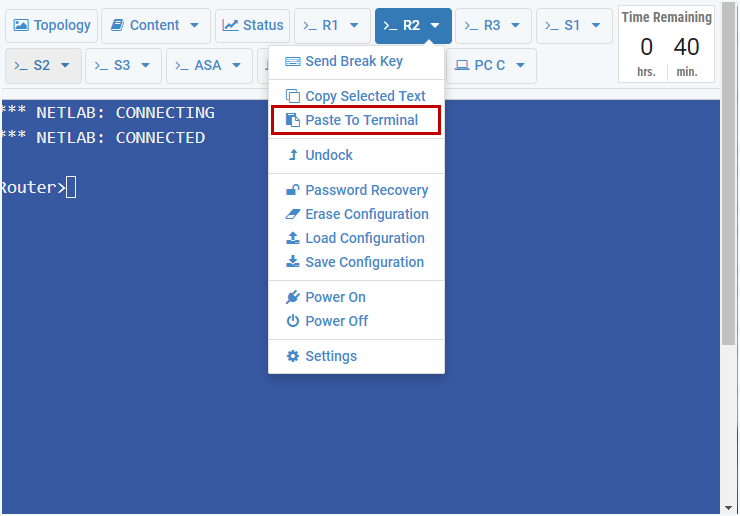
The Paste Configuration Text window will appear. You may paste configuration text copied from the application of your choice. To paste from the clipboard, Windows users can typically use CTRL+V or Right-click > Paste. Your options for pasting may vary, depending on your system selections and settings. While the text window is not designed to be a fully functioning text editor, the basic utility to type and edit configuration text in the window is provided.
Click Paste to paste the text you placed in the window to the device’s terminal.
Lab notifications will be displayed, indicating that the configuration text was pasted to the device by the user. The terminal will show the resulting output.
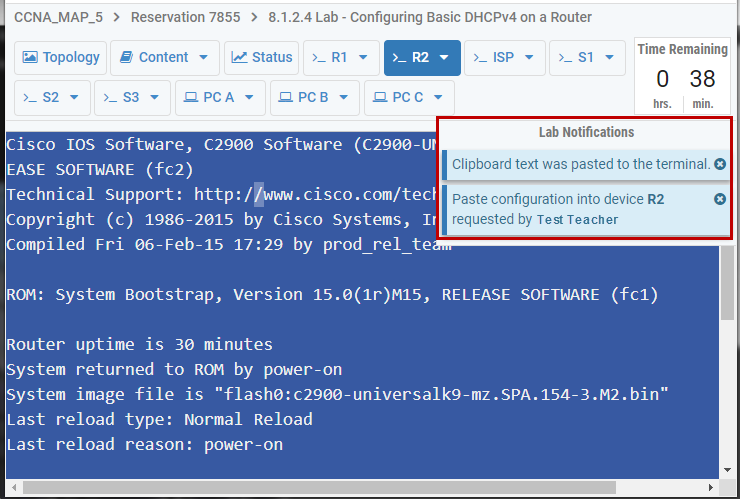
[] Undock and Dock Device Windows
You may find it helpful when organizing your workspace to have the terminal windows for several devices arranged so that you may conveniently view and easily access all of them. You may Undock any lab device to have the terminal displayed in its own window.
From the lab device tab (R1, in this example), select the option to Undock the device display.
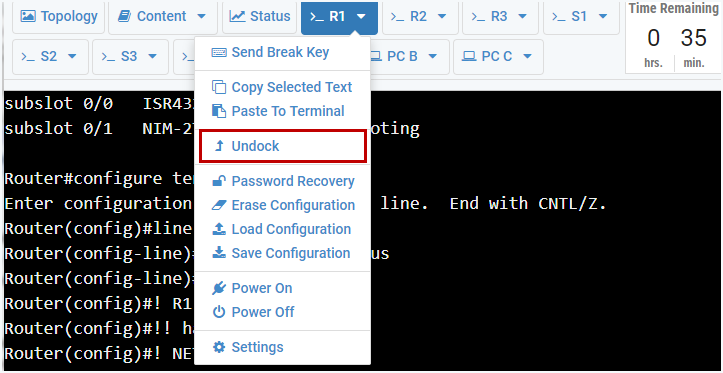
The R1 device tab indicates the device is currently undocked and displayed in its own window. You may move and resize the R1 window to suit your needs.
Select the option to undock the R2 device. Notice the background color of R2 is different from R1, allowing you to distinguish between the windows easily.
To dock the terminal display back to the device tab, select the Dock option on the device window.
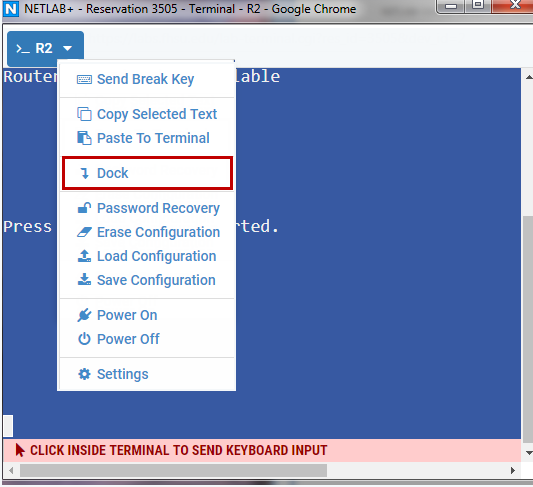
[] Password Recovery
The password recovery option will attempt to remove the console and enable passwords from the device.
Select the Password Recovery option on the device tab.
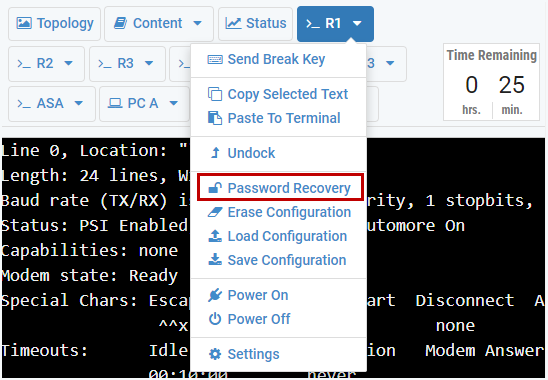
Select Yes to confirm that you want to unlock the passwords for the device.
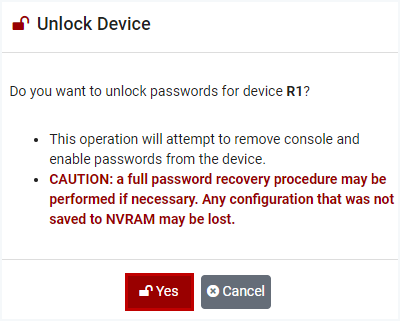
A lab notification message will be displayed, indicating that password recovery has been requested.
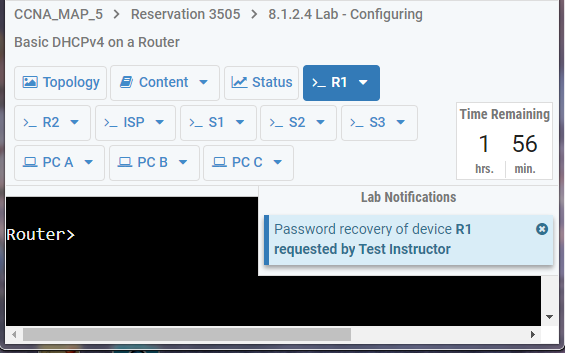
[]
Terminal Settings
Customize the appearance of your device’s terminal by selecting settings for background color, text color, and font size.
Select the Settings option on the device tab.
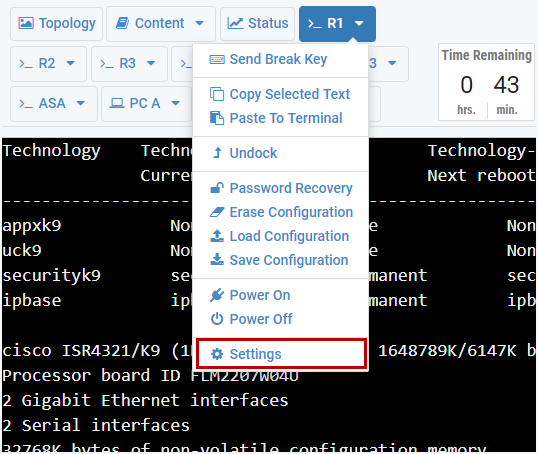
The Terminal Settings popup window will be displayed. To change the background color of the terminal, click the rectangle displaying the current background color.
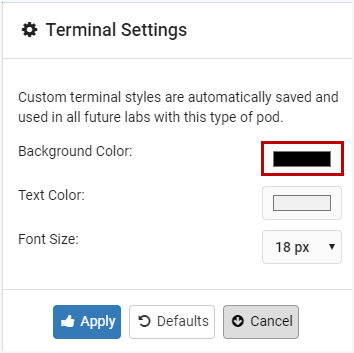
A color selection window will appear. You may select a basic or custom color for the background of your CLI viewer. In this example, we will select one of the basic colors. After selecting a color, click OK.
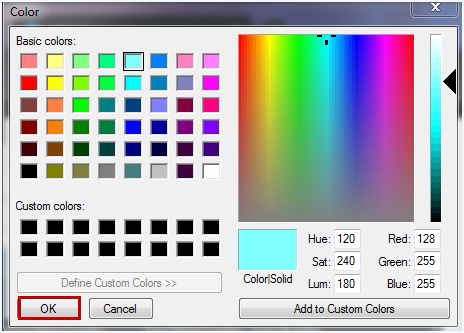
To change the text color, click the rectangle displaying the current text color.
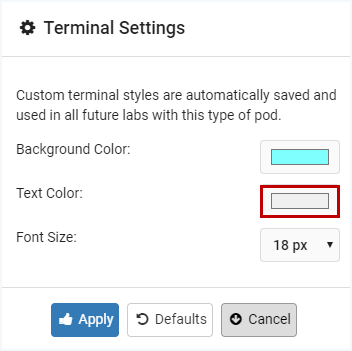
A color selection window will appear; you may select a basic or custom text color and then click OK.
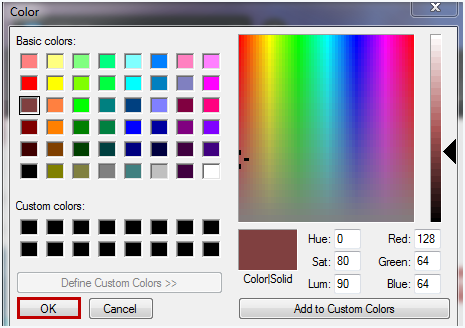
To change the font size, click the dropdown showing the current font size and select the font size of your choice.
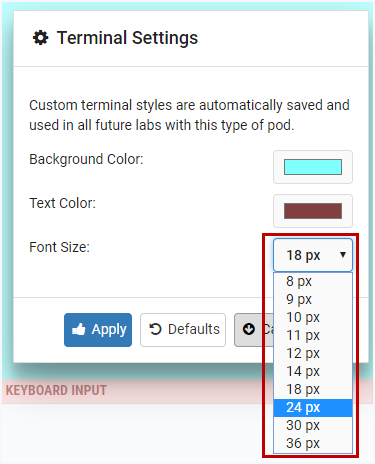
To apply your selections and exit the Terminals Settings window, click Apply.
Your settings will be saved and used for future reservations using the same type of pod. You may return to the default settings by selecting Defaults on the terminal settings window.
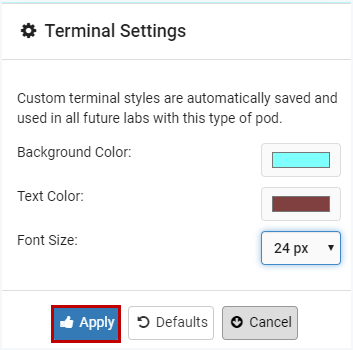
[] Pod-wide Device Automation
Lab reservations using pods with lab devices (console-based devices such as Cisco routers, switches, and firewall devices) include the Pod menu option on the lab interface. The pod options allow all the configurations of all lab devices in the pod to be erased, loaded, or saved at once.
Select the Pod menu option on the lab interface.
Select an option to either Erase, Load, or Save the configurations of all of the lab devices in the pod. Please see the Manage Configuration Files section for details on using and managing configuration files.
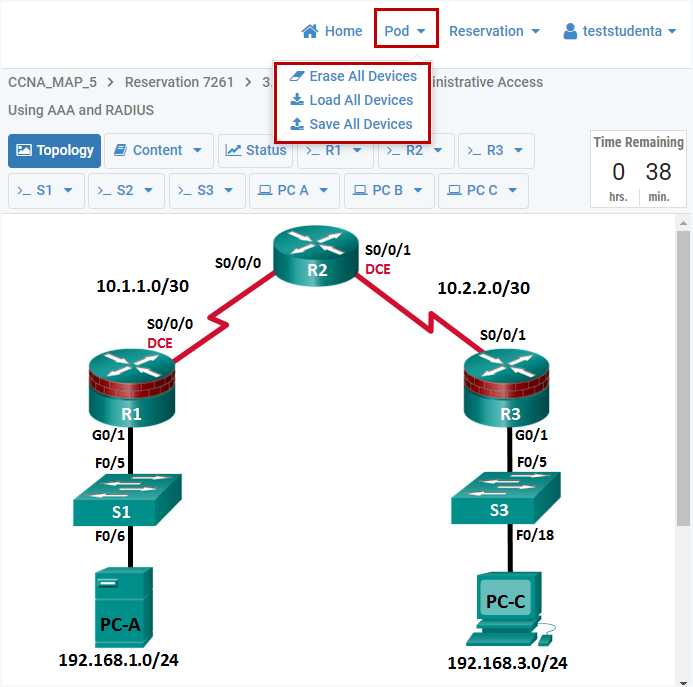
[]
Screenshots of Remote PCs
In this section, we will demonstrate the Screenshot feature, which allows users to take screenshots of remote PCs in the topology during a lab session. These screenshots are included in the lab history and may later be viewed in the Lab Usage interface by attendees and their instructors.
To take a screenshot, perform the following steps:
Click on the tab for the remote pc (PC A, in this example) and select the Take Screenshot option.
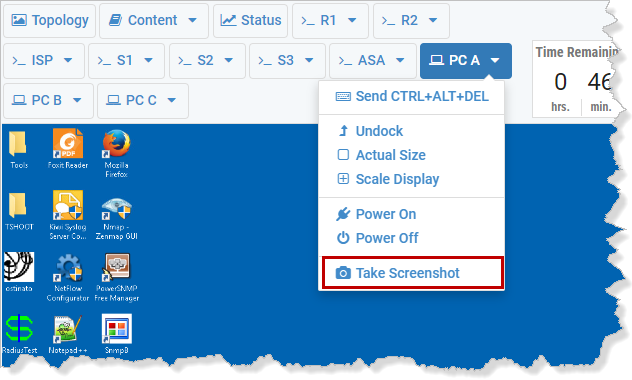
The screenshot pop-up page will appear, showing the screenshot that you have captured. Adding a brief description in the optional Notes field is recommended. Click Submit.
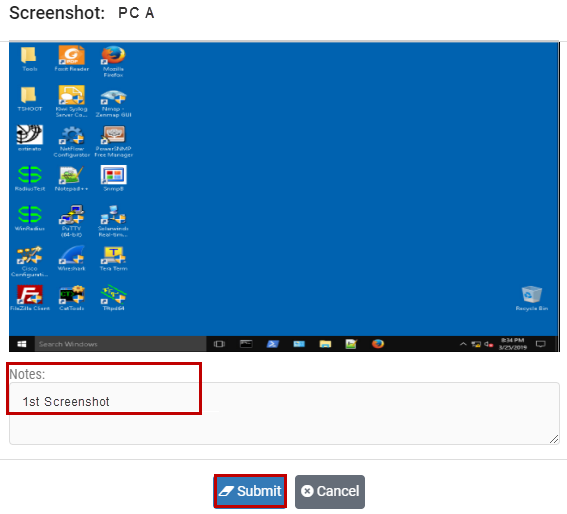
A lab notification will briefly appear, showing that the screenshot was completed successfully. You may continue to take screenshots of the remote PCs throughout your lab session. The screenshots will be included as part of the lab history, available to view through the Usage reporting from the Manage menu option. See the Lab Usage section for details.
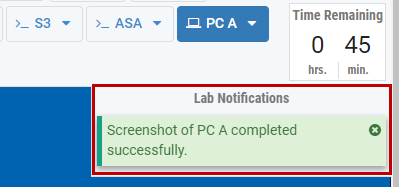
[]Display Sizing Options for Remote PCs
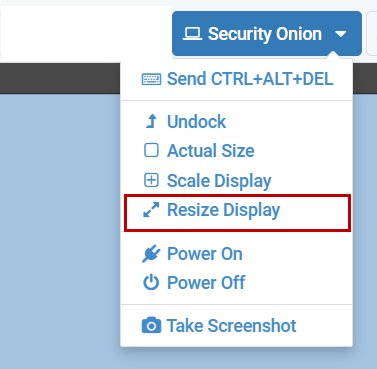
Resize Display is particularly helpful to use after entering full-screen mode (select F11 if using Windows) since it will enable you to make use of the entire screen’s “real estate” as the working area.
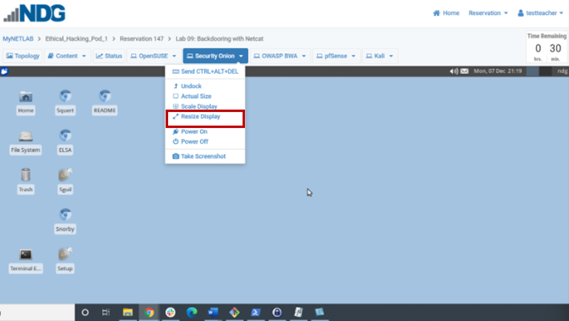
[] Extend a Reservation
The option to extend a reservation allows the user to request 30 additional minutes of lab time. The request to extend a reservation may be made by the user when the Time Remaining in the lab interface shows 15 minutes or less.
To request a reservation extension, perform the following steps:
If a reservation extension is available, the option to Request More Time will appear when the Time Remaining in the lab interface shows 15 minutes or less.
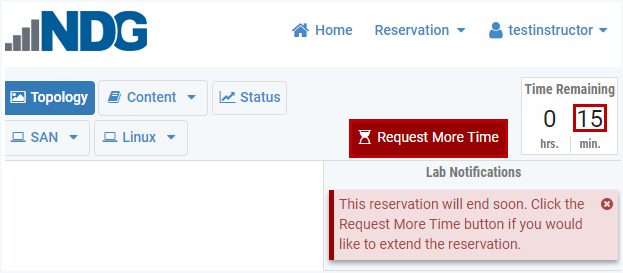
Alternatively, the option to request more time is available by selecting Reservation > Request More Time.
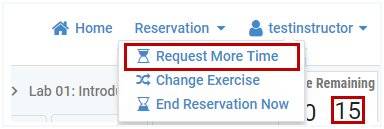
A confirmation message will indicate the lab reservation has been extended. Click Dismiss.
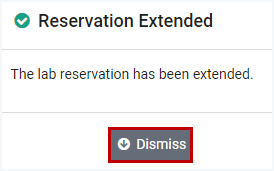
Restrictions for All Users
An extension cannot be made before T-00:15 on the displayed Time Remaining. This is about 26 minutes from the blocked end time and 16 minutes of the usable time remaining.
The next 30-minute time slot must not be already scheduled by another reservation.
The extension cannot exceed the maximum pods in use limit and/or proactive resource awareness settings that have been set by the NETLAB+ administrator.
Restrictions for Students and Teams
The number of extensions that a student or team can request is limited by community and class settings.
For backward setting compatibility, communities and classes do not allow extensions to be made by students or teams by default.
The administrator must specifically allow extensions for students and teams per community.
The instructor must specifically allow extensions for students and teams per class.
A learner may not extend an ILT reservation. Only a lead instructor can extend an ILT reservation.
[]Switch to a Different Lab Exercise
If you have completed all the activity associated with the current lab exercise, you may choose to continue your session using a different lab exercise.
Click Reservation on the top menu bar and select the option to Change Exercise.
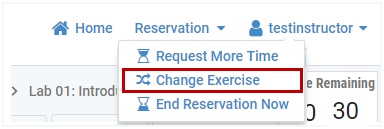
A list of lab exercises associated with the class will be displayed. Select a lab exercise by clicking the lab name.
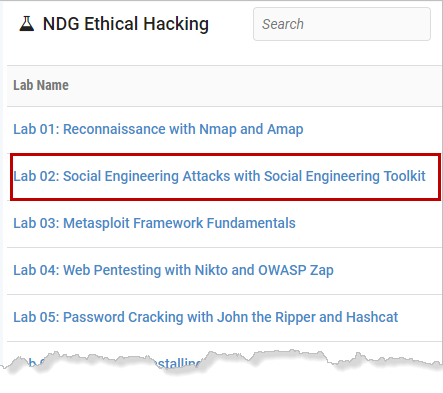
A message will confirm that the lab exercise has been switched. Click OK.
[]End a Reservation
When a lab reservation time expires, all connections will be dropped. A reservation may also be ended prior to the scheduled time.
Select Reservation at the top of the page and click End Reservation Now.
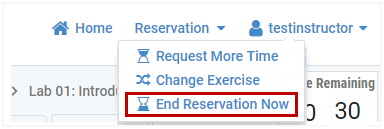
Respond Yes to the prompt if you are finished with the pod. (Or, select No to return to the pod.)
A message will display, indicating the reservation has ended. A similar message is displayed if the reservation ends at the scheduled end time. Notice the lab notification messages in the background, indicating device configurations are being saved. The lab session will end immediately. Select OK, and your display will return to the MyNETLAB page.
The scheduler will be updated to include any unused time increments of thirty minutes or more to be available for reservation.
`